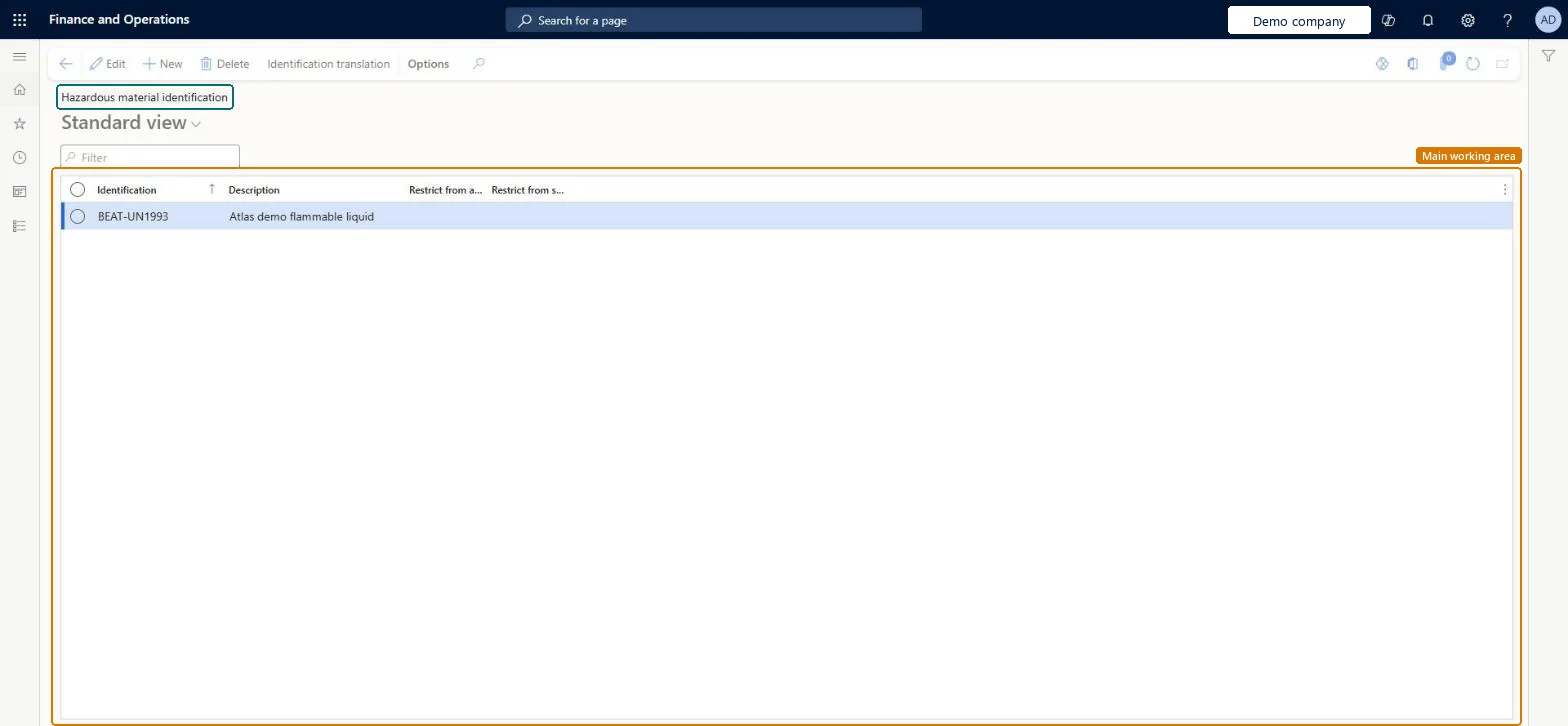
A setup page where you define hazardous material identification values, which identify the class or nature of a hazardous material and can restrict transport methods.
PAGE GUIDEWhat the page does and how to use it8 sections. Choose a role to highlight what matters to you.
Everyone
1What it is and why
What it is
A setup page where you define hazardous material identification values, which identify the class or nature of a hazardous material and can restrict transport methods.
What you do here
Use this page to set up identification codes, typically based on a United Nations standard, and to indicate whether each one must not be transported by air or by sea.
Example
For example, to identify a flammable material you create the code FL with the description Flammable and specify that it must not be transported by air.
The page in Dynamics 365. page title tab to open what to set or check
Product information management › Setup › Hazardous material shipping documentation › Hazardous material identification
End user · Functional consultant
3How to do it
About the examples: Examples and screenshots in this guide use BEAT, a demo company in a Dynamics 365 test environment. Use your own company's codes and values instead of copying them.
Setup steps on this page
Set up Hazardous material identification
Use this page to set up identification codes, typically based on a United Nations standard, and to indicate whether each one must not be transported by air or by sea.
How to use it
Go to Product information management > Setup > Hazardous material shipping documentation > Hazardous material identification.
On the Action Pane, select New.
Enter an Identification code and a Description.
Select the Restrict from air transport or Restrict from sea transport check box as required.
Source: Checked in Dynamics 365
Fields on the page
Field
What it means
Table column
Identification
The reference code that identifies this class of hazardous material.Microsoft Learn
Identification codes based on the United Nations standard, with Restrict from air transport and Restrict from sea transport set as the regulation requiresMicrosoft describes the identification as typically a UN-based code that can also set limits on transport methods.
Treating the restriction flags as compliance. Microsoft states that setting up these codes doesn't make the company compliant; it is a tool to build your own shipping process around.
PrivilegesHazardous material identification maintain HMIMIdentificationListDisplayMaintainHazardous material identification view HMIMIdentificationListDisplayViewDutiesMaintain Hazardous materials HMIMHazardousMaterialsMaintainView Hazardous materials HMIMHazardousMaterialsView2 security rolesHazardous materials manager HMIMHazardousMaterialsManagerHazardous materials viewer HMIMHazardousMaterialsViewerChecked in Dynamics 365
Roles to set it up and use it
To set it up or change itHazardous materials manager HMIMHazardousMaterialsManagerTo use itHazardous materials viewer HMIMHazardousMaterialsViewerGive people one of these roles. On this system, 2 roles can open this page.Checked in Dynamics 365
Actions on the page
(Action Pane without tabs): Identification translationChecked in Dynamics 365