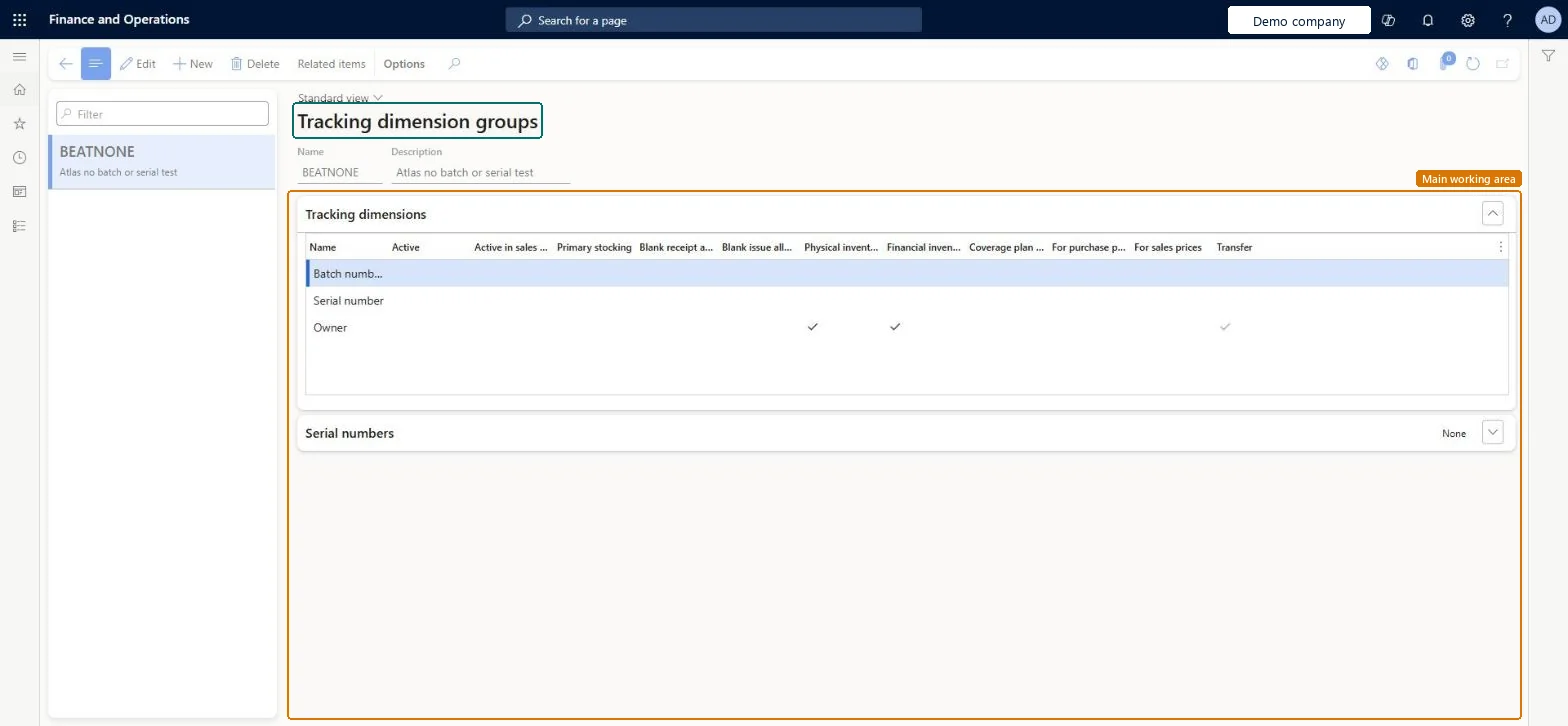
A setup page where you define tracking dimension groups, which determine the tracking dimensions, such as batch number and serial number, that can be used for a product.
Product information managementSetupDimension and variant groups
EcoResTrackingDimensionGroup
Used by
Product designer, Product design manager, Inventory accountant and 5 more roles
Business process
Develop product strategy
Menu item
EcoResTrackingDimensionGroup
Main table
EcoResTrackingDimensionG
Data entity
EcoResTrackingDimensionGroupEntity
Setup steps
1 on this page
Show what matters for
PAGE GUIDEWhat the page does and how to use it8 sections. Choose a role to highlight what matters to you.
Everyone
1What it is and why
What it is
A setup page where you define tracking dimension groups, which determine the tracking dimensions, such as batch number and serial number, that can be used for a product.
What you do here
Use this page to create tracking dimension groups and set which tracking dimensions are active for the items that use each group.
Example
For example, you can activate the Owner dimension on a tracking dimension group so that inventory ownership is tracked for the items that use the group.
The page in Dynamics 365. page title tab to open what to set or check
About the examples: Examples and screenshots in this guide use BEAT, a demo company in a Dynamics 365 test environment. Use your own company's codes and values instead of copying them.
Setup steps on this page
Set up Tracking dimension groups
Use this page to create tracking dimension groups and set which tracking dimensions are active for the items that use each group.
Steps from Microsoft
Go to Product information management > Setup > Dimension and variant groups > Tracking dimension groups.
On the Action Pane, select New to create a tracking dimension group, or select an existing group in the list pane.
For a new group, enter a name and description, and then select Save.
On the Tracking dimensions FastTab, select the checkboxes for the dimension you need, for example Active and Physical inventory in the Owner row.
Select Save.
Assign the tracking dimension group to each released product that should use it.
The tracking dimension that records which legal entity or external party owns the inventory. If it isn't active, the Owner field stays blank on inventory transactions.Microsoft Learn
Test checklist
Create a tracking dimension group with Batch number active
Assign it to a new released product and post a purchase receipt
Check the system requires a batch number on receipt
Check the on-hand list shows the quantity by batch
Separate groups for none, batch and serial tracking; Owner active only for consignment items; Capture serial number left at None unless serials are captured at picking or packingLearn requires the Owner dimension to be active for consignment items, and describes Capture serial number = Picking or Packing for postponing serial capture; None means the serial is captured at registration.
Do we cost batch or serial numbered items at batch or serial level?Using Blank receipt allowed and Blank issue allowed to postpone serial numbers for WMS items when Capture serial number is None. Learn doesn't recommend it, because mobile flows such as cycle counting then ask for serial numbers.
Solution architect
5Design impact
Can it be undone
One-way: Warning: after transactions exist you can't change Active, Blank issue allowed, Blank receipt allowed, Physical inventory or Financial inventory. Changing an item's tracking dimension group needs zero on-hand and Value open = No on all its transactions. Microsoft Learn
If you change it later
Activating the Owner dimension changes the inventory tracking model for every item that uses the group, so the change needs careful planning for items that already have on-hand inventory or open transactions. Microsoft Learn
Technical architect
6Technical
Menu item
EcoResTrackingDimensionGroupChecked in Dynamics 365
Form
EcoResTrackingDimensionGroupChecked in Dynamics 365
Table
EcoResTrackingDimensionGShown as “TRACKING DIMENSION GROUPS” in Record infoKey field: NameChecked in Dynamics 365
PrivilegesMaintain tracking dimension groups EcoResTrackingDimensionGroupMaintainView tracking dimension groups EcoResTrackingDimensionGroupViewDutiesMaintain cost object definitions CostObjectDefinitionMaintainInquire into product management policies EcoResProductManagementPoliciesInquireEnable the product management process EcoResProductManagementProcessEnableInquire into logistic policies InventLogisticPoliciesInquire8 security rolesProduct designer BOMProductDesignerProduct design manager BOMProductDesignManagerInventory accountant InventCostAccountantInventory accountant clerk InventCostCostClerkAccounting manager LedgerAccountingManagerProduction supervisor ProdProductionSupervisorProcess engineer RouteProcessEngineerProcess engineering manager RouteProcessEngineeringManagerChecked in Dynamics 365
Roles to set it up and use it
To set it up or change itAccounting manager LedgerAccountingManagerProduct design manager BOMProductDesignManagerTo use itProduct designer BOMProductDesignerProcess engineer RouteProcessEngineerProcess engineering manager RouteProcessEngineeringManagerProduction supervisor ProdProductionSupervisorInventory accountant InventCostAccountantGive people one of these roles. On this system, 8 roles can open this page.Checked in Dynamics 365
Actions on the page
(Action Pane without tabs): Related itemsChecked in Dynamics 365
EcoResTrackingDimensionGroupEntity (Tracking dimension groups): shared by all companies, in Microsoft's default template 310 - Product information management.Load order: Microsoft's default template 310 - Product information management loads Tracking dimension groups at execution unit 1, level 30, sequence 10. Lower levels load first, and entities at the same level load in sequence order.Load first: the default templates at lower levels (System setup to General ledger)Microsoft Learn