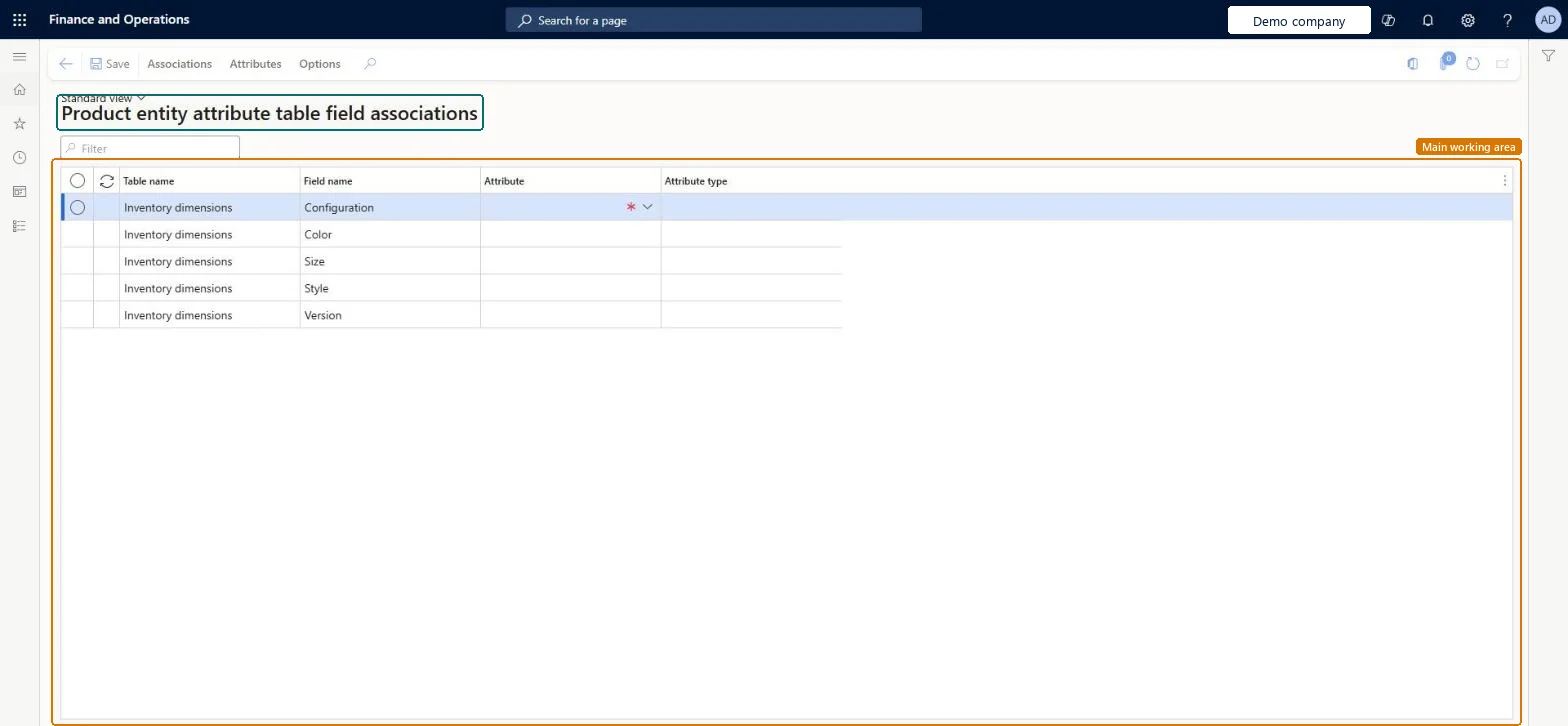
A setup page that lists product table fields, such as the Configuration, Color, Size, Style and Version fields of Inventory dimensions, and lets you associate an attribute with each field.
Product information managementSetupCategories and attributes
EcoResProductEntityAttributeTableFieldAssociation
Used by
Purchasing agent, Purchasing Agent - Public Sector, Product designer and 8 more roles
Business process
Develop product strategy
Menu item
EcoResProductEntityAttributeTableFieldAssociation
Main table
EcoResProductEntityAttri
Data entity
EcoResProductEntityAttributeValueEntity
Setup steps
1 on this page
Show what matters for
PAGE GUIDEWhat the page does and how to use it6 sections. Choose a role to highlight what matters to you.
Everyone
1What it is and why
What it is
A setup page that lists product table fields, such as the Configuration, Color, Size, Style and Version fields of Inventory dimensions, and lets you associate an attribute with each field.
What you do here
Use this page to choose which attribute is associated with each listed table field and to review the attribute type of that attribute.
The page in Dynamics 365. page title tab to open what to set or check
Product information management › Setup › Categories and attributes › Product entity attribute table field associations
End user · Functional consultant
3How to do it
About the examples: Examples and screenshots in this guide use BEAT, a demo company in a Dynamics 365 test environment. Use your own company's codes and values instead of copying them.
Setup steps on this page
Set up Product entity attribute table field associations
Use this page to choose which attribute is associated with each listed table field and to review the attribute type of that attribute.
How to use it
Go to Product information management > Setup > Categories and attributes > Product entity attribute table field associations.
Review the Table name and Field name columns to find the field that you want to associate.
In the Attribute column, select the attribute to associate with the field.
Review the Attribute type column for the selected attribute.
On the Action Pane, select Save.
Source: Checked in Dynamics 365
Technical architect
4Technical
Menu item
EcoResProductEntityAttributeTableFieldAssociationChecked in Dynamics 365
Form
EcoResProductEntityAttributeTableFieldAssociationChecked in Dynamics 365
Table
EcoResProductEntityAttriShown as “PRODUCT ENTITY ATTRIBUTE TABLE FIELD” in Record infoChecked in Dynamics 365
Data entities
EcoResProductEntityAttributeValueEntityProduct entity attribute value entity Microsoft data model
To set it up or change itProduct designer BOMProductDesignerProcess engineer RouteProcessEngineerRetail service RetailServiceRetail merchandising manager RetailMerchandisingManagerRetail catalog manager RetailCatalogManagerTo use itProduct design manager BOMProductDesignManagerProcess engineering manager RouteProcessEngineeringManagerMaterials manager InventMaterialsManagerGive people one of these roles. On this system, 11 roles can open this page.Checked in Dynamics 365