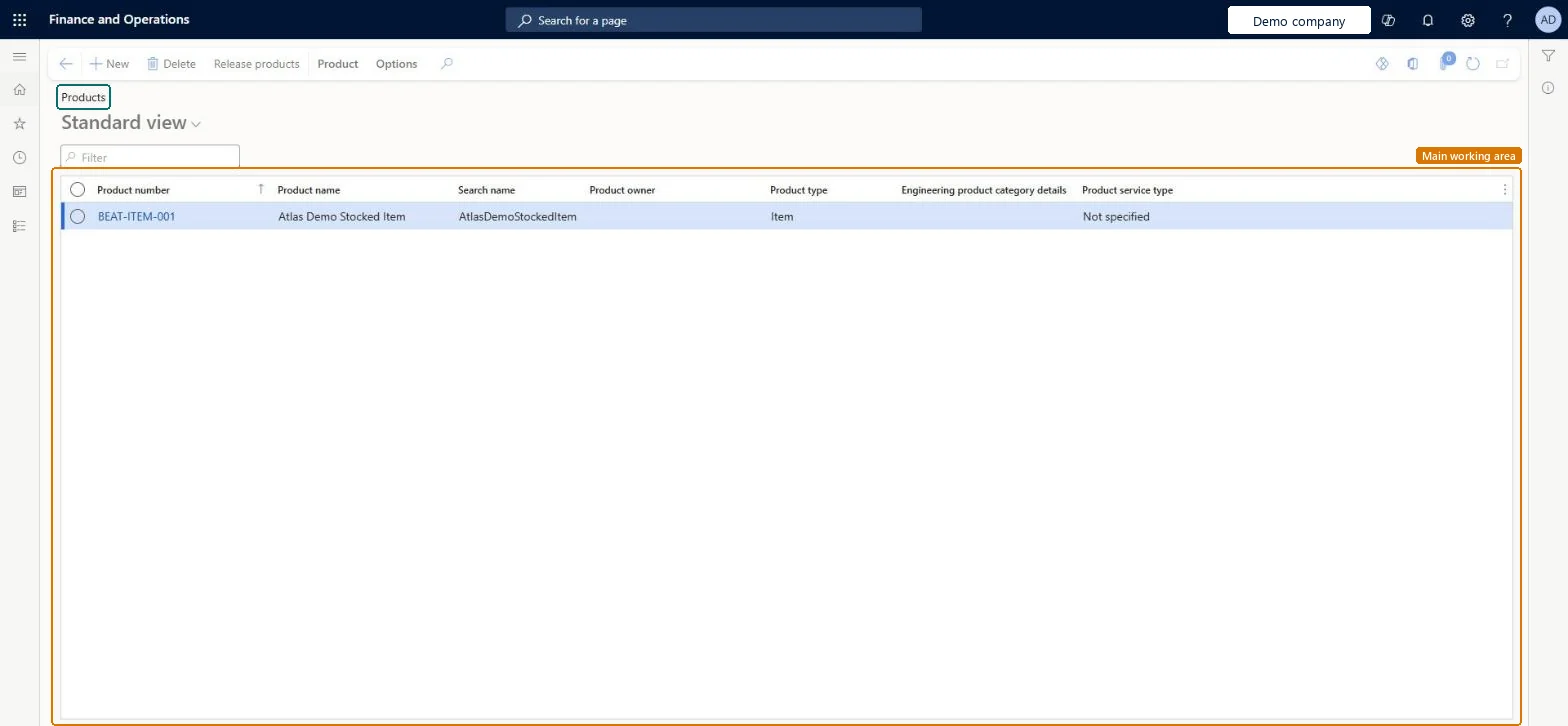
About the examples: Examples and screenshots in this guide use BEAT, a demo company in a Dynamics 365 test environment. Use your own company's codes and values instead of copying them.
Steps from Microsoft
Go to Product information management > Products > Products.
Open or create the product that you want to assign a readiness policy to.
On the General FastTab, set the Product readiness policy field to the name of the policy that should apply to the product.
Reversible: You can change the Product readiness policy on the shared product at any time. With Product readiness checks on, the released product shows the policy read-only and takes it from the shared product, so change it here, not on the released product. Readiness checks don't block standard products from transactions; use a lifecycle state if you need to block them. Microsoft Learn
Technical architect
6Technical
Menu item
EcoResDistinctProductListPageChecked in Dynamics 365
Form
EcoResProductListPageChecked in Dynamics 365
Table
EcoResProductShown as “PRODUCTS” in Record infoKey field: DisplayProductNumberChecked in Dynamics 365
PrivilegesView products EcoResProductListPageViewDutiesInquire into products definition master EcoResProductDefinitionMasterInquireMaintain products definition master EcoResProductDefinitionMasterMaintainMaintain release of products EcoResProductReleaseReview release of products process performance EcoResProductReleaseProcessPerformRevie9 security rolesProduct designer BOMProductDesignerProduct design manager BOMProductDesignManagerMaterials manager InventMaterialsManagerQuality control manager InventQualityControlManagerBuying agent TradeBuyingAgentPurchasing manager TradePurchasingManagerPurchasing agent VendPurchasingAgentPurchasing Agent - Public Sector VendPurchasingAgent_PSNWarehouse manager WMSWarehouseManagerChecked in Dynamics 365
Roles to set it up and use it
To use itProduct designer BOMProductDesignerProduct design manager BOMProductDesignManagerMaterials manager InventMaterialsManagerWarehouse manager WMSWarehouseManagerPurchasing manager TradePurchasingManagerGive people one of these roles. On this system, 9 roles can open this page.Checked in Dynamics 365
Actions on the page
Product: Languages, Set up, Engineering change management, Product kit, Product change(Action Pane without tabs): Release productsChecked in Dynamics 365
EcoResProductV2Entity (Products V2): shared by all companies, in Microsoft's default template 310 - Product information management.EcoResEveryProductEntity (All products): shared by all companies.EcoResProductAttributeValueEntity (Product attribute values): shared by all companies.Load order: Microsoft's default template 310 - Product information management loads Products V2 at execution unit 1, level 310, sequence 50. Lower levels load first, and entities at the same level load in sequence order.Load first: Product color groups, Product dimension groups, Product harmonized tariff codes, Product size groups, Product style groups, the default templates at lower levels (System setup to Inventory management)Microsoft Learn