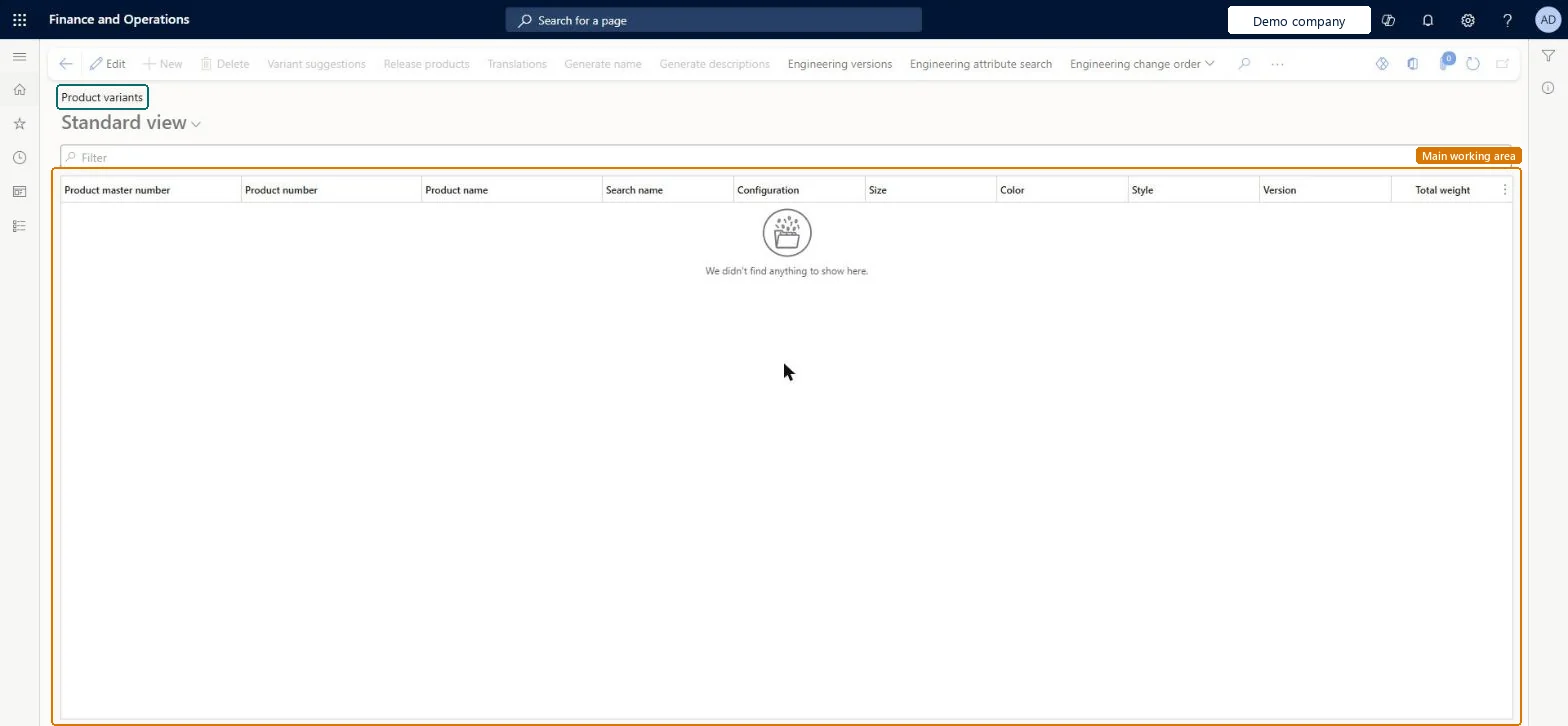
A list page that shows the product variants, the distinct products generated from product masters, with their product master number and product dimension values.
Create and release products with variants in Dynamics 365 Supply Chain Management
Menu item
EcoResProductVariantsAction
Show what matters for
PAGE GUIDEWhat the page does and how to use it7 sections. Choose a role to highlight what matters to you.
Everyone
1What it is and why
What it is
A list page that shows the product variants, the distinct products generated from product masters, with their product master number and product dimension values.
What you do here
Use this page to review product variants with their configuration, size, color, style and version values and to open related engineering versions and engineering change orders.
The page in Dynamics 365. page title tab to open what to set or check
About the examples: Examples and screenshots in this guide use BEAT, a demo company in a Dynamics 365 test environment. Use your own company's codes and values instead of copying them.
How to use it
Go to Product information management > Products > Product variants.
Use the Filter field to find a variant by product master number, product number or name.
Review the Configuration, Size, Color, Style and Version columns of each variant.
Select a variant and use Engineering versions, Engineering attribute search or Engineering change order on the Action Pane.
Source: Checked in Dynamics 365
Fields on the page
Field
What it means
Table column
Configuration
A product dimension that identifies the configuration of the variant.Microsoft Learn
Configuration
Size
A product dimension that identifies the size of the variant.Microsoft Learn
Size
Color
A product dimension that identifies the color of the variant.Microsoft Learn
Color
Style
A product dimension that identifies the style of the variant.Microsoft Learn
Style
Test checklist
Open a product master, select Product variants, then Variant suggestions.
Select some sizes and colours, select Suggest, and create only the valid combinations.
Check each new variant appears on Product variants with its product master number and dimension values.
Release one variant and create a sales order line for it by selecting the item and its product dimensions.
Hard to reverse: A variant is defined by its product dimension values, and the product dimension group behind it can't be changed after the master is created. Learn describes retiring old variants by moving them to an obsolete lifecycle state that turns off planning, rather than reworking them. Microsoft Learn
Technical architect
5Technical
Menu item
EcoResProductVariantsActionChecked in Dynamics 365
Form
EcoResProductVariantsChecked in Dynamics 365
Roles to set it up and use it
To set it up or change itProduct designer BOMProductDesignerTo use itProcess engineer RouteProcessEngineerProduct design manager BOMProductDesignManagerProcess engineering manager RouteProcessEngineeringManagerMaterials manager InventMaterialsManagerProduction supervisor ProdProductionSupervisorGive people one of these roles. On this system, 16 roles can open this page.Checked in Dynamics 365