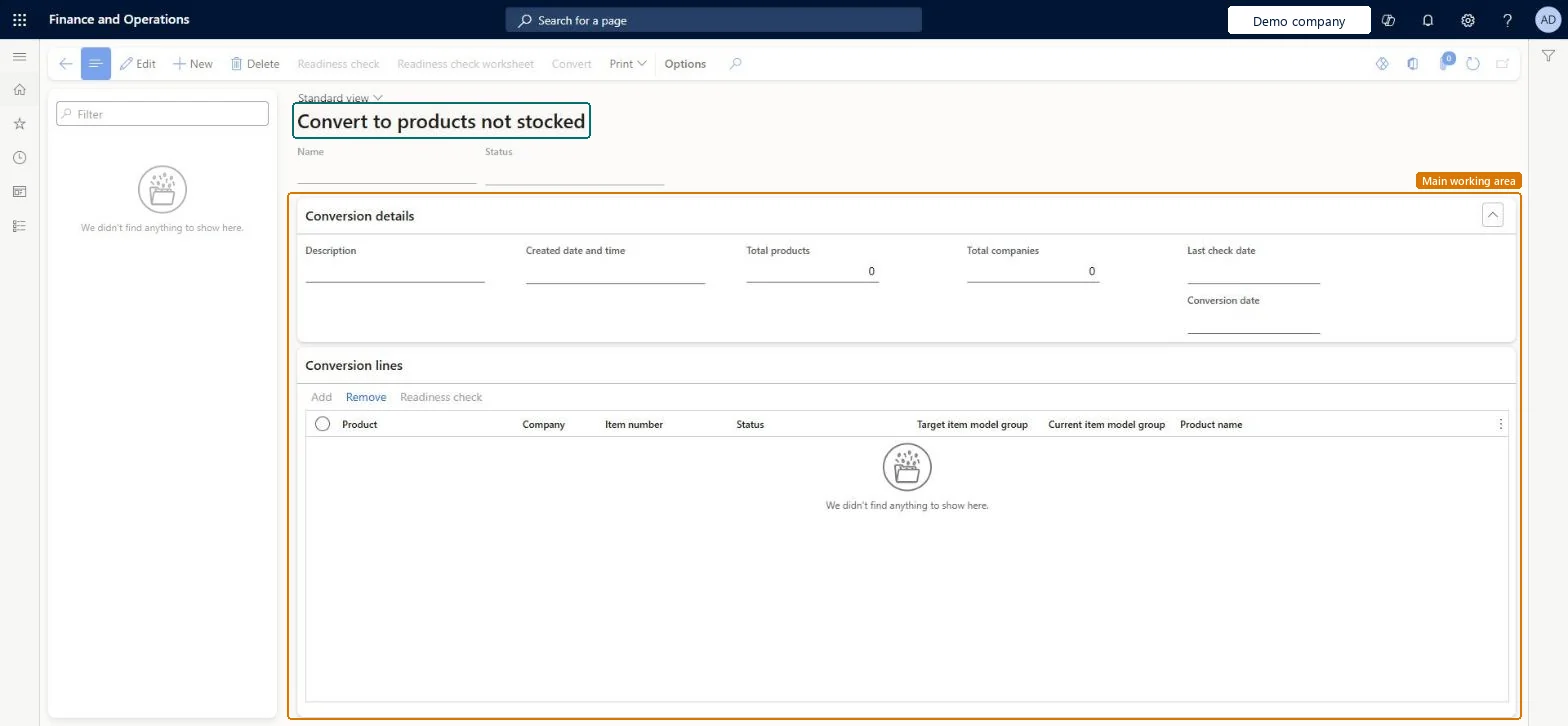
A worksheet page where you create conversions that move products from their current item model group to a target item model group for products not stocked, with readiness checks before you convert them.
Product information managementPeriodic tasksProduct conversions
TradeNonStockedConversion
Used by
Information technology manager
Business process
Create and release non-stocked items in Dynamics 365 Supply Chain Management
Menu item
TradeNonStockedConversion
Main table
TradeNonStockedConversio
Show what matters for
PAGE GUIDEWhat the page does and how to use it7 sections. Choose a role to highlight what matters to you.
Everyone
1What it is and why
What it is
A worksheet page where you create conversions that move products from their current item model group to a target item model group for products not stocked, with readiness checks before you convert them.
What you do here
Use this page to collect the products and companies to convert to products not stocked, check that they are ready, and run the conversion.
The page in Dynamics 365. page title tab to open what to set or check
Product information management › Periodic tasks › Product conversions › Convert to products not stocked
End user · Functional consultant
3How to do it
About the examples: Examples and screenshots in this guide use BEAT, a demo company in a Dynamics 365 test environment. Use your own company's codes and values instead of copying them.
When to run it
When to run it
When products that were set up as stocked items are really services or consumables that you buy or sell repeatedly but don't keep in inventory.
How often
On demand, once per group of products to convert.
What the output shows
Converted products move to the target item model group for products not stocked. Not-stocked items no longer appear on picking lists and can't be processed in the Warehouse Management mobile app. A product that stays on its current group failed the readiness check.
Go to Product information management > Periodic tasks > Product conversions > Convert to products not stocked.
Select New and enter a Name and Description for the conversion.
On the Conversion lines FastTab, select Add to add the products, and check the Company, Item number, Target item model group and Current item model group of each line.
Select Readiness check and review the results with Readiness check worksheet; fix every product that isn't ready.
Select Convert to run the conversion, then use Print for the conversion documents and check the item model group on a converted released product.
No: There is no reverse conversion on the worksheet. Run the readiness check first and convert only products that should never be stocked again. Microsoft Learn
If you change it later
Changes the item model group of the converted products, so they are no longer tracked in inventory in the companies on the conversion lines. Microsoft Learn
Technical architect
5Technical
Menu item
TradeNonStockedConversionChecked in Dynamics 365
Form
TradeNonStockedConversionChecked in Dynamics 365
Table
TradeNonStockedConversioShown as “NOT STOCKED PRODUCT CONVERSION” in Record infoKey field: NameChecked in Dynamics 365
Who can open it
PrivilegesMaintain conversion to not stocked products TradeNonStockedConversionMaintainDutiesMaintain system settings SysServerSettingsMaintain1 security roleInformation technology manager SysServerITManagerChecked in Dynamics 365
Roles to set it up and use it
To set it up or change itInformation technology manager SysServerITManagerGive people one of these roles. On this system, 1 role can open this page.Checked in Dynamics 365
Actions on the page
(Action Pane without tabs): Readiness check, Readiness check worksheet, Convert, PrintChecked in Dynamics 365