Product information management › Periodic tasks › Bills of materials and formulas › Change BOM item
End user · Functional consultant
3How to do it
About the examples: Examples and screenshots in this guide use BEAT, a demo company in a Dynamics 365 test environment. Use your own company's codes and values instead of copying them.
When to run it
When to run it
When a component is replaced across many BOMs, for example when a vendor discontinues a part and a successor takes over from a given date.
How often
On demand, for each component change.
What the output shows
BOM lines in the selected BOMs where the old item is replaced, or where the new item is added with validity dates. BOMs that were not changed were probably removed in Edit BOM line or don't contain the from item.
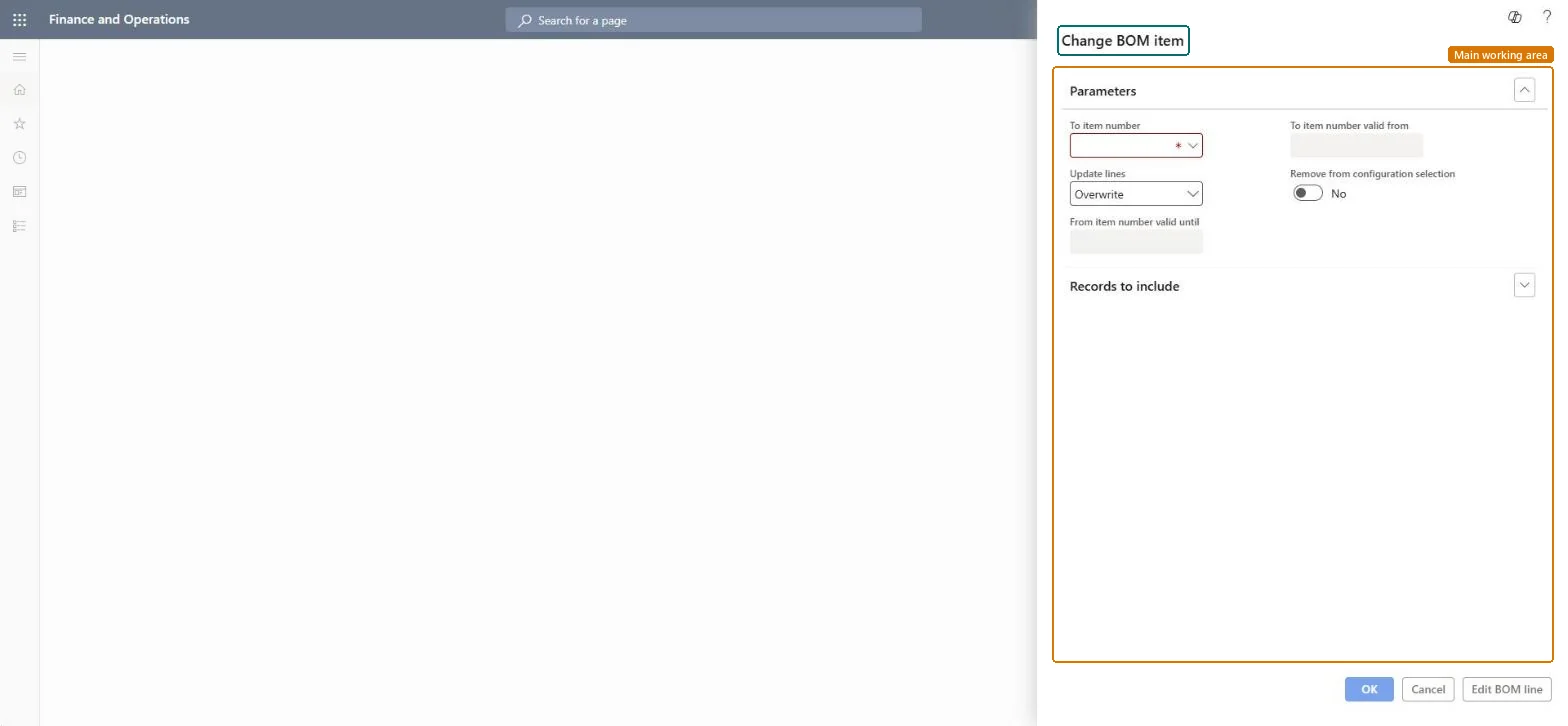
Go to Product information management > Periodic tasks > Bills of materials and formulas > Change BOM item.
In To item number, select the new component.
In Update lines, choose Overwrite to replace the selected item on the BOM lines, or Append to add the new item next to the existing one.
With Append, set From item number valid until and To item number valid from, so the old component expires the day before the new one becomes valid.
Select Edit BOM line to see which BOMs will change, remove the BOMs that shouldn't change, then run it and open one changed BOM to check the lines and dates.
No: There is no automatic undo. Run Change BOM item again in the opposite direction, or correct the BOM lines by hand. Microsoft Learn
If you change it later
Changes BOM lines in many BOMs at once, which affects planning, costing and production orders created afterwards. Microsoft Learn
Technical architect
5Technical
Menu item
BOMChangeItemChecked in Dynamics 365
Form
DialogChecked in Dynamics 365
Roles to set it up and use it
To set it up or change itProduct designer BOMProductDesignerProcess engineer RouteProcessEngineerGive people one of these roles. On this system, 2 roles can open this page.Checked in Dynamics 365