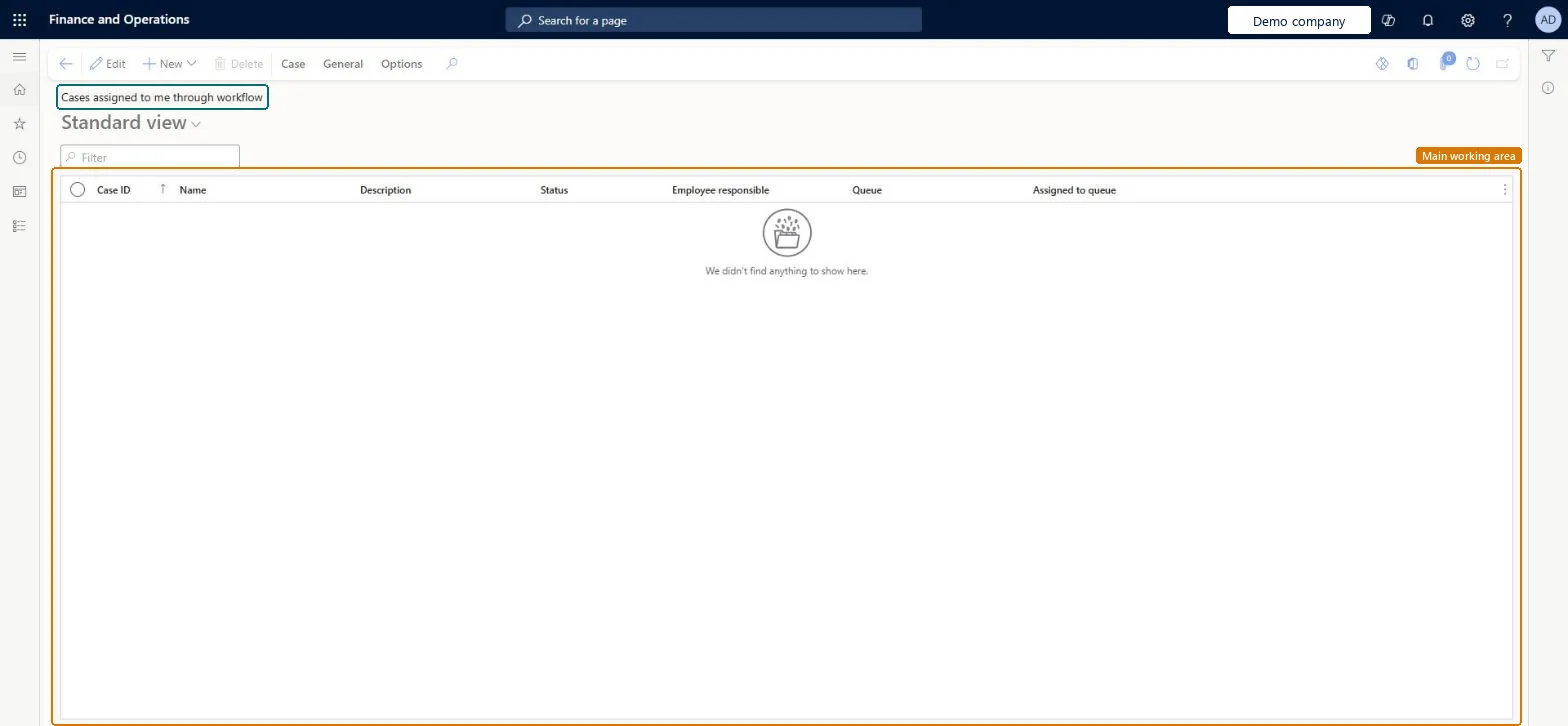
A list page that shows the cases that are assigned to you through workflow, with the Case ID, Name, Description, Status, Employee responsible, Queue and Assigned to queue of each case.
Use cases to track and monitor product feedback in Dynamics 365 Supply Chain Management
Menu item
CaseListPage_AssignedToMe
Main table
CaseDetailBase
Data entity
CaseDetailBaseEntity
Show what matters for
PAGE GUIDEWhat the page does and how to use it6 sections. Choose a role to highlight what matters to you.
Everyone
1What it is and why
What it is
A list page that shows the cases that are assigned to you through workflow, with the Case ID, Name, Description, Status, Employee responsible, Queue and Assigned to queue of each case.
What you do here
Use this page to pick up and work on the cases that workflow has assigned to you, so that issues are tracked to a resolution.
The page in Dynamics 365. page title tab to open what to set or check
Product information management › Cases › Cases assigned to me through workflow
End user · Functional consultant
3How to do it
About the examples: Examples and screenshots in this guide use BEAT, a demo company in a Dynamics 365 test environment. Use your own company's codes and values instead of copying them.
How to use it
Go to Product information management > Cases > Cases assigned to me through workflow.
Use the Filter box to find a case by its Case ID or name.
Review the Status, Queue and Assigned to queue columns to see where each case stands.
To change a case, select it and then select Edit.
Use the Case and General tabs on the Action Pane for further actions on the selected case.
Source: Checked in Dynamics 365
Technical architect
4Technical
Menu item
CaseListPage_AssignedToMeChecked in Dynamics 365
Form
CaseDetailChecked in Dynamics 365
Table
CaseDetailBaseShown as “CASE” in Record infoKey field: CaseIdChecked in Dynamics 365
To set it up or change itProduct designer BOMProductDesignerProcess engineer RouteProcessEngineerPurchasing manager TradePurchasingManagerProduction manager ProdProductionManagerSales manager TradeSalesManagerTo use itProduct design manager BOMProductDesignManagerProcess engineering manager RouteProcessEngineeringManagerFinancial controller LedgerFinancialControllerCustomer service manager TradeCustomerServiceManagerGive people one of these roles. On this system, 19 roles can open this page.Checked in Dynamics 365
Actions on the page
Case: Maintain, Process, Service level agreement, Product changeGeneral: Set up, Follow up, Related information, Activities(Action Pane without tabs): New, DeleteChecked in Dynamics 365