PAGE GUIDEWhat the page does and how to use it7 sections. Choose a role to highlight what matters to you.
Everyone
1What it is and why
What it is
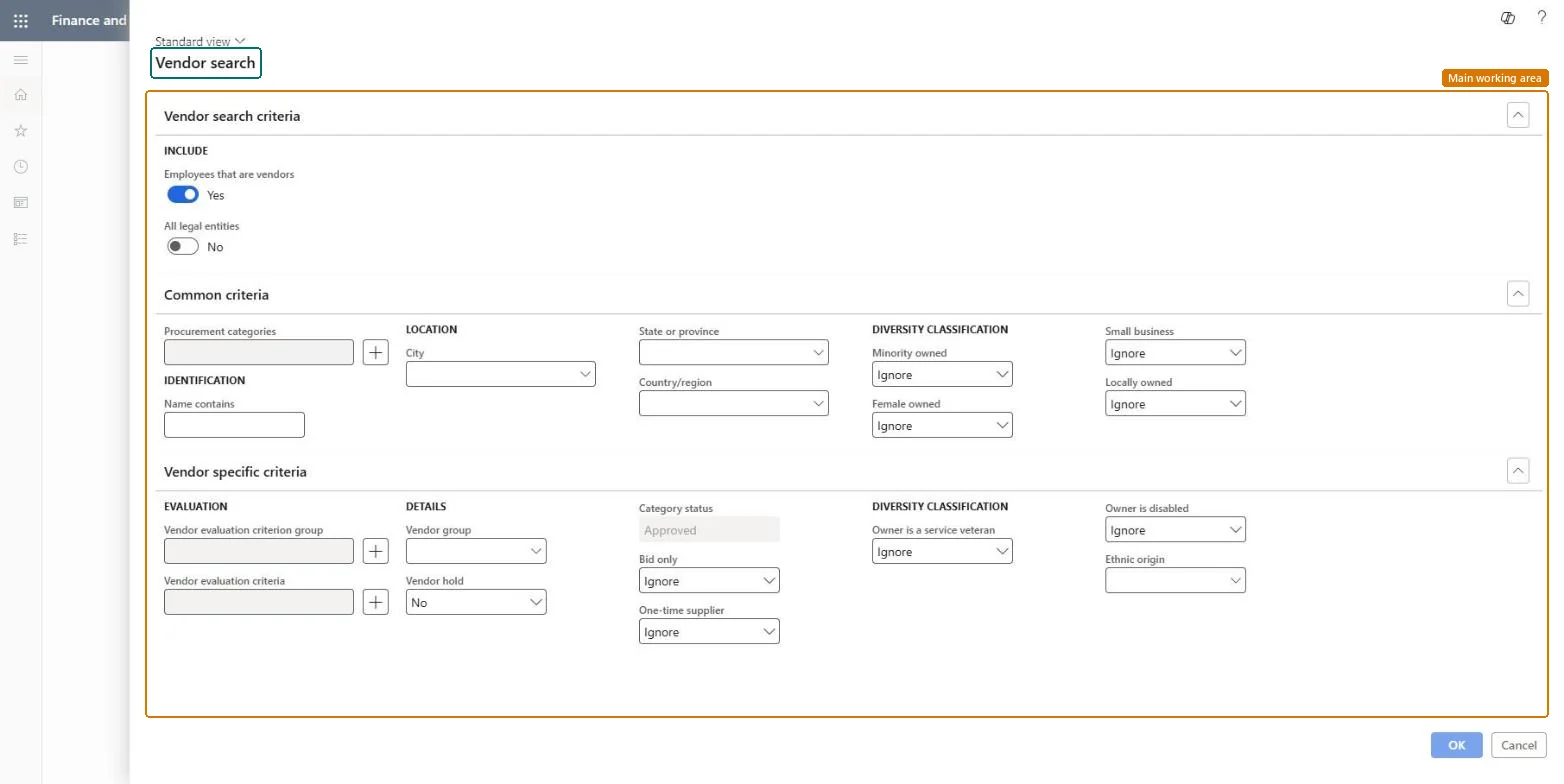
A search page where you choose criteria, such as procurement categories and country/region, to find matching vendors.
What you do here
Use this page to find vendors, or a group of vendors, that meet specific criteria.
Example
For example, a buyer searches for vendors that are approved for the office machines procurement category and have their primary address in a specific country/region.
The page in Dynamics 365. page title tab to open what to set or check
About the examples: Examples and screenshots in this guide use BEAT, a demo company in a Dynamics 365 test environment. Use your own company's codes and values instead of copying them.
Steps from Microsoft
Go to Procurement and sourcing > Vendors > Vendor search.
Select the plus icon to open the Procurement category selection page.
Approve a test vendor for one procurement category on the vendor's Categories page.
On Vendor search, add that category and a Country/region that matches the vendor's primary address, then select OK.
Check the vendor is returned.
Add a second category the vendor isn't approved for and check the vendor is still returned, because the search matches vendors approved for at least one category.
Reversible: The search reads vendor approvals for procurement categories. To change what it returns, change the vendor's category approvals on the vendor's Categories page or on Procurement categories. Microsoft Learn
If you change it later
Choosing several procurement categories widens the search to vendors approved for at least one of them. Microsoft Learn
Technical architect
5Technical
Menu item
VendSearchCriteriaChecked in Dynamics 365
Form
VendSearchCriterionChecked in Dynamics 365
Roles to set it up and use it
To use itPurchasing manager TradePurchasingManagerAccounts payable manager VendInvoiceAccountsPayableManagerPurchasing agent VendPurchasingAgentPurchasing Agent - Public Sector VendPurchasingAgent_PSNBuying agent TradeBuyingAgentGive people one of these roles. On this system, 22 roles can open this page.Checked in Dynamics 365