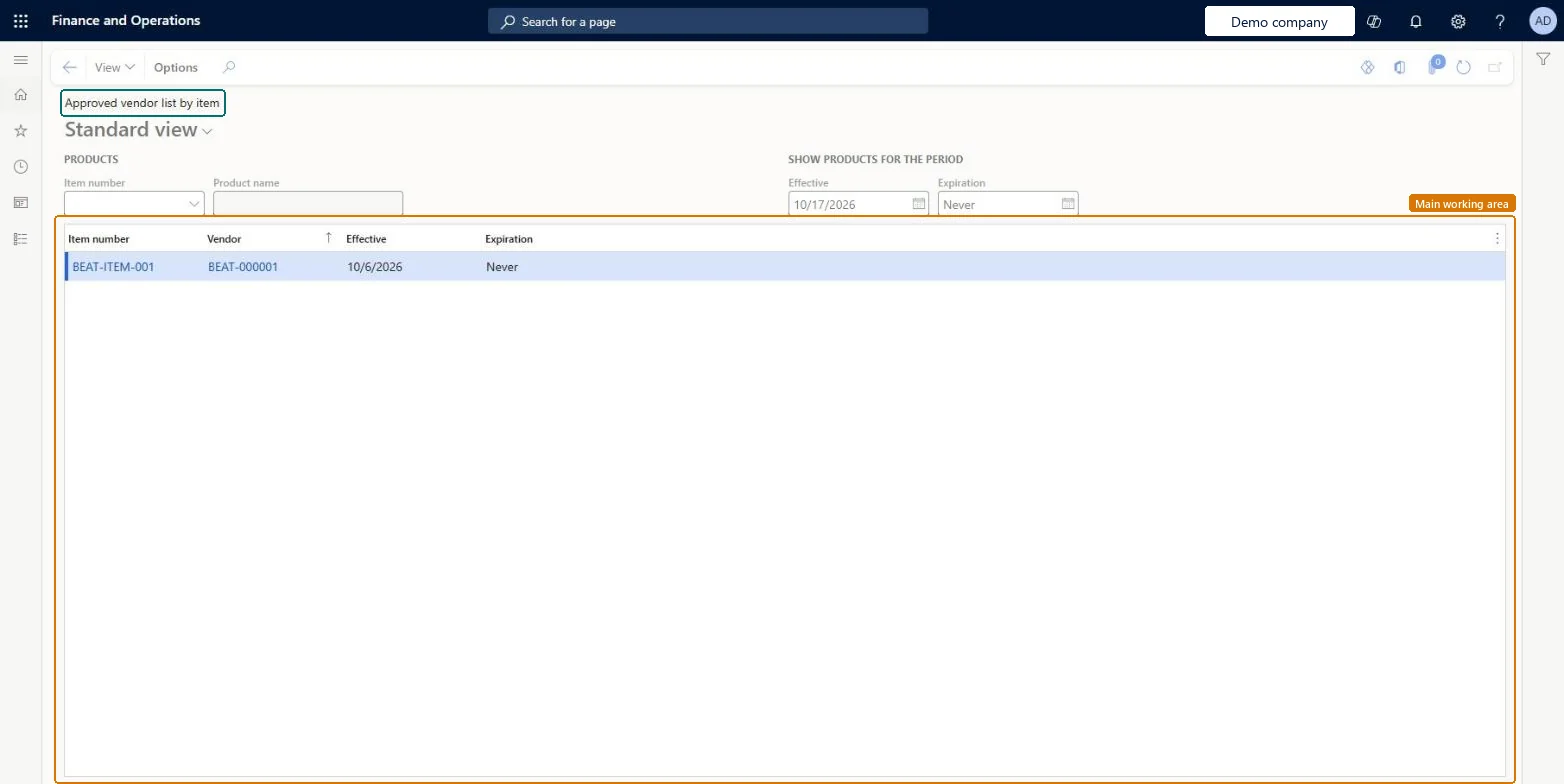
About the examples: Examples and screenshots in this guide use BEAT, a demo company in a Dynamics 365 test environment. Use your own company's codes and values instead of copying them.
Steps from Microsoft
Go to Procurement and sourcing > Vendors > Vendor/item relations > Approved vendor list by item.
In the Item number field, select the product.
To see vendors approved for a certain period, enter dates in the Effective and Expiration fields.
The item's Approved vendor check method is Warning only or Not allowed and the vendor has no valid approval on that date. Approve the vendor for the item with the right Effective and Expiration dates, or change the check method on the released product. Microsoft Learn
Cannot create a record in Approved supplier list (PdsApproveVendorList). The 'Expiration' value needs to be greater than or equal to the 'Effective' value.
You can only extend the approved period. To shorten it, delete or modify the existing records in the UI rather than through data management. Microsoft Learn
Test checklist
On a released product, under Purchase > Approved vendor > Setup, add an approved vendor with an expiration date a few months ahead.
Set the product's Approved vendor check method to Not allowed.
Open Approved vendor list by item and check the vendor and dates are shown for the item.
Add the item to a purchase order for a vendor that isn't approved and confirm the order line is blocked.
Hard to reverse: You can always extend an approval period, but shortening it means deleting or editing the existing approval records in the UI. Through data management you can only extend periods, or use truncate, which deletes all approved vendor records. Microsoft Learn
Technical architect
5Technical
Menu item
PdsInventInquiryApprovedVendorListByItemChecked in Dynamics 365
Form
PdsApprovedVendorListChecked in Dynamics 365
Table
PdsApprovedVendorListShown as “Approved vendor list” in Record infoChecked in Dynamics 365
Data entities
PurchProductApprovedVendorEntityApproved vendor list by products Microsoft data model
Who can open it
PrivilegesMaintain approved vendor list PdsApprovedVendorListMaintainView approved vendor list PdsApprovedVendorListViewDutiesMaintain approved vendors PdsApprovedVendorsEnableEnable purchasing process ProcPurchasingProcessEnableInquire into purchasing policies ProcPurchasingProcessInquire5 security rolesAuditor AuditPolicyManagerPurchasing manager TradePurchasingManagerAccounts payable manager VendInvoiceAccountsPayableManagerPurchasing agent VendPurchasingAgentPurchasing Agent - Public Sector VendPurchasingAgent_PSNChecked in Dynamics 365
Roles to set it up and use it
To use itPurchasing manager TradePurchasingManagerAccounts payable manager VendInvoiceAccountsPayableManagerPurchasing agent VendPurchasingAgentPurchasing Agent - Public Sector VendPurchasingAgent_PSNAuditor AuditPolicyManagerGive people one of these roles. On this system, 5 roles can open this page.Checked in Dynamics 365
Actions on the page
Options: Personalize, Page options, ShareChecked in Dynamics 365
PurchProductApprovedVendorEntity (Approved vendor list by products): loaded for each company, in Microsoft's default template 320 - Procurement and sourcing.Load order: Microsoft's default template 320 - Procurement and sourcing loads Approved vendor list by products at execution unit 1, level 320, sequence 20. Lower levels load first, and entities at the same level load in sequence order.Load first: Vendors V2, Released products V2, the default templates at lower levels (System setup to Product management)Microsoft Learn