Purchasing agent, Purchasing Agent - Public Sector, Product designer and 7 more roles
Business process
Procure goods and services
Menu item
EcoResProductRelationType
Main table
EcoResProductRelationType
Data entity
EcoResProductRelationTypeEntity
Setup steps
1 on this page
Show what matters for
PAGE GUIDEWhat the page does and how to use it7 sections. Choose a role to highlight what matters to you.
Everyone
1What it is and why
What it is
A setup page where you define the types of relationship between products, such as Accessory, before you link products to each other.
What you do here
Use this page to describe how products relate, so a related product can be shown alongside the one a requester picks.
Example
For example, a monitor is set up as an accessory for a laptop, so when a requester selects the laptop on the procurement site, the monitor is shown too.
The page in Dynamics 365. page title tab to open what to set or check
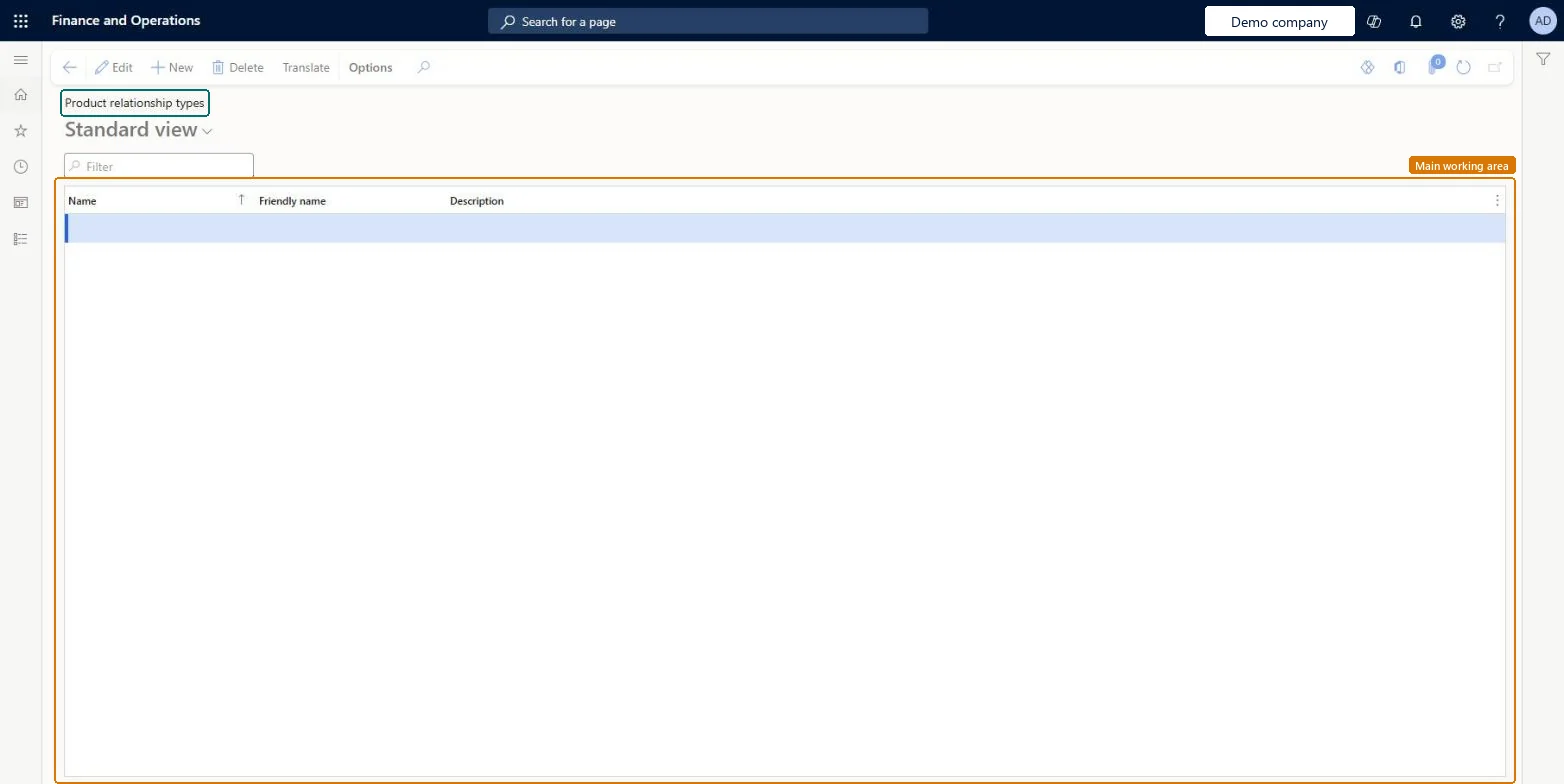
Procurement and sourcing › Setup › Product relationship types
End user · Functional consultant
3How to do it
About the examples: Examples and screenshots in this guide use BEAT, a demo company in a Dynamics 365 test environment. Use your own company's codes and values instead of copying them.
Step by step, with screenshots
Set up Product relationship types1 screen
Use this page to describe how products relate, so a related product can be shown alongside the one a requester picks.
Screen 1
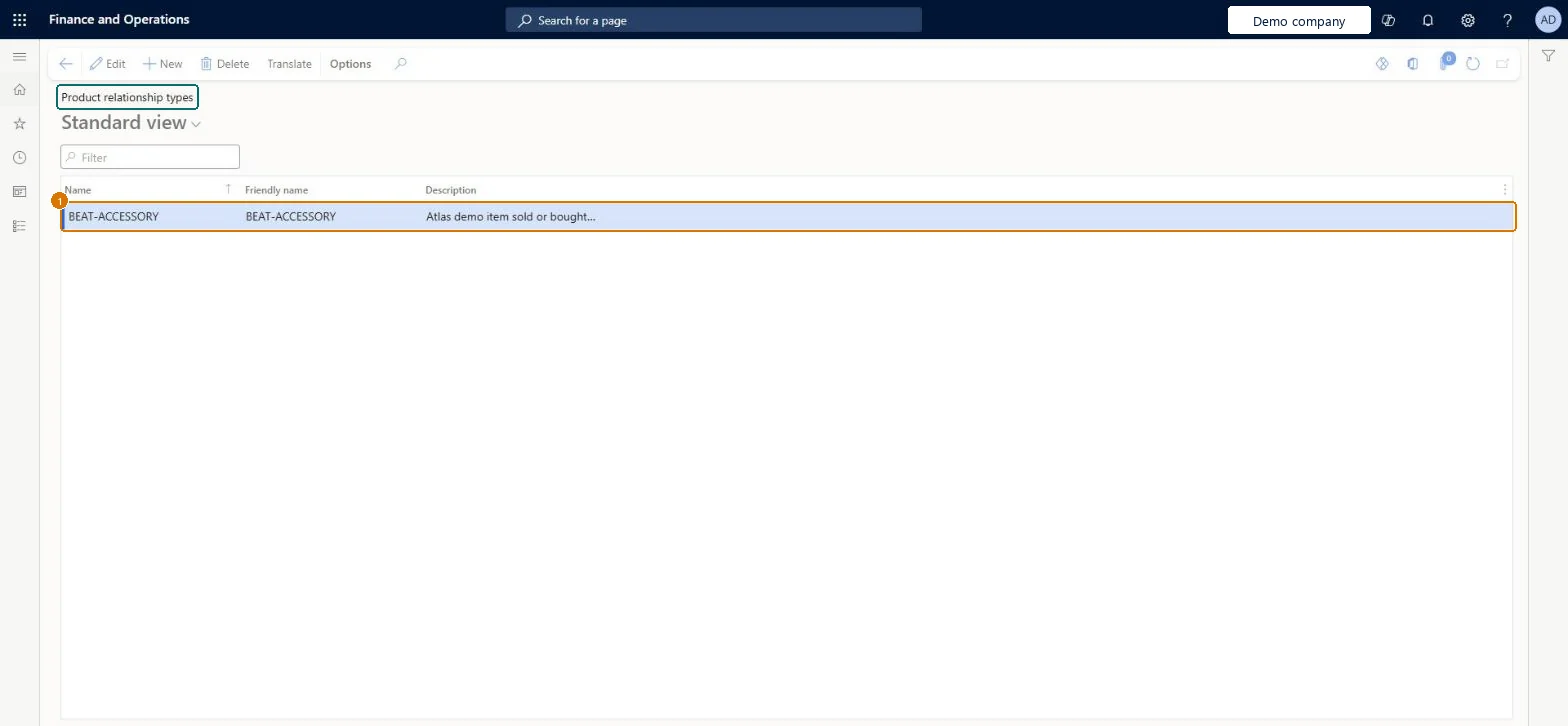
Create the product relationship type
Go to Procurement and sourcing > Setup > Product relationship types
Select New
Enter the name and a description
Select Save
1Name
BEAT-ACCESSORY
Show the full screen page title tab to open what to set or check
Steps from Microsoft
Go to Procurement and sourcing > Setup > Product relationship types.
Select New.
Enter a name, a friendly name and a description for the relationship type.
Select Translate to enter the name, description and friendly name in other languages.
To set it up or change itPurchasing manager TradePurchasingManagerPurchasing agent VendPurchasingAgentPurchasing Agent - Public Sector VendPurchasingAgent_PSNRetail service RetailServiceAccounting manager LedgerAccountingManagerGive people one of these roles. On this system, 10 roles can open this page.Checked in Dynamics 365
Actions on the page
Options: Personalize, Page options, ShareChecked in Dynamics 365
Checked in a working Dynamics 365 system, version 10.0.49: the menu item, form, table and security, the page, the demo records and the values in the screenshots.