About the examples: Examples and screenshots in this guide use BEAT, a demo company in a Dynamics 365 test environment. Use your own company's codes and values instead of copying them.
Steps from Microsoft
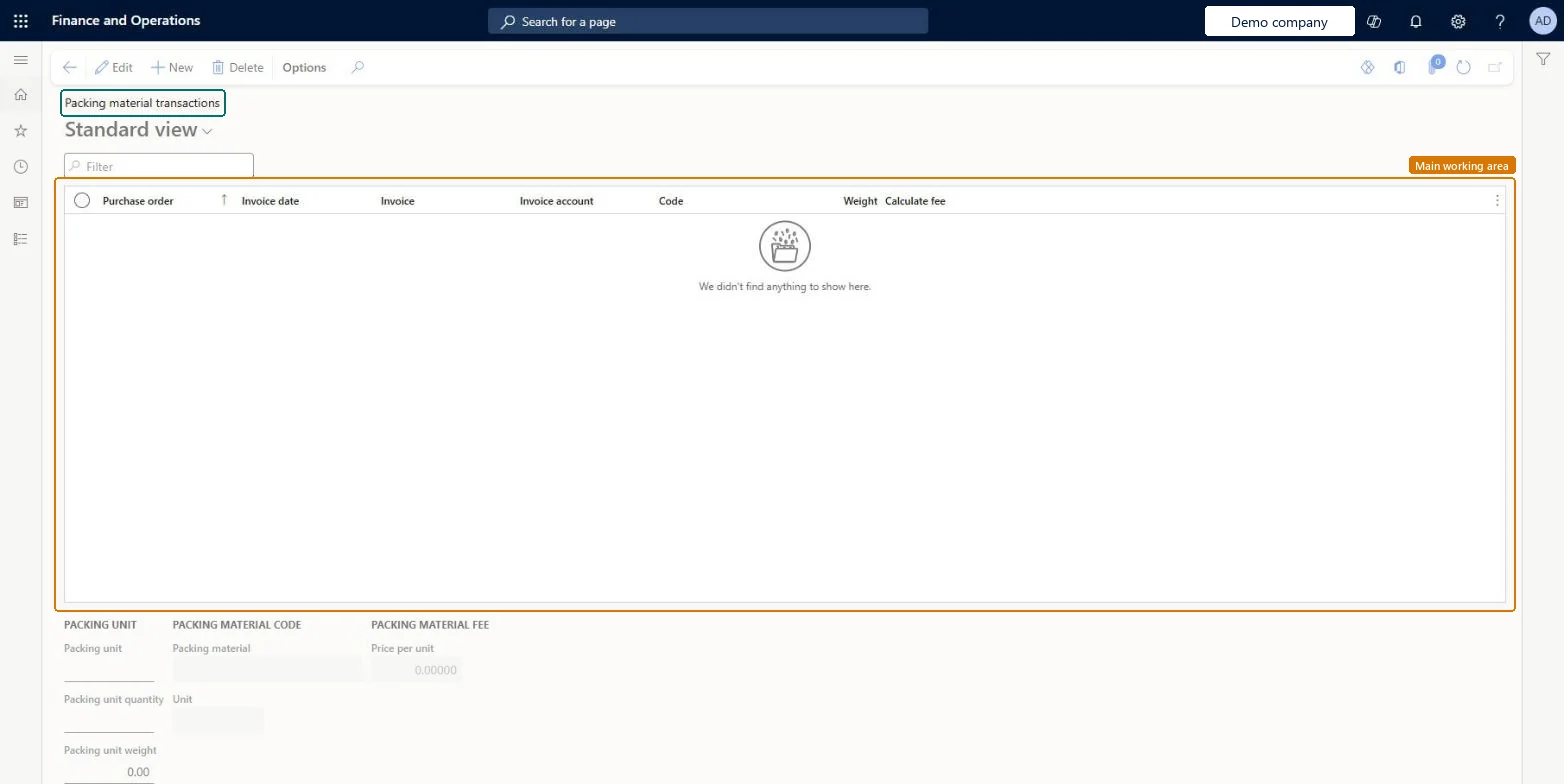
Go to Procurement and sourcing > Purchase orders > Receiving products > Packing material transactions.
Select New.
On the Create packing material transaction page, select the invoice line.
Select a Packing material code and a Packing class.
Select OK.
Select the Calculate fee check box if the fee should be calculated for reporting.
If needed, update the Packing unit, Packing unit quantity and Packing unit weight fields.
InventPackagingMaterialTransPurchChecked in Dynamics 365
Form
InventPackagingMaterialTransPurchChecked in Dynamics 365
Table
InventPackagingMaterialTransPurchShown as “Packing material transactions - purchase” in Record infoKey field: PurchId, InvoiceDate, InvoiceId, InvoiceAccount, PackMaterialCodeChecked in Dynamics 365
Who can open it
PrivilegesView packing material for purchase orders InventPackagingMaterialTransPurchViewMaintain packing material for purchase orders InventPackagingMaterialTransPurMaintainDutiesMaintain packing materials InventPackMaterialsMaintainInquire into packing materials progress InventPackMaterialsProgressInquire5 security rolesMaterials manager InventMaterialsManagerAccounting manager LedgerAccountingManagerAccounting supervisor LedgerAccountingSupervisorWarehouse manager WMSWarehouseManagerWarehouse worker WMSWarehouseWorkerChecked in Dynamics 365
Roles to set it up and use it
To set it up or change itAccounting supervisor LedgerAccountingSupervisorWarehouse worker WMSWarehouseWorkerTo use itAccounting manager LedgerAccountingManagerMaterials manager InventMaterialsManagerWarehouse manager WMSWarehouseManagerGive people one of these roles. On this system, 5 roles can open this page.Checked in Dynamics 365
Actions on the page
Options: Personalize, Page options, ShareChecked in Dynamics 365