Procurement and sourcing › Purchase orders › Purchase order follow-up › Open purchase order lines by item report
End user · Functional consultant
3How to do it
About the examples: Examples and screenshots in this guide use BEAT, a demo company in a Dynamics 365 test environment. Use your own company's codes and values instead of copying them.
When to run it
When to run it
When an item is short or a production or sales demand depends on incoming purchase orders.
How often
On demand, when shortages or urgent demand need follow-up.
What the output shows
Open purchase order lines grouped by item, with the vendor, delivery date and quantity still to receive. An item with no open lines while stock is short usually needs a new purchase order.
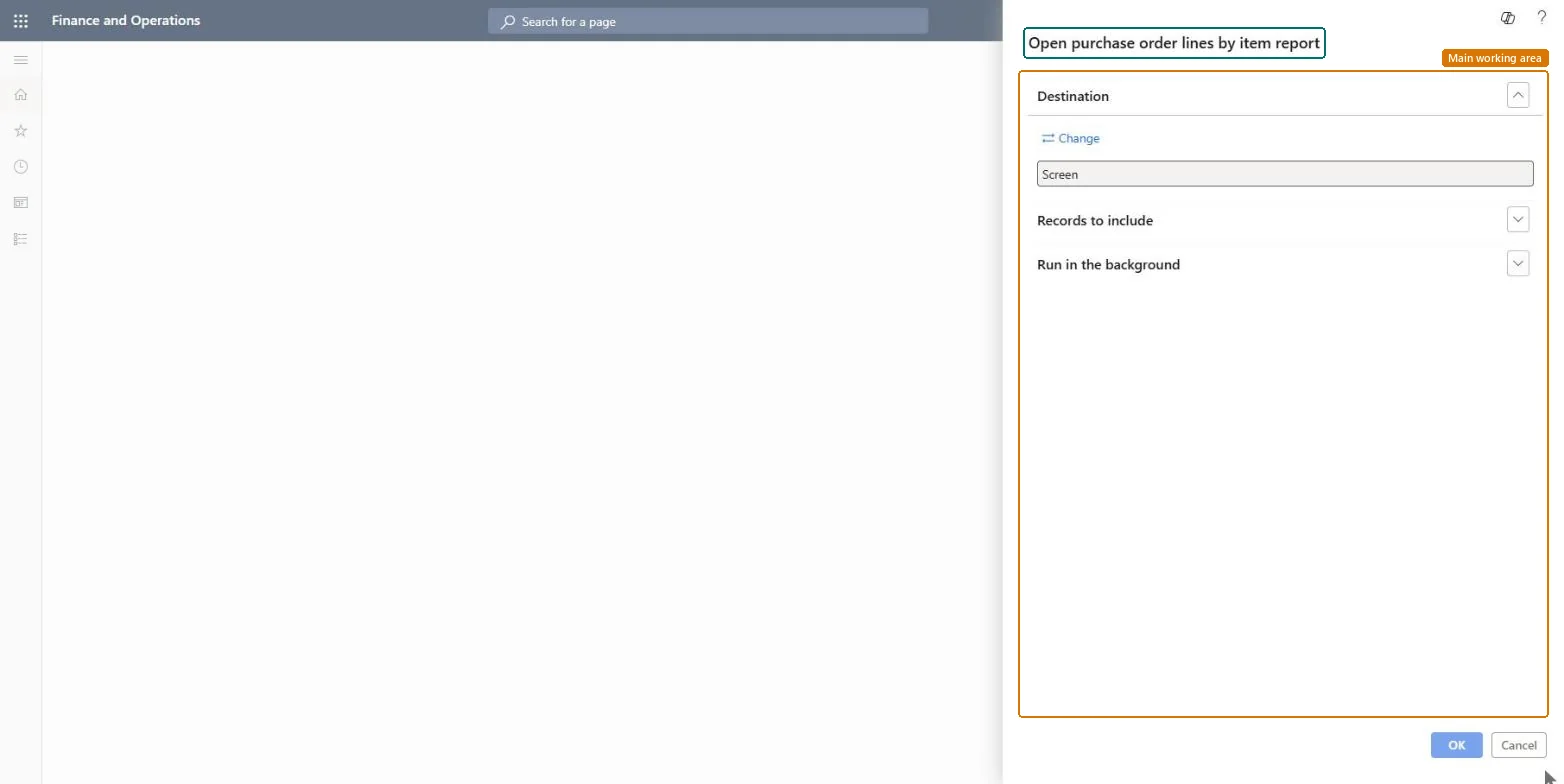
Go to Procurement and sourcing > Purchase orders > Purchase order follow-up > Open purchase order lines by item report.
Use Records to include to filter on the items or item groups you need to expedite, for example items that are short in stock.
For each item, look at all open lines across vendors and decide which order to expedite or move forward.
Contact the vendors of the chosen lines and record any new confirmed date on the order line. The same report is also on Inquiries and reports > Status.
Nothing to undo: The report only lists open purchase order lines by item; it changes nothing. Microsoft Learn
Technical architect
5Technical
Menu item
output:VendPurchOpenLinesByItemChecked in Dynamics 365
Form
SysOperationTemplateFormChecked in Dynamics 365
Roles to set it up and use it
To use itPurchasing manager TradePurchasingManagerAccounts payable manager VendInvoiceAccountsPayableManagerBuying agent TradeBuyingAgentProject manager ProjProjectManagerAccountant LedgerAccountantGive people one of these roles. On this system, 6 roles can run this page.Checked in Dynamics 365