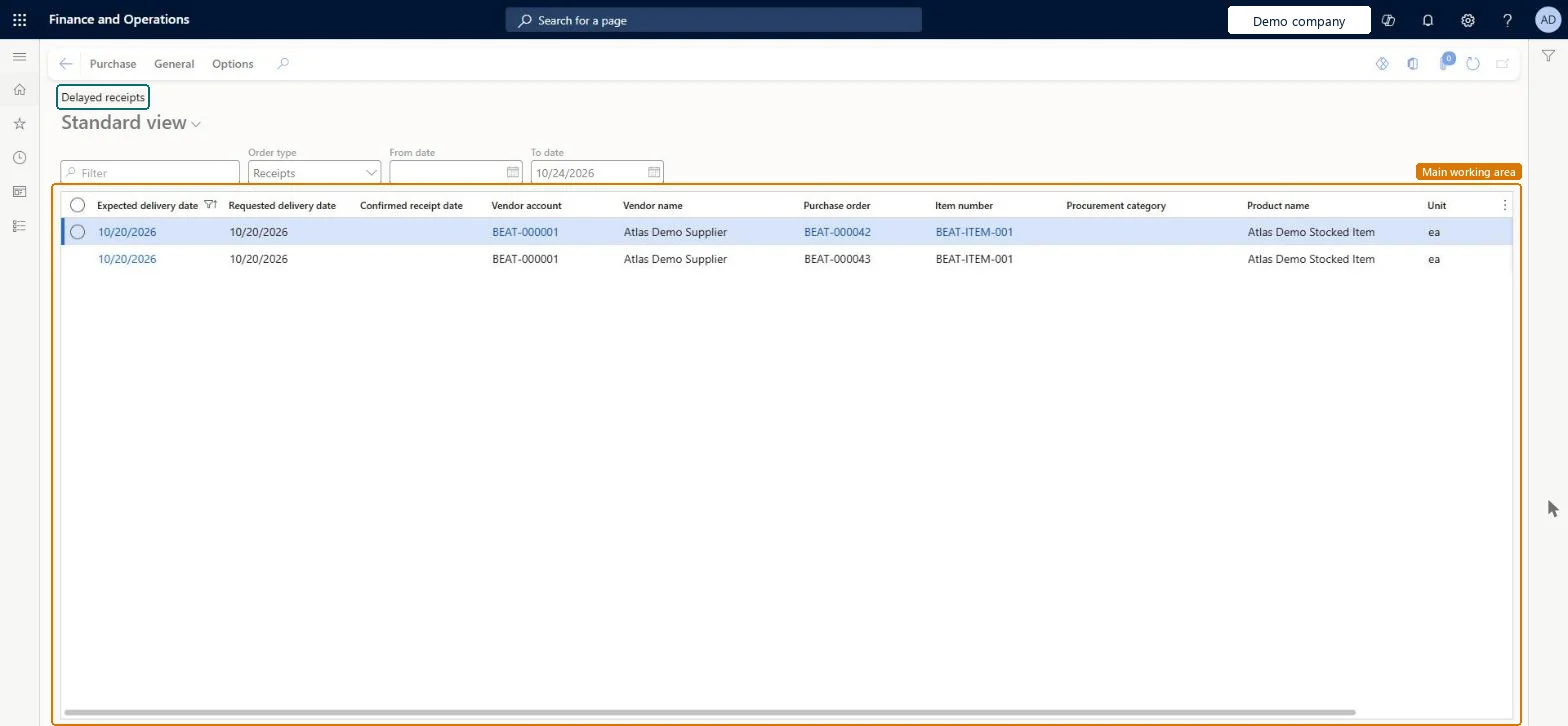
A list page that shows purchase order lines that are on back order, with the expected delivery date, requested delivery date, confirmed receipt date, vendor account and name, purchase order, item number, procurement category and product name.
Procurement and sourcingPurchase ordersPurchase order follow-up
PurchLineBackOrderListPageDelayedRec
Used by
Accounts payable clerk, Accounts payable manager, Accountant and 3 more roles
Business process
Procure goods and services
Menu item
PurchLineBackOrderListPageDelayedRec
Main table
PurchLineBackOrderWorkspace
Show what matters for
PAGE GUIDEWhat the page does and how to use it6 sections. Choose a role to highlight what matters to you.
Everyone
1What it is and why
What it is
A list page that shows purchase order lines that are on back order, with the expected delivery date, requested delivery date, confirmed receipt date, vendor account and name, purchase order, item number, procurement category and product name.
What you do here
Use this page to follow up purchase order lines whose receipt is late, using the Order type, From date and To date filters to narrow the list.
The page in Dynamics 365. page title tab to open what to set or check
Procurement and sourcing › Purchase orders › Purchase order follow-up › Delayed receipts
End user · Functional consultant
3How to do it
About the examples: Examples and screenshots in this guide use BEAT, a demo company in a Dynamics 365 test environment. Use your own company's codes and values instead of copying them.
How to use it
Go to Procurement and sourcing > Purchase orders > Purchase order follow-up > Delayed receipts.
Select an Order type in the Order type list.
Enter a From date and a To date to narrow the list.
Check the Expected delivery date, Requested delivery date, Confirmed receipt date, Vendor account and Purchase order columns for each line.
Select a line, then use the Purchase tab in the Action Pane for the next task.
Source: Checked in Dynamics 365
Technical architect
4Technical
Menu item
PurchLineBackOrderListPageDelayedRecChecked in Dynamics 365
Form
PurchLineBackOrderListPageChecked in Dynamics 365
Table
PurchLineBackOrderWorkspaceShown as “Backorder purchase lines” in Record infoChecked in Dynamics 365
Who can open it
PrivilegesView purchase order lines PurchLineOpenOrderViewDutiesInquire into purchase order to invoice progress PurchOrderToInvoiceProgressInquire6 security rolesAccountant LedgerAccountantProject manager ProjProjectManagerBuying agent TradeBuyingAgentPurchasing manager TradePurchasingManagerAccounts payable clerk VendInvoiceAccountsPayableClerkAccounts payable manager VendInvoiceAccountsPayableManagerChecked in Dynamics 365
Roles to set it up and use it
To use itPurchasing manager TradePurchasingManagerAccounts payable manager VendInvoiceAccountsPayableManagerBuying agent TradeBuyingAgentProject manager ProjProjectManagerAccountant LedgerAccountantGive people one of these roles. On this system, 6 roles can open this page.Checked in Dynamics 365
Actions on the page
Purchase: Maintain, Inventory, Item informationGeneral: Set upOptions: Personalize, Page options, ShareChecked in Dynamics 365