PAGE GUIDEWhat the page does and how to use it7 sections. Choose a role to highlight what matters to you.
Everyone
1What it is and why
What it is
A periodic task that finalizes purchase orders for the records you select.
What you do here
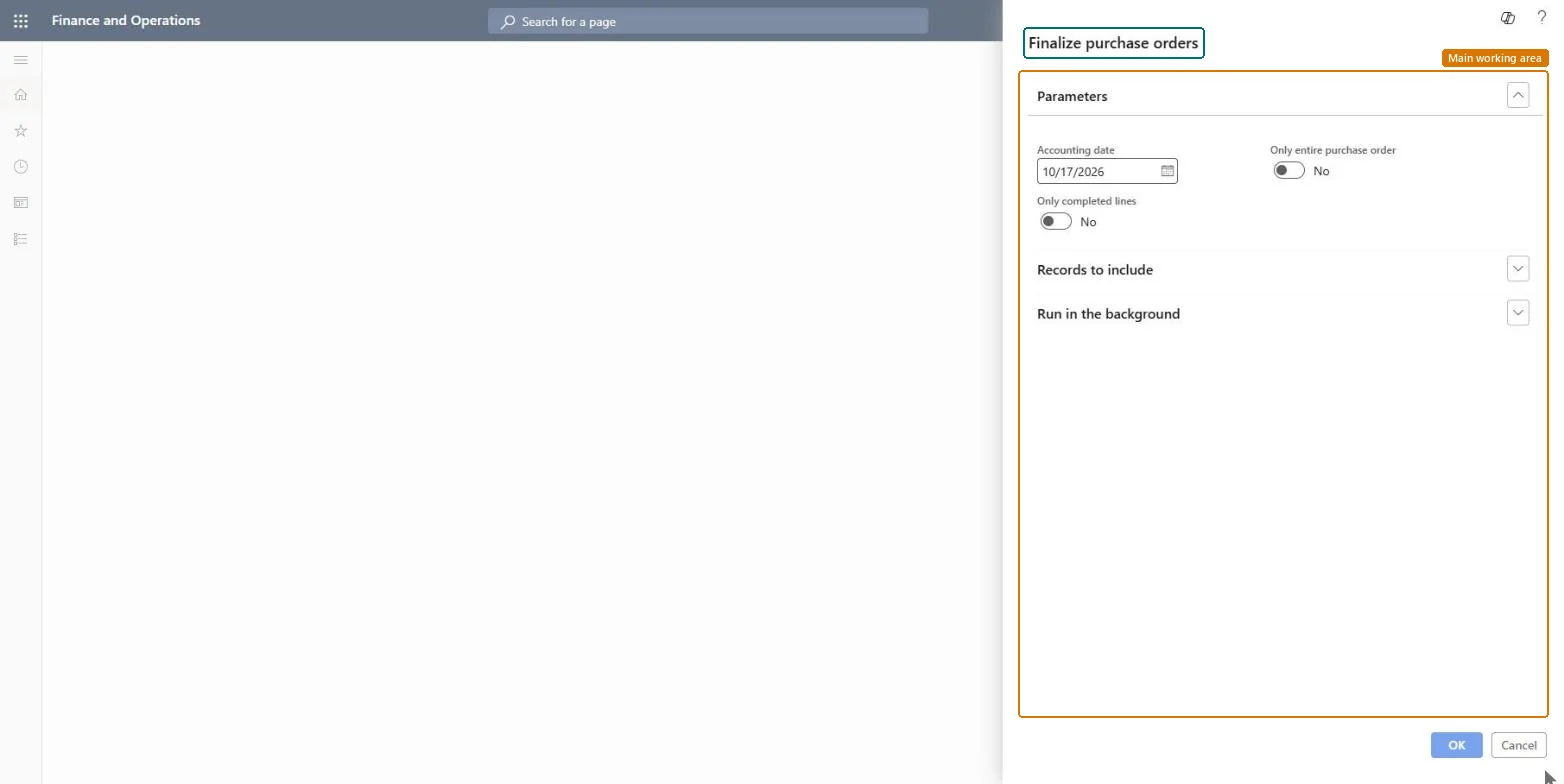
Use this task to finalize purchase orders in one run. You set an Accounting date and can switch on Only entire purchase order and Only completed lines, then choose which records to include and whether it runs in the background.
The page in Dynamics 365. page title tab to open what to set or check
Procurement and sourcing › Periodic tasks › Finalize purchase orders
End user · Functional consultant
3How to do it
About the examples: Examples and screenshots in this guide use BEAT, a demo company in a Dynamics 365 test environment. Use your own company's codes and values instead of copying them.
When to run it
When to run it
After purchase orders are fully received and invoiced, or after the remaining quantity was canceled, and nothing more should be processed on them.
How often
On demand, for example as part of period-end cleanup of purchase orders.
Batch settings
Run it in the background when many purchase orders qualify, so they are finalized in one job outside working hours.
What the output shows
Purchase orders with approval status Finalized. They are financially closed and can no longer be changed. Orders that stay unfinalized usually still have open quantities, draft invoices or a source document that isn't completed.
Go to Procurement and sourcing > Periodic tasks > Finalize purchase orders.
Enter the Accounting date to use for the finalization.
Switch on Only entire purchase order to finalize an order only when the whole order is done, or Only completed lines to finalize only lines that are fully completed.
Use Records to include to filter the purchase orders, for example by vendor or by orders whose remaining quantity was canceled.
Run it, then open the purchase orders and confirm that their approval status is Finalized.
No: A finalized purchase order is financially closed and can no longer be changed. Run it only on orders where nothing more will be received, invoiced or canceled. Microsoft Learn
If you change it later
Sets the approval status of the selected purchase orders to Finalized, which closes them financially and blocks further changes. Microsoft Learn
Technical architect
5Technical
Menu item
action:PurchFinalizeServiceChecked in Dynamics 365
Form
SysOperationTemplateFormChecked in Dynamics 365
Roles to set it up and use it
To use itPurchasing agent VendPurchasingAgentPurchasing Agent - Public Sector VendPurchasingAgent_PSNBuying agent TradeBuyingAgentRetail service RetailServiceProject assistant ProjProjectClerkGive people one of these roles. On this system, 10 roles can run this page.Checked in Dynamics 365