BeyondERP.Newsletter
Menu

Job page · Procurement and sourcing

Correct purchase requisition lines manually

A page where you select a purchase requisition and work with its lines manually.

Business process
Procure goods and services
Menu item
PurchReqLineManualCorrection
Main table
PurchReqLine
Data entity
PurchaseRequisitionLineEntity
Show what matters for
PAGE GUIDEWhat the page does and how to use it7 sections. Choose a role to highlight what matters to you.
Everyone

1What it is and why

What it isA page where you select a purchase requisition and work with its lines manually.
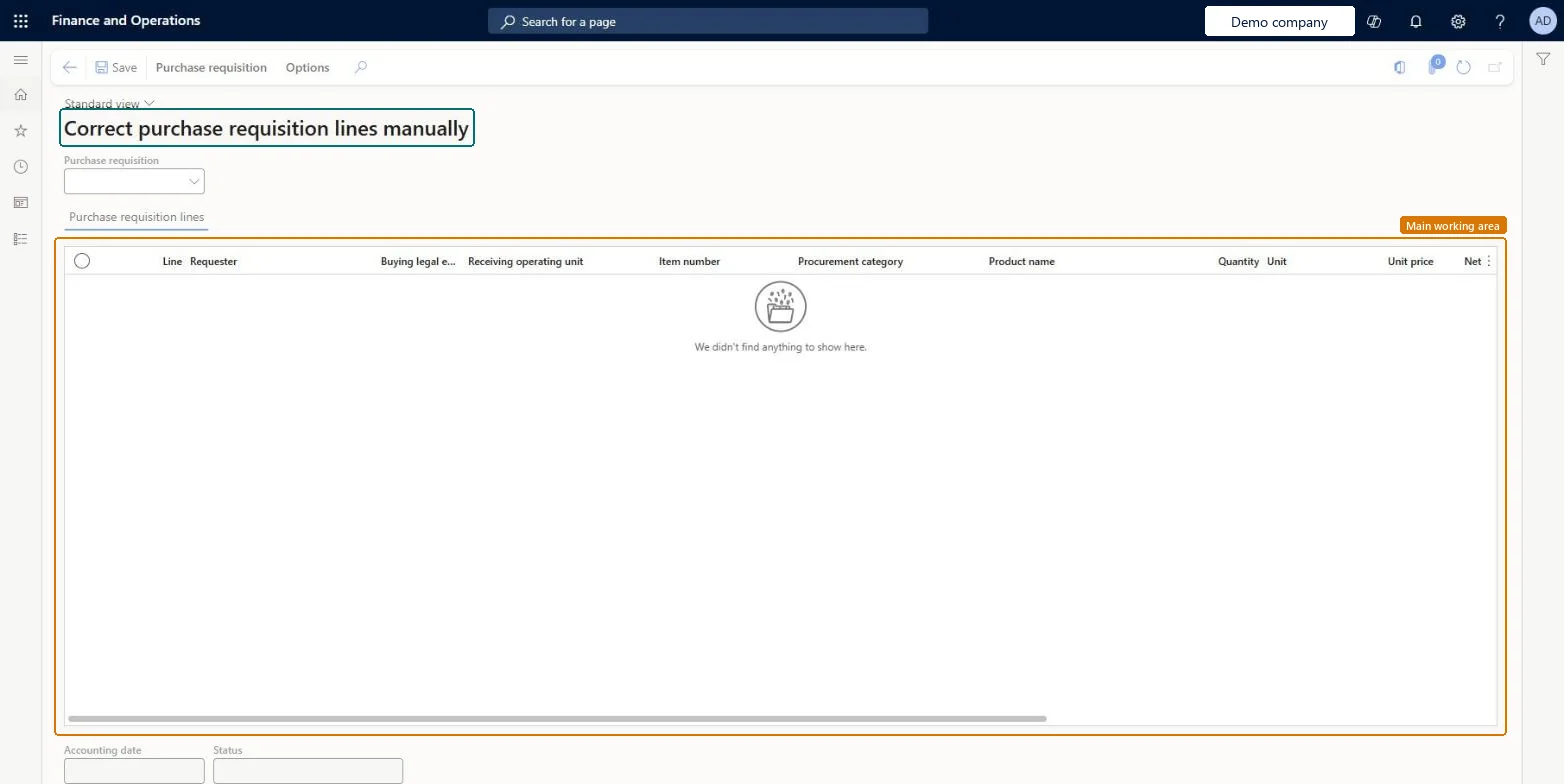
What you do hereUse this page to pick a purchase requisition and review or correct its lines. The grid shows Line, Requester, Buying legal entity, Receiving operating unit, Item number, Procurement category, Product name, Quantity, Unit, Unit price and Net amount, with Accounting date and Status below.
Correct purchase requisition lines manually page in Dynamics 365
The page in Dynamics 365. page title tab to open what to set or check
Functional consultant · Solution architect

2Where it fits

Business processProcure goods and services
Menu pathProcurement and sourcing › Periodic tasks › Clean up › Correct purchase requisition lines manually
End user · Functional consultant

3How to do it

About the examples: Examples and screenshots in this guide use BEAT, a demo company in a Dynamics 365 test environment. Use your own company's codes and values instead of copying them.

When to run it

When to run itWhen a purchase requisition line has wrong data that keeps it from moving on, for example a status or accounting date that doesn't match the requisition.
How oftenOn demand, only for requisitions with inconsistent lines.
What the output showsThe selected requisition lines with your corrections saved.

Source: Microsoft Learn

Steps from Microsoft

  1. Go to Procurement and sourcing > Periodic tasks > Clean up > Correct purchase requisition lines manually.
  2. In the Purchase requisition field, select the requisition whose lines you want to work with.
  3. Review the Purchase requisition lines grid: Line, Requester, Buying legal entity, Receiving operating unit, Item number, Procurement category, Product name, Quantity, Unit, Unit price and Net amount.
  4. Below the grid, compare the Accounting date and Status of the selected line with what the requisition should show.
  5. Correct the line and select Save, then open the requisition again to make sure it can move on in its process.
Source: Microsoft Learn

Test checklist

  1. The corrected line shows the expected status and accounting date.
  2. The requisition continues through review or release.

Source: Microsoft Learn

Solution architect

4Design impact

Can it be undoneOnly by editing again: There is no undo action; change the fields back and save if a correction was wrong. Microsoft Learn
If you change it laterSaves your changes directly to the purchase requisition lines. Microsoft Learn
Technical architect

5Technical

Menu itemPurchReqLineManualCorrection Checked in Dynamics 365
FormPurchReqLineManualCorrection Checked in Dynamics 365
TablePurchReqLineShown as “Purchase requisition lines” in Record infoKey field: LineNumChecked in Dynamics 365
Data entitiesPurchaseRequisitionLineEntityPurchase requisition lines Microsoft data model
Who can open itPrivilegesCorrect purchase requisition lines manually PurchReqLineManualCorrectionDutiesCorrect purchase requisition lines manually PurchReqLineManualCorrectionChecked in Dynamics 365
Actions on the pagePurchase requisition: Change managementOptions: Page options, Edit, ShareChecked in Dynamics 365
Developer

6Developer

Open it by URLhttps://<your-environment>/?mi=PurchReqLineManualCorrection
Integrate withPurchaseRequisitionLineEntity data entity Microsoft data model
Table definitionPurchReqLine columns and relations Microsoft data model
Everyone

7Sources