Procurement and sourcing › Periodic tasks › Clean up › Correct purchase order lines manually
End user · Functional consultant
3How to do it
About the examples: Examples and screenshots in this guide use BEAT, a demo company in a Dynamics 365 test environment. Use your own company's codes and values instead of copying them.
When to run it
When to run it
When a purchase order line shows wrong remainders or status, for example the order can't be invoiced or finalized because of inconsistent data.
How often
On demand, only for purchase orders with data discrepancies.
What the output shows
The selected purchase order line with recalculated or corrected status and remainder quantities, and the header status updated to match.
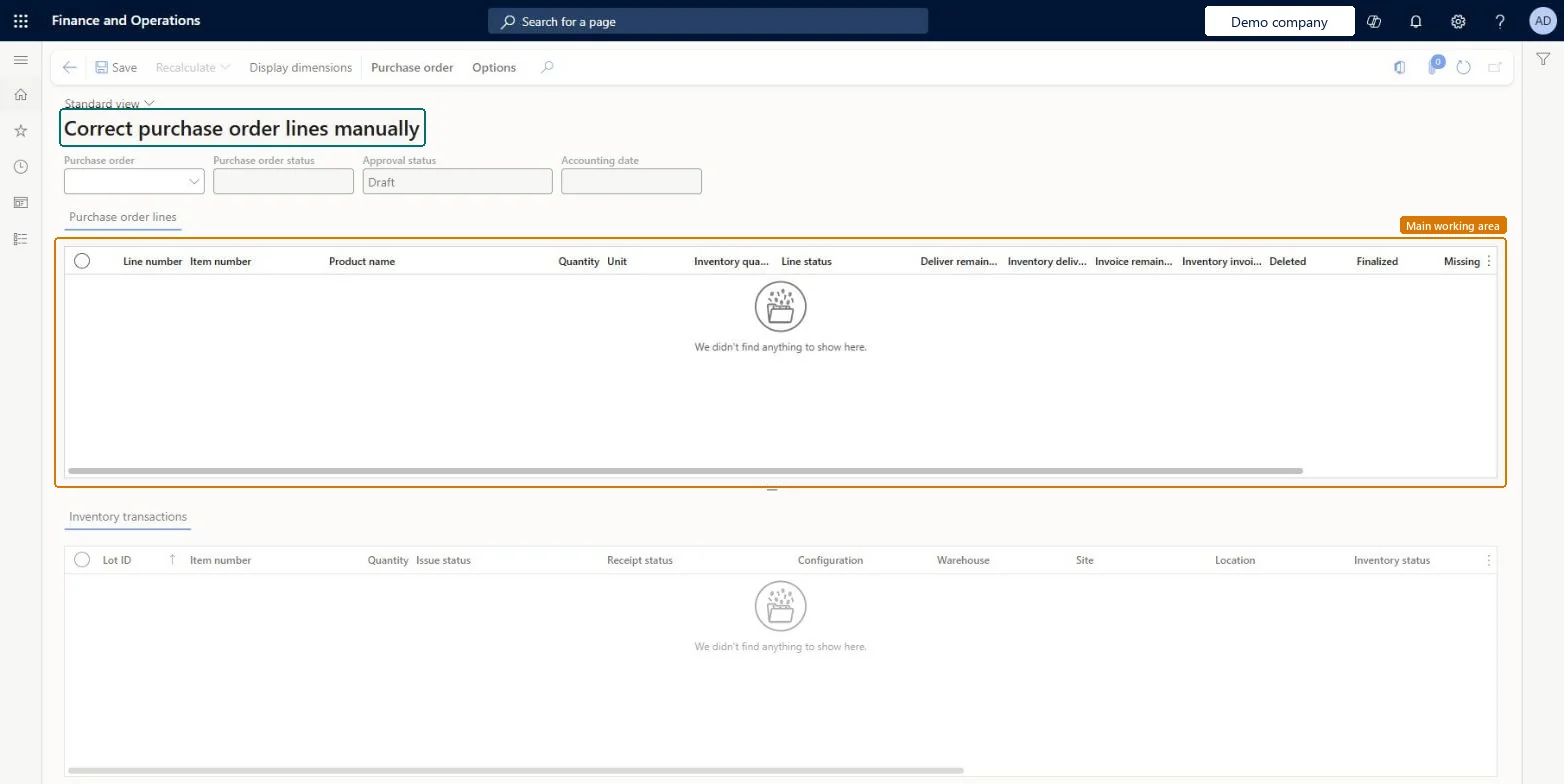
Go to Procurement and sourcing > Periodic tasks > Clean up > Correct purchase order lines manually.
In the Purchase order field, select the purchase order that can't be invoiced, finalized or canceled.
In the Purchase order lines section, select the line with the discrepancy and compare it with the Inventory transactions section.
On the Action Pane, select Recalculate, then Recalculate deliver remainder, Recalculate invoice remainder or Recalculate status. The remainder recalculations work only for stocked items, not for non-stocked or catch-weight items.
If the remainders are still wrong, edit Deliver remainder, Inventory deliver remainder, Invoice remainder or Inventory invoice remainder directly.
Return to the purchase order and retry the step that failed, such as invoicing or finalizing.
PrivilegesCorrect purchase order lines manually PurchLineManualCorrectionDutiesCorrect purchase order lines manually PurchLineManualCorrectionChecked in Dynamics 365