BeyondERP.Newsletter
Menu

Job page · Procurement and sourcing

Clean up trade agreement journals

A periodic task that cleans up trade agreement journals.

Business process
Source and contract goods and services
Menu item
action:PriceDiscAdmTransCleanUp
Show what matters for
PAGE GUIDEWhat the page does and how to use it7 sections. Choose a role to highlight what matters to you.
Everyone

1What it is and why

What it isA periodic task that cleans up trade agreement journals.
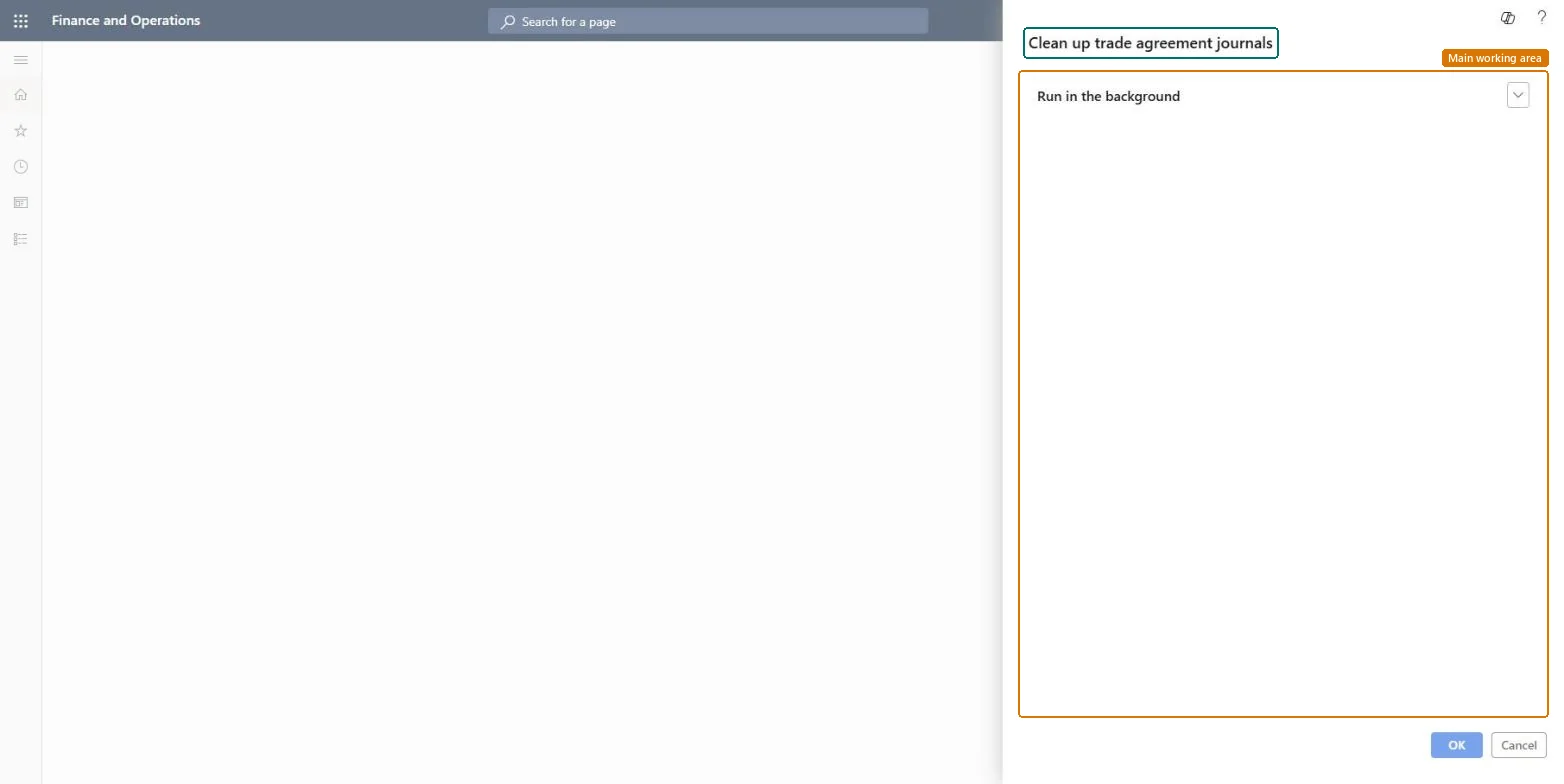
What you do hereUse this task to clean up trade agreement journals. The dialog has no selection fields; you only choose whether it runs in the background.
Clean up trade agreement journals page in Dynamics 365
The page in Dynamics 365. page title tab to open what to set or check
Functional consultant · Solution architect

2Where it fits

Business processSource and contract goods and services
Menu pathProcurement and sourcing › Periodic tasks › Clean up › Clean up trade agreement journals
End user · Functional consultant

3How to do it

About the examples: Examples and screenshots in this guide use BEAT, a demo company in a Dynamics 365 test environment. Use your own company's codes and values instead of copying them.

When to run it

When to run itWhen old trade agreement journals have built up and are no longer needed, for example after a price update has been posted.
How oftenOn demand, after price update cycles.
Batch settingsRun it in the background, since it works through all trade agreement journals without a filter.
What the output showsTrade agreement journals are cleaned up. Posted trade agreement prices and discounts stay in effect; only the journals are affected.

Source: Microsoft Learn

Steps from Microsoft

  1. Go to Procurement and sourcing > Periodic tasks > Clean up > Clean up trade agreement journals.
  2. Before you run it, open Sales and marketing > Prices and discounts > Trade agreement journals and review which journals exist, posted and not posted.
  3. Make sure any journal that still holds prices you plan to post is posted or saved elsewhere, because the dialog has no selection fields to exclude a journal.
  4. Run it in the background in a test environment first to see which journals are removed.
  5. After the run, open Trade agreement journals again and compare the list with what you reviewed.
Source: Microsoft Learn

Test checklist

  1. The journal list matches what you expected to keep.
  2. Sales prices from posted trade agreements still apply on a new order.

Source: Microsoft Learn

Solution architect

4Design impact

Can it be undoneNo: Removed journals can't be restored. Review the journal list before you run it. Microsoft Learn
If you change it laterRemoves trade agreement journals across the company; posted trade agreements remain. Microsoft Learn
Technical architect

5Technical

Menu itemaction:PriceDiscAdmTransCleanUp Checked in Dynamics 365
FormSysOperationTemplateForm Checked in Dynamics 365
Developer

6Developer

Open it by URLhttps://<your-environment>/?mi=action:PriceDiscAdmTransCleanUp
Everyone

7Sources