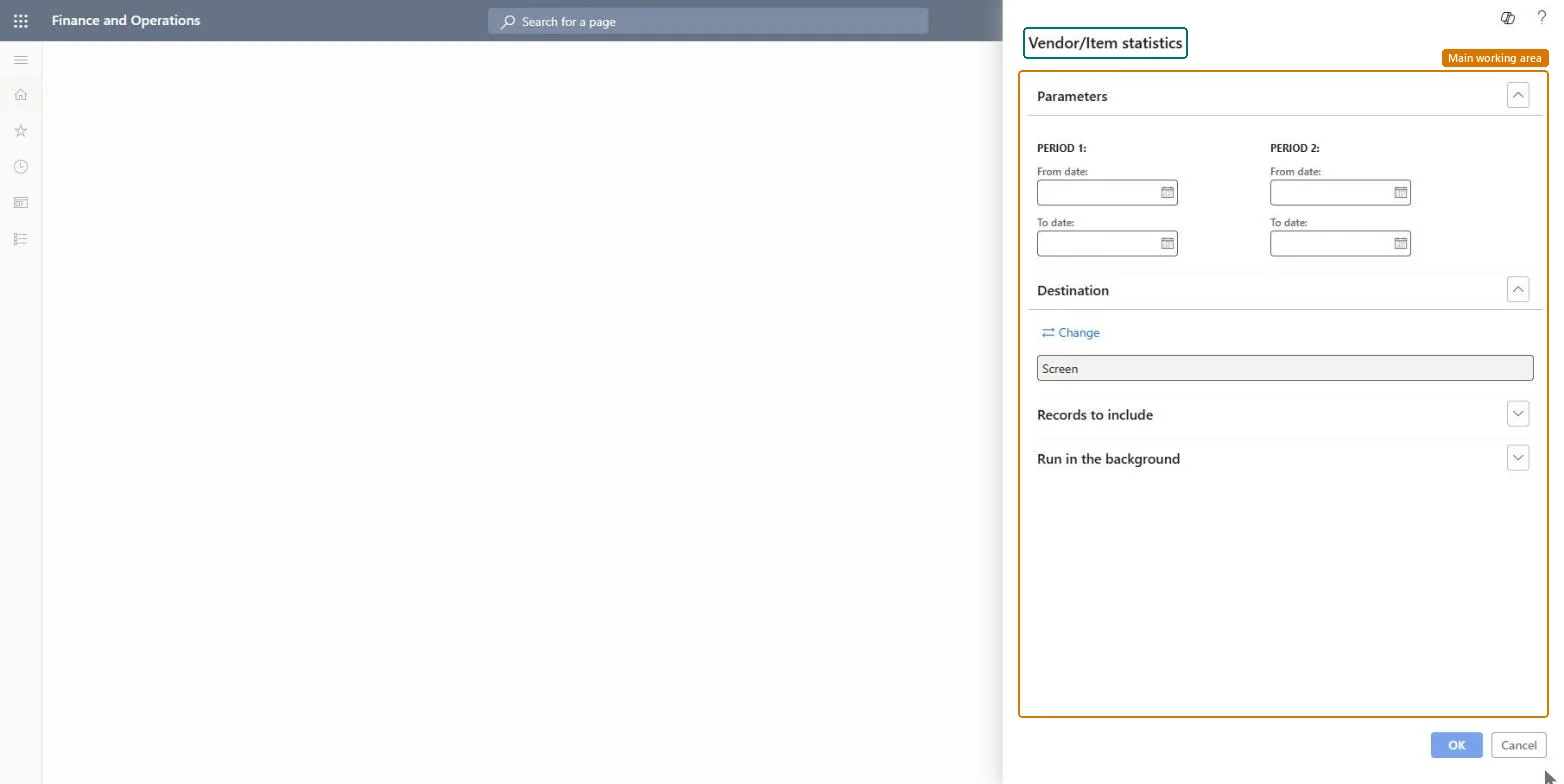
Procurement and sourcing › Inquiries and reports › Vendor statistics › Vendor/Item statistics
End user · Functional consultant
3How to do it
About the examples: Examples and screenshots in this guide use BEAT, a demo company in a Dynamics 365 test environment. Use your own company's codes and values instead of copying them.
When to run it
When to run it
When you prepare vendor reviews, contract negotiations or spend analysis by vendor.
How often
On demand, typically for periodic vendor reviews or before negotiations.
What the output shows
Purchase statistics grouped by vendor, with the items bought from each vendor, for period 1 and period 2 side by side. A vendor with no figures in a period usually means no invoiced purchases fell inside those dates.
Go to Procurement and sourcing > Inquiries and reports > Vendor statistics > Vendor/Item statistics.
Under PERIOD 1, enter the From date and To date of the period you want to analyze, for example the current year to date.
Under PERIOD 2, enter the From date and To date of the period to compare with, for example the same months last year.
Filter on Vendor account in Records to include to see what you bought from one or more vendors; add an Item filter only when you want to narrow each vendor to certain items.
Run the report and compare each vendor's purchases between the two periods. Here the vendor is the main grouping and items are listed under it.
The items whose transactions are included on the report.Microsoft Learn
Vendor account
The vendor accounts whose transactions are included on the report.Microsoft Learn
Solution architect
4Design impact
Can it be undone
Nothing to undo: The report only reads purchase history; it changes nothing. Microsoft Learn
Technical architect
5Technical
Menu item
output:PurchStatistics_VendItemChecked in Dynamics 365
Form
SysOperationTemplateFormChecked in Dynamics 365
Roles to set it up and use it
To use itPurchasing manager TradePurchasingManagerChief executive officer CompanyChiefExecutiveOfficerGive people one of these roles. On this system, 2 roles can run this page.Checked in Dynamics 365