Procurement and sourcing › Inquiries and reports › Vendor statistics › Item/Vendor statistics
End user · Functional consultant
3How to do it
About the examples: Examples and screenshots in this guide use BEAT, a demo company in a Dynamics 365 test environment. Use your own company's codes and values instead of copying them.
When to run it
When to run it
When you review sourcing per product, for example before you renegotiate prices for an item or decide to add a second vendor.
How often
On demand, when buyers review how each item is sourced.
What the output shows
Purchase statistics grouped by item, with each vendor that supplied the item, for both periods. Unlike Vendor/Item statistics, the item is the main grouping. An item with an unexpected vendor often points to a purchase order placed outside the agreed source.
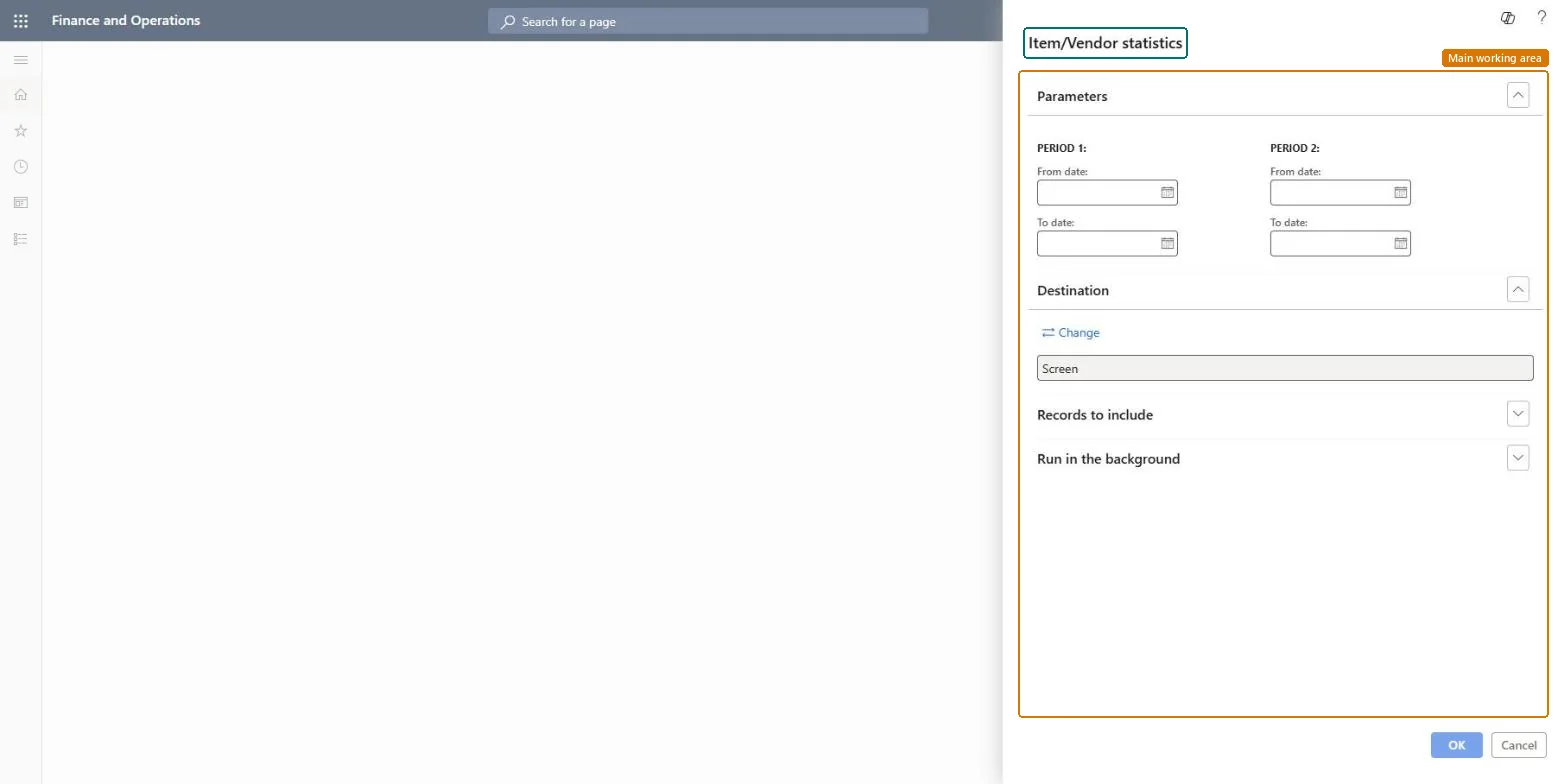
Go to Procurement and sourcing > Inquiries and reports > Vendor statistics > Item/Vendor statistics.
Under PERIOD 1, enter the From date and To date of the period you want to look at.
Under PERIOD 2, enter the From date and To date of the comparison period, so you can see how purchasing of each item has moved.
Filter on Item in Records to include when you only want certain products; this report groups by item first and then lists the vendors that supplied each item.
Run the report and look for items whose volume shifted from one vendor to another between the two periods.
Nothing to undo: The report only reads purchase history; nothing is changed. Microsoft Learn
Technical architect
5Technical
Menu item
output:PurchStatistics_ItemVendChecked in Dynamics 365
Form
SysOperationTemplateFormChecked in Dynamics 365
Roles to set it up and use it
To use itPurchasing manager TradePurchasingManagerChief executive officer CompanyChiefExecutiveOfficerGive people one of these roles. On this system, 2 roles can run this page.Checked in Dynamics 365