Procurement and sourcingInquiries and reportsTransaction reports
output:LedgerTransListAccountVend
Business process
Procure goods and services
Menu item
output:LedgerTransListAccountVend
Show what matters for
PAGE GUIDEWhat the page does and how to use it7 sections. Choose a role to highlight what matters to you.
Everyone
1What it is and why
What it is
A report that lists the ledger postings for purchase orders within a date range.
What you do here
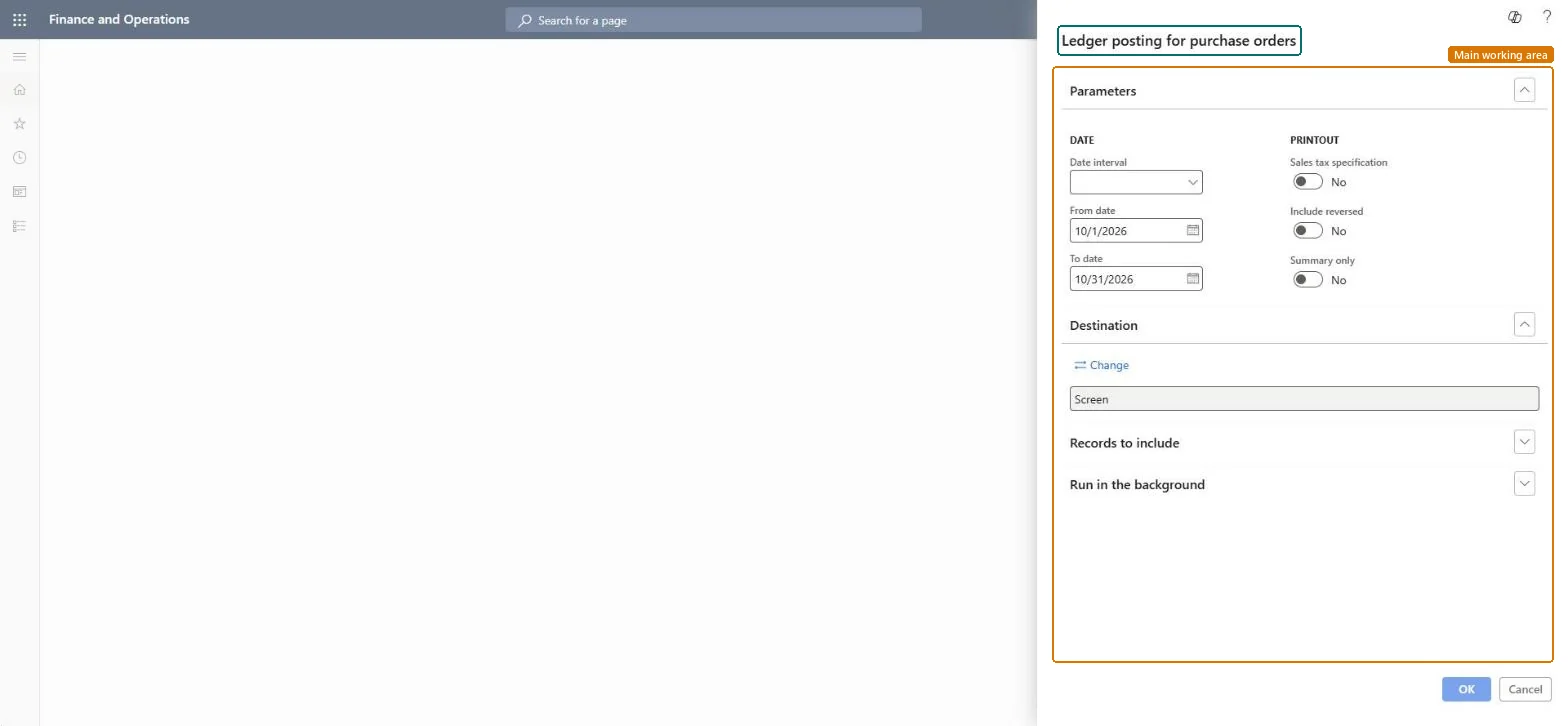
Use this report to review the ledger postings made for purchase orders in a period. You set a date interval or From date and To date, and you can switch on Sales tax specification, Include reversed and Summary only.
The page in Dynamics 365. page title tab to open what to set or check
Procurement and sourcing › Inquiries and reports › Transaction reports › Ledger posting for purchase orders
End user · Functional consultant
3How to do it
About the examples: Examples and screenshots in this guide use BEAT, a demo company in a Dynamics 365 test environment. Use your own company's codes and values instead of copying them.
When to run it
When to run it
During the period close, when you reconcile purchase order postings with the general ledger.
How often
On demand, usually once per period close.
What the output shows
The ledger postings made for purchase orders in the period, with sales tax when selected. Product receipt postings only appear when product receipts are set to post to the ledger.
Go to Procurement and sourcing > Inquiries and reports > Transaction reports > Ledger posting for purchase orders.
Under DATE, choose a Date interval, or enter the From date and To date of the postings you want to see.
Under PRINTOUT, switch on Sales tax specification to add the tax, Include reversed to show reversed postings, or Summary only to print totals.
Use Records to include to limit the report to specific purchase orders or vendors.
Compare the postings with the inventory posting profile: product receipts post to accounts such as Purchase expenditure, uninvoiced, and invoices to Purchase expenditure for product. A posting on an unexpected account points to the posting profile setup.
Nothing to undo: The report only reads posted vouchers of purchase orders; it changes nothing. Microsoft Learn
Technical architect
5Technical
Menu item
output:LedgerTransListAccountVendChecked in Dynamics 365
Form
SysOperationTemplateFormChecked in Dynamics 365
Roles to set it up and use it
To use itAccountant LedgerAccountantAccounting manager LedgerAccountingManagerChief financial officer CompanyChiefFinancialOfficerFinancial controller LedgerFinancialControllerAuditor AuditPolicyManagerGive people one of these roles. On this system, 7 roles can run this page.Checked in Dynamics 365