Open purchase order lines with unconfirmed delivery date report
Procurement and sourcingInquiries and reportsStatus
output:PurchLineLeadTimeDetail
Business process
Procure goods and services
Menu item
output:PurchLineLeadTimeDetail
Show what matters for
PAGE GUIDEWhat the page does and how to use it7 sections. Choose a role to highlight what matters to you.
Everyone
1What it is and why
What it is
A report that lists open purchase order lines whose delivery date is not yet confirmed.
What you do here
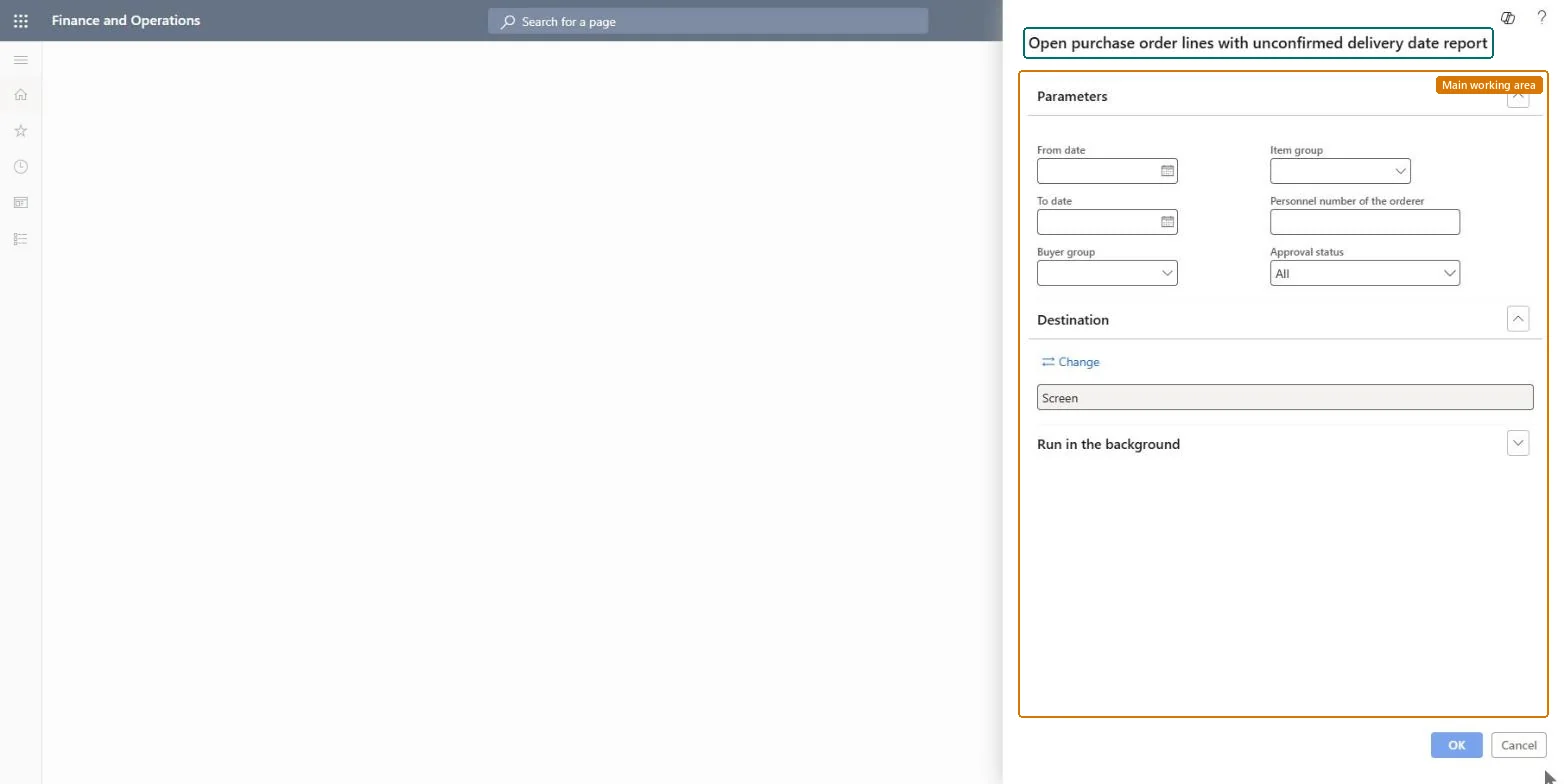
Use this report to find open purchase order lines that still need a confirmed delivery date. You can narrow it by From date, To date, Buyer group, Item group, Personnel number of the orderer and Approval status.
The page in Dynamics 365. page title tab to open what to set or check
Procurement and sourcing › Inquiries and reports › Status › Open purchase order lines with unconfirmed delivery date report
End user · Functional consultant
3How to do it
About the examples: Examples and screenshots in this guide use BEAT, a demo company in a Dynamics 365 test environment. Use your own company's codes and values instead of copying them.
When to run it
When to run it
When you follow up on vendors who haven't confirmed delivery dates yet, typically before purchasing and planning meetings or after sending orders for confirmation.
How often
On demand, whenever the buying team reviews open orders that still wait for a vendor delivery confirmation.
What the output shows
A list of open purchase order lines without a confirmed delivery date, by order and item, within the dates and filters you chose. A line you expected to be confirmed means the vendor's confirmed date wasn't recorded on the line.
Go to Procurement and sourcing > Inquiries and reports > Status > Open purchase order lines with unconfirmed delivery date report.
Enter the From date and To date that cover the delivery dates you want to chase, for example the next four weeks.
Choose a Buyer group or an Item group to give each buyer only the lines they are responsible for.
Enter the Personnel number of the orderer, or choose an Approval status such as Confirmed, when you only want orders from one requester or in one approval state.
Run the report and contact the vendor for every line that still has no confirmed delivery date. Lines that should not appear usually have a confirmed date entered on the purchase order line that the report doesn't use, or fall outside your date range.
Nothing to undo: The report only reads open purchase order lines; it changes nothing on the orders. Microsoft Learn
Technical architect
5Technical
Menu item
output:PurchLineLeadTimeDetailChecked in Dynamics 365
Form
SysOperationTemplateFormChecked in Dynamics 365
Roles to set it up and use it
To use itPurchasing manager TradePurchasingManagerAccounts payable manager VendInvoiceAccountsPayableManagerBuying agent TradeBuyingAgentProject manager ProjProjectManagerAccountant LedgerAccountantGive people one of these roles. On this system, 6 roles can run this page.Checked in Dynamics 365