Procurement and sourcing › Inquiries and reports › Request for quotation statistics › Vendor performance
End user · Functional consultant
3How to do it
About the examples: Examples and screenshots in this guide use BEAT, a demo company in a Dynamics 365 test environment. Use your own company's codes and values instead of copying them.
When to run it
When to run it
When you evaluate vendors' bidding results, for example before deciding which vendors to invite to the next request for quotation.
How often
On demand, typically per quarter or year of sourcing activity.
What the output shows
Per vendor, the number of request for quotation lines sent and replies accepted, plus Success rate and Vendor importance if you switched them on. A low success rate with many invitations suggests the vendor isn't competitive on those items.
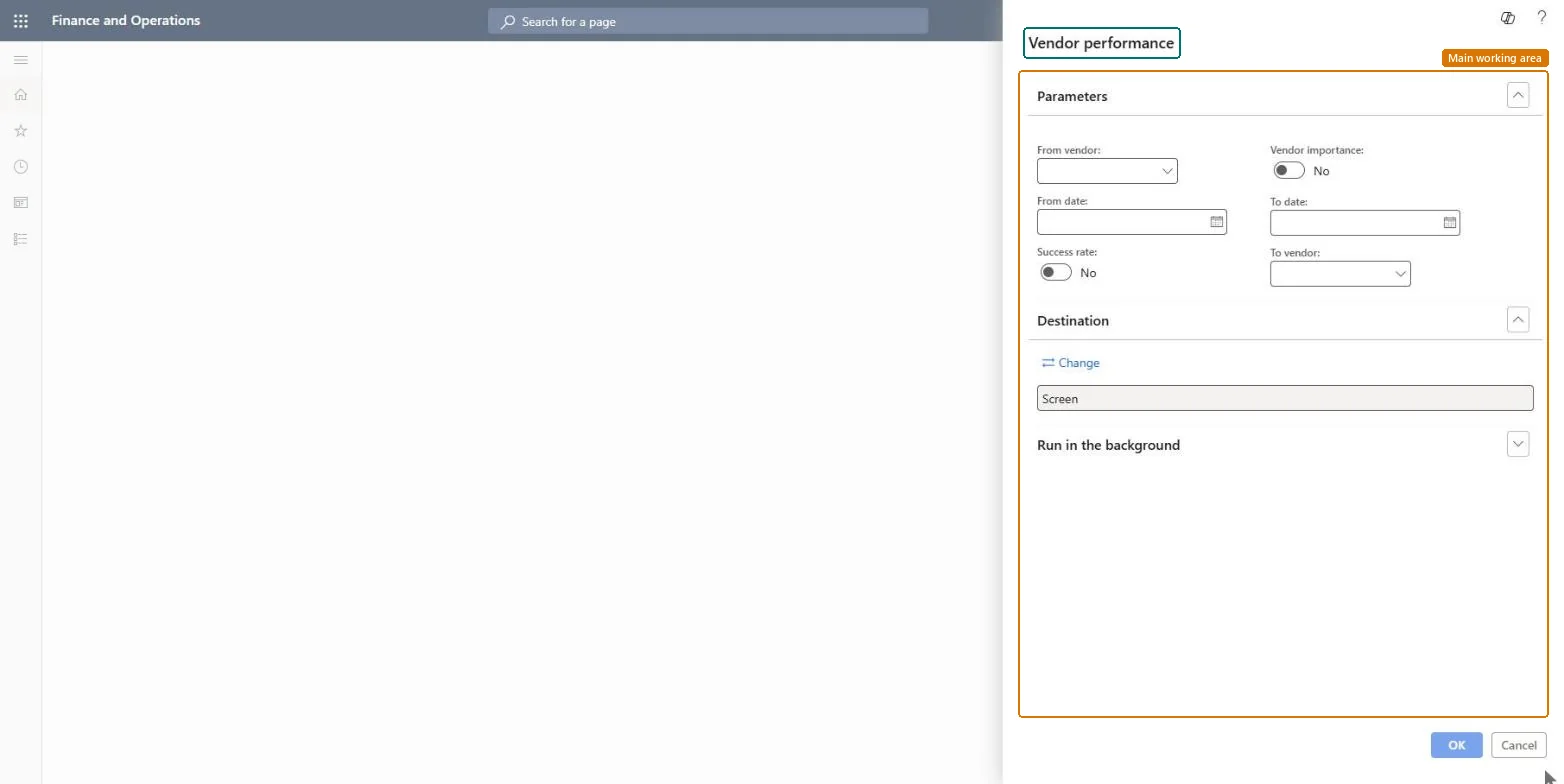
Go to Procurement and sourcing > Inquiries and reports > Request for quotation statistics > Vendor performance.
Select the From vendor and To vendor to set the range of vendors to compare.
Enter the From date and To date. The report includes request for quotation journals created in that period.
Switch on Success rate to show accepted replies compared with the request lines sent to each vendor, and Vendor importance to show each vendor's share of all accepted replies in the period.
Run the report and look for vendors who are invited often but rarely win, or who win most of the accepted replies.
The first vendor account in the range of vendors to include.Microsoft Learn
To vendor
The last vendor account in the range of vendors to include.Microsoft Learn
From date
The start date of the request for quotation journals to include, based on when the journals were created.Microsoft Learn
To date
The end date of the request for quotation journals to include.Microsoft Learn
Success rate
Shows accepted vendor replies compared with the number of request for quotation lines sent to the vendor in the period.Microsoft Learn
Vendor importance
Shows a vendor's accepted replies compared with all accepted replies in the period.Microsoft Learn
Solution architect
4Design impact
Can it be undone
Nothing to undo: The report only reads request for quotation journals; it changes nothing. Microsoft Learn
Technical architect
5Technical
Menu item
output:PurchRFQVendPerformanceChecked in Dynamics 365
Form
SysOperationTemplateFormChecked in Dynamics 365
Roles to set it up and use it
To use itPurchasing manager TradePurchasingManagerChief executive officer CompanyChiefExecutiveOfficerGive people one of these roles. On this system, 2 roles can run this page.Checked in Dynamics 365