BeyondERP.Newsletter
Menu

Report page · Procurement and sourcing

Request for quotation item/vendor

A report that shows statistics on requests for quotation, grouped first by item and then by vendor.

Business process
Analyze procurement and sourcing
Menu item
output:PurchRFQItemVend
Show what matters for
PAGE GUIDEWhat the page does and how to use it7 sections. Choose a role to highlight what matters to you.
Everyone

1What it is and why

What it isA report that shows statistics on requests for quotation, grouped first by item and then by vendor.
What you do hereUse this report to review requests for quotation item by item and see the vendors involved for each item.
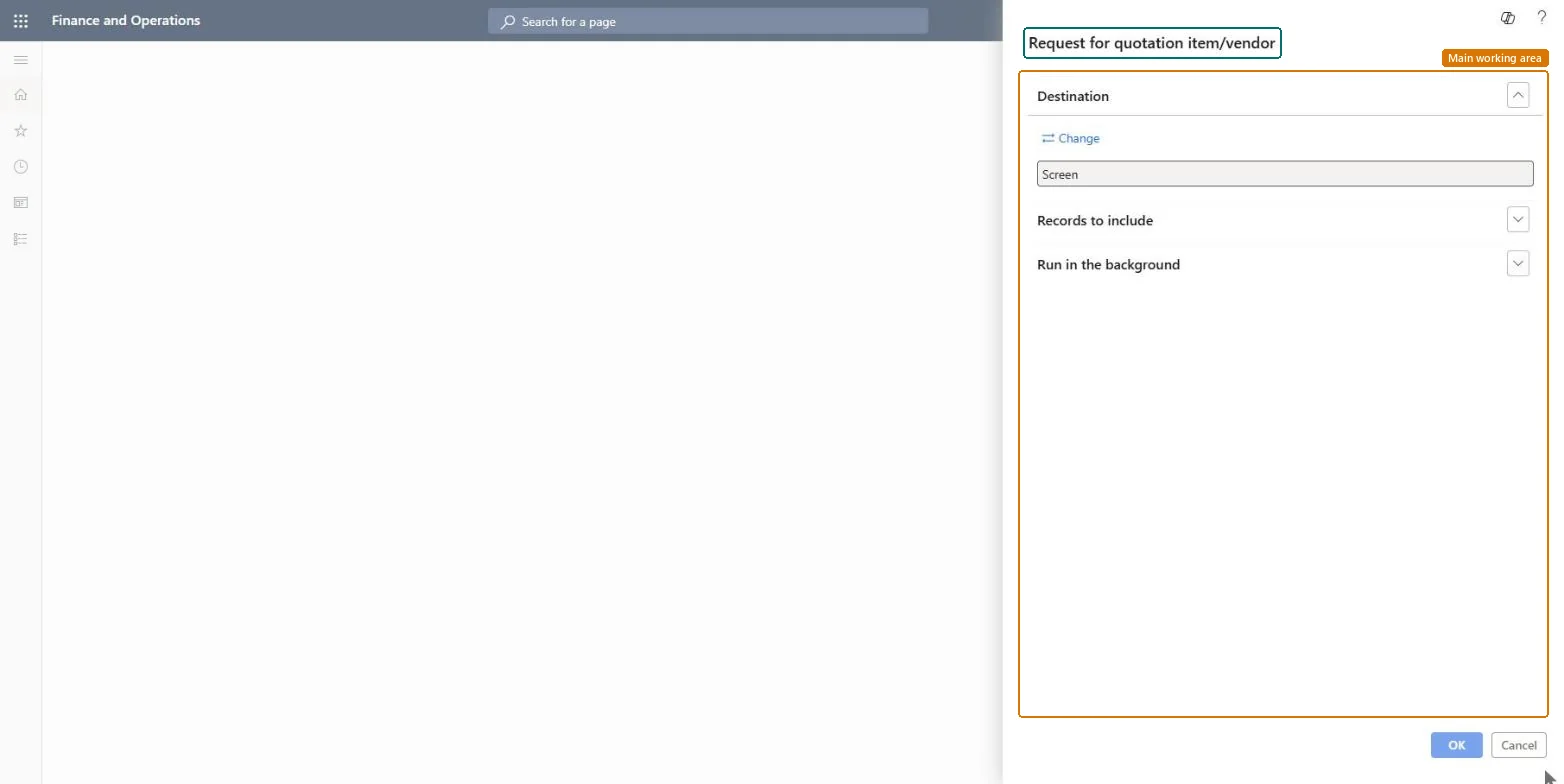
Request for quotation item/vendor page in Dynamics 365
The page in Dynamics 365. page title tab to open what to set or check
Functional consultant · Solution architect

2Where it fits

Business processAnalyze procurement and sourcing
Menu pathProcurement and sourcing › Inquiries and reports › Request for quotation statistics › Request for quotation item/vendor
Related pagesRequest for quotation vendor/item Microsoft Learn
End user · Functional consultant

3How to do it

About the examples: Examples and screenshots in this guide use BEAT, a demo company in a Dynamics 365 test environment. Use your own company's codes and values instead of copying them.

When to run it

When to run itWhen you compare how many vendors were invited to quote for each item, before you score bids or award a request for quotation.
How oftenOn demand, during sourcing events while replies are coming in.
What the output showsRequests for quotation grouped by item, with the vendors under each item and their request status. An item with only one vendor means it wasn't sent to enough vendors for a competitive bid.

Source: Microsoft Learn

Steps from Microsoft

  1. Go to Procurement and sourcing > Inquiries and reports > Request for quotation statistics > Request for quotation item/vendor.
  2. Set Lowest status and Highest status to the request for quotation statuses you want, for example only requests that are sent and waiting for replies.
  3. Enter an Item number to see which vendors were asked to quote for one product, or leave it empty to list all items.
  4. Use Expiration date, Requester or Buyer group to limit the list to requests that expire soon or belong to your team.
  5. Run the report and review, item by item, which vendors received the request and their status. The item is the main grouping on this report.

Source: Microsoft Learn

Fields on the page

FieldWhat it means
Item numberLimits the report to requests for quotation that contain the selected item.Microsoft Learn
Vendor accountLimits the report to requests for quotation sent to the selected vendor.Microsoft Learn
RequesterLimits the report to requests for quotation from the selected requester.Microsoft Learn
Expiration dateLimits the report to requests for quotation that expire on or before this date.Microsoft Learn
Highest statusThe highest request for quotation status to include.Microsoft Learn
Lowest statusThe lowest request for quotation status to include.Microsoft Learn
Buyer groupThe buyer group to show on the report.Microsoft Learn
Request for quotationA single request for quotation to show on the report.Microsoft Learn
Solution architect

4Design impact

Can it be undoneNothing to undo: The report only reads requests for quotation; it changes nothing. Microsoft Learn
Technical architect

5Technical

Menu itemoutput:PurchRFQItemVend Checked in Dynamics 365
FormSysOperationTemplateForm Checked in Dynamics 365
Roles to set it up and use itTo use itPurchasing manager TradePurchasingManagerChief executive officer CompanyChiefExecutiveOfficerGive people one of these roles. On this system, 2 roles can run this page.Checked in Dynamics 365
Developer

6Developer

Open it by URLhttps://<your-environment>/?mi=output:PurchRFQItemVend
Everyone

7Sources