BeyondERP.Newsletter
Menu

Report page · Payroll

Tax register report

A standard payroll report that lists the payroll tax amounts calculated during payroll processing for a date range.

Business process
Pay employees
Menu item
PayrollUSTaxTransactionHistory
Data entity
PayrollUSTaxTransactionHistorySummaryEntity
Show what matters for
PAGE GUIDEWhat the page does and how to use it7 sections. Choose a role to highlight what matters to you.
Everyone

1What it is and why

What it isA standard payroll report that lists the payroll tax amounts calculated during payroll processing for a date range.
What you do hereUse this page to print the tax register and check that the taxes calculated in payroll are correct, filtered by date range and tax code.
ExampleFor example, run the tax register every pay period, and again at quarter and year end, to validate calculated taxes before filing.
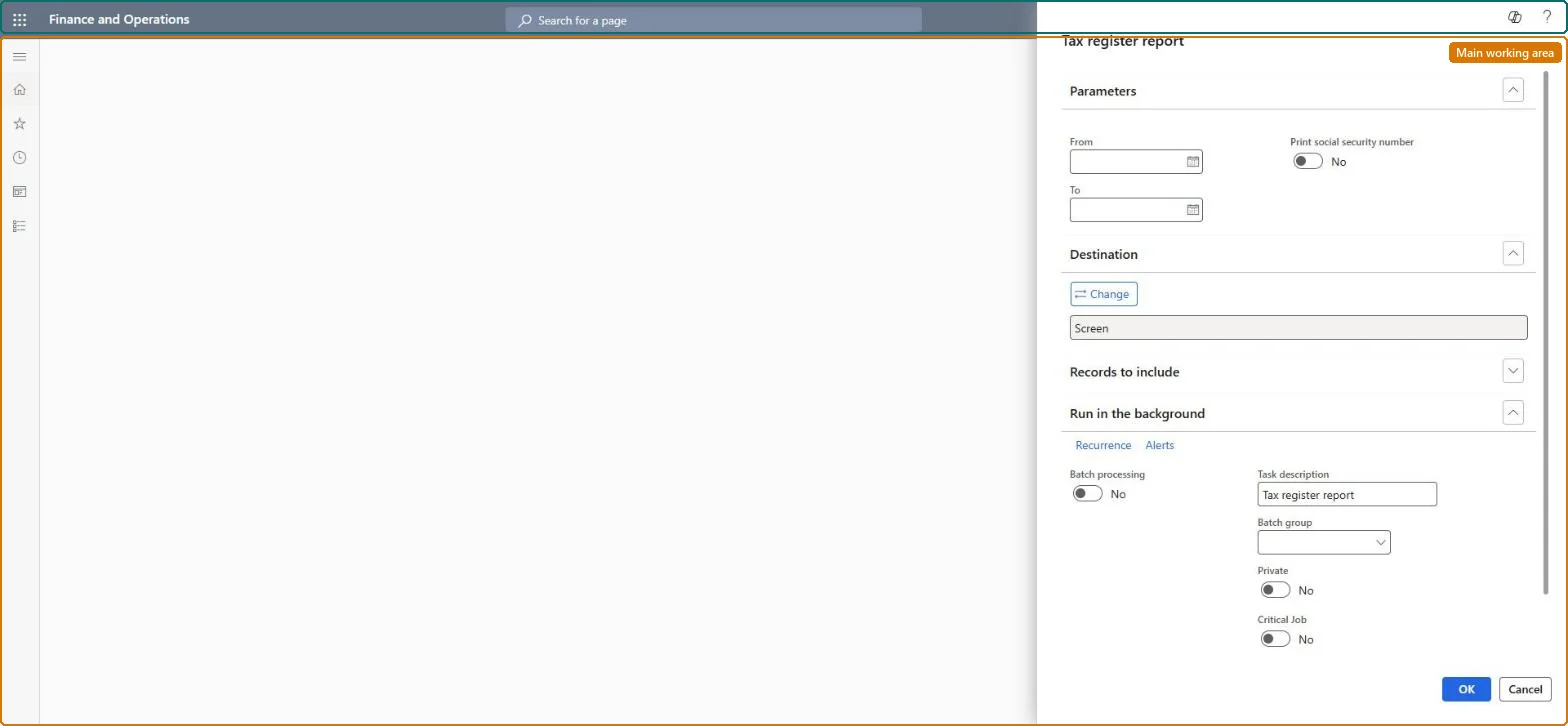
Tax register report page in Dynamics 365
The page in Dynamics 365. page title tab to open what to set or check
Functional consultant · Solution architect

2Where it fits

Business processManage compensation and benefits › Pay employees
Menu pathPayroll › Tax processing › Tax register report
End user · Functional consultant

3How to do it

About the examples: Examples and screenshots in this guide use BEAT, a demo company in a Dynamics 365 test environment. Use your own company's codes and values instead of copying them.

When to run it

When to run itAfter pay statements are generated for a pay run, to confirm the taxes calculated before you submit and post them; also at quarter end and year end.
How oftenEvery pay period, and again quarterly and annually.
What the output showsThe payroll tax amounts that were calculated during payroll processing for the date range, per tax code. An amount that looks wrong usually points to the worker's tax setup or tax region, or to earnings lines with the wrong earning code.

Source: Microsoft Learn

Steps from Microsoft

  1. Go to Payroll > Tax processing > Tax register report.
  2. In Parameters, enter the From and To dates of the payroll you want to review, for example one pay period, a quarter or a year.
  3. Leave Print social security number cleared unless you really need the numbers; Microsoft recommends avoiding it.
  4. Under Records to include, filter on Tax code to review one tax at a time, such as federal income tax or a state tax.
  5. Print the report and compare the tax amounts with what you expect for the workers and period.

Source: Microsoft Learn

Fields on the page

FieldWhat it means
From / ToThe first and last dates of the range to include.Microsoft Learn
Print social security numberPrints workers' Social Security Numbers on the report; Microsoft recommends avoiding this where possible.Microsoft Learn
Tax codeLimits the report to the selected tax codes.Microsoft Learn
Solution architect

4Design impact

Can it be undoneNothing to undo: The tax register only reads calculated payroll taxes; it changes nothing. Microsoft Learn
Technical architect

5Technical

Menu itemPayrollUSTaxTransactionHistory Checked in Dynamics 365
FormSysOperationTemplateForm Checked in Dynamics 365
Data entitiesPayrollUSTaxTransactionHistorySummaryEntityTax transaction history summary Checked in Dynamics 365
Roles to set it up and use itTo use itPayroll administrator HcmPayrollAdministratorPayroll manager HcmPayrollManagerGive people one of these roles. On this system, 2 roles can open this page.Checked in Dynamics 365
Developer

6Developer

Open it by URLhttps://<your-environment>/?mi=PayrollUSTaxTransactionHistory
Integrate withPayrollUSTaxTransactionHistorySummaryEntity data entity Checked in Dynamics 365
Everyone

7Sources

KEEP EXPLORING

More in Payroll.

Open the other pages and setup steps in this module, or go back to the Atlas Hub to search every page.