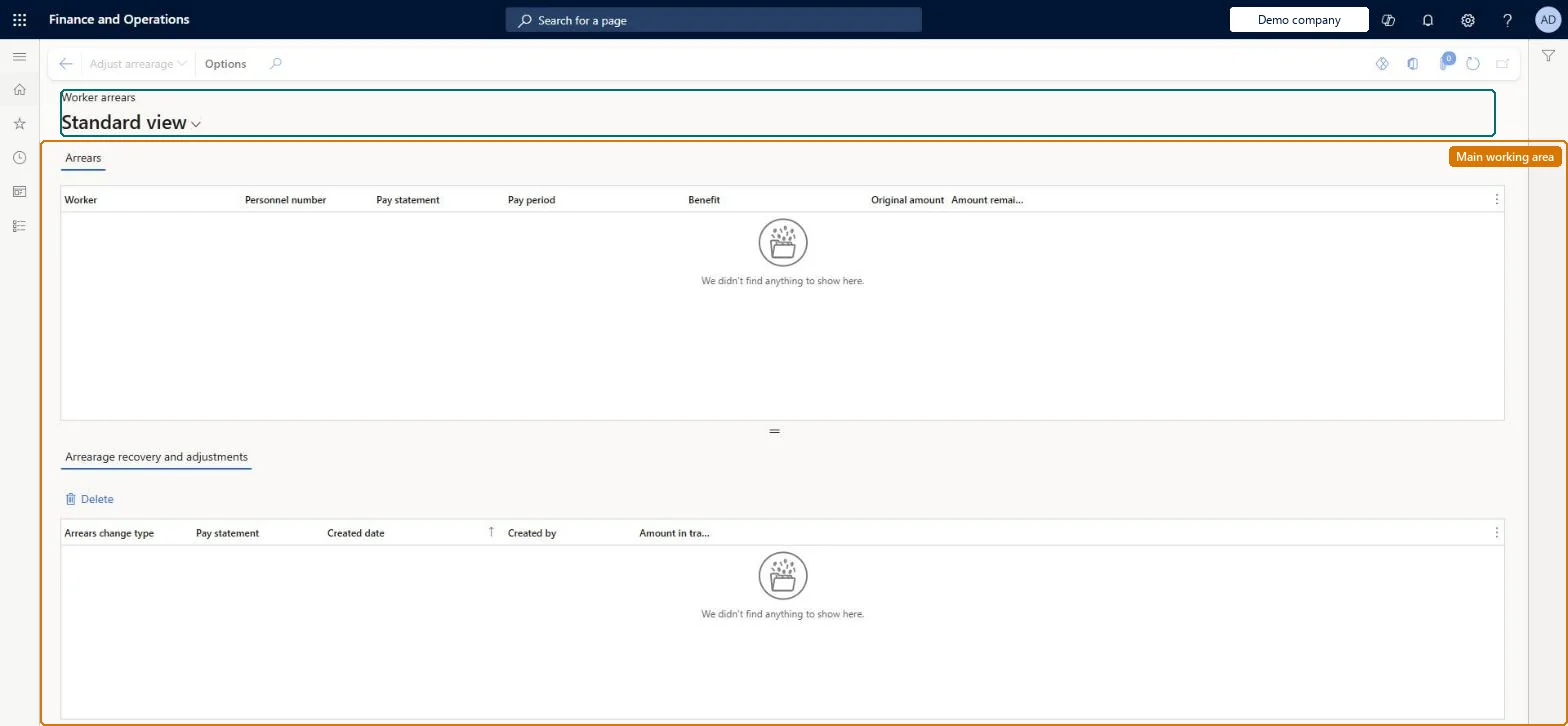
An inquiry and maintenance page that lists the benefit deduction amounts that went into arrears for each worker, with the original and remaining amounts.
PAGE GUIDEWhat the page does and how to use it7 sections. Choose a role to highlight what matters to you.
Everyone
1What it is and why
What it is
An inquiry and maintenance page that lists the benefit deduction amounts that went into arrears for each worker, with the original and remaining amounts.
What you do here
Use this page to review benefit arrearages and to enter manual adjustments that increase or decrease an arrearage. It is also where you check whether an arrearage was recovered, because the pay statement itself doesn't show that.
Example
For example, reduce a worker's arrearage when the worker repays it outside the payroll system or when the company forgives it.
The page in Dynamics 365. page title tab to open what to set or check
About the examples: Examples and screenshots in this guide use BEAT, a demo company in a Dynamics 365 test environment. Use your own company's codes and values instead of copying them.
How to use it
Go to Payroll > Pay statement processing > Manage worker arrears.
On the Arrears tab, review the Worker, Personnel number, Pay statement, Pay period, Benefit, Original amount and Amount remaining columns.
Select an arrear and select Adjust arrearage to change it.
Review the recovery and adjustment history on the Arrearage recovery and adjustments tab.
Select Delete on that tab to remove a selected adjustment.
Source: Checked in Dynamics 365
Fields on the page
Field
What it means
Table column
Pay Statement / Pay period
The pay statement and pay period in which the benefit deduction went into arrears.Microsoft Learn
Hard to reverse: Reversing a pay statement does not reverse arrearages it created or recovered; you must adjust the balance here by hand. Deleting a pay statement deletes the arrearages it created, but only after any later pay statement that recovered them is deleted first. The pay statement itself does not show recovery, so check it here. Microsoft Learn
If you change it later
Any amount by which you reduce an arrearage is no longer recovered from the worker's future pay. Microsoft Learn
Technical architect
5Technical
Menu item
PRLDeductionArrearInquiryChecked in Dynamics 365
Form
PRLDeductionArrearInquiryChecked in Dynamics 365
Table
PRLArrearsWithRecoveryBalanceShown as “ARREARS WITH RECOVERY BALANCE” in Record infoChecked in Dynamics 365
To set it up or change itPayroll administrator HcmPayrollAdministratorTo use itPayroll manager HcmPayrollManagerGive people one of these roles. On this system, 2 roles can open this page.Checked in Dynamics 365
Actions on the page
(Action Pane without tabs): Adjust arrearageChecked in Dynamics 365