PAGE GUIDEWhat the page does and how to use it6 sections. Choose a role to highlight what matters to you.
Everyone
1What it is and why
What it is
A workspace that lists the business processes and tasks that belong to the current user.
What you do here
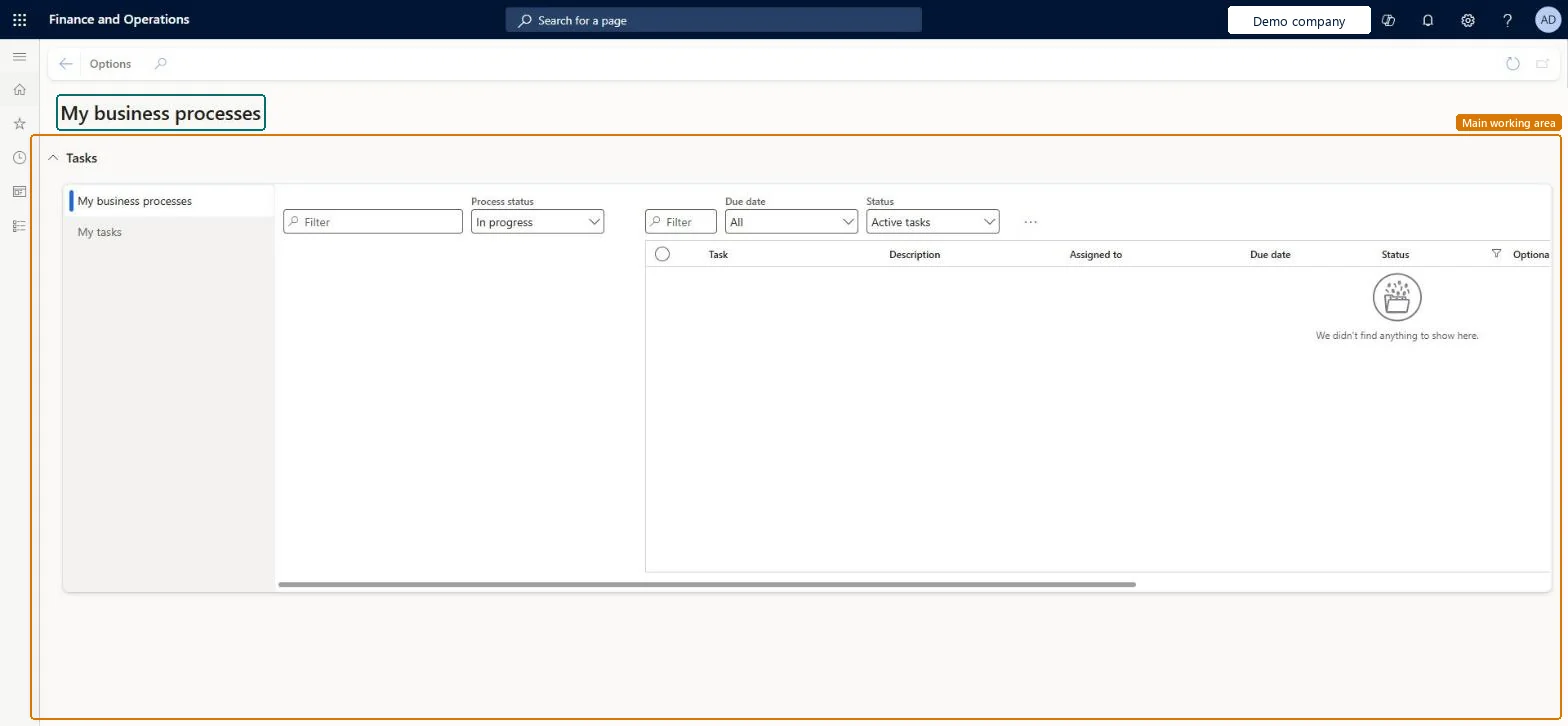
Use this workspace to follow your business processes and the tasks assigned to you. You can filter processes by Process status and tasks by Due date and Status.
The page in Dynamics 365. page title tab to open what to set or check
Organization administration › Workspaces › My business processes
End user · Functional consultant
3How to do it
About the examples: Examples and screenshots in this guide use BEAT, a demo company in a Dynamics 365 test environment. Use your own company's codes and values instead of copying them.
How to use it
Go to Organization administration > Workspaces > My business processes.
In the Tasks section, choose My business processes or My tasks.
Choose a Process status, such as In progress, and use the Filter box to find a process.
To narrow tasks, set the Due date and the Status, or use the task Filter box.
Review the Task, Description, Assigned to, Due date and Status columns.
Source: Checked in Dynamics 365
Technical architect
4Technical
Menu item
BusinessProcessGenericOwnerWorkspaceChecked in Dynamics 365
Form
BusinessProcessGenericOwnerWorkspaceChecked in Dynamics 365
Roles to set it up and use it
To set it up or change itSelf-service employee HCMEmployeeSelfServiceEmployee HCMEmployeeGive people one of these roles. On this system, 2 roles can open this page.Checked in Dynamics 365