PAGE GUIDEWhat the page does and how to use it7 sections. Choose a role to highlight what matters to you.
Everyone
1What it is and why
What it is
A setup page that lists the images that can be used for document brands, each with a name and a description.
What you do here
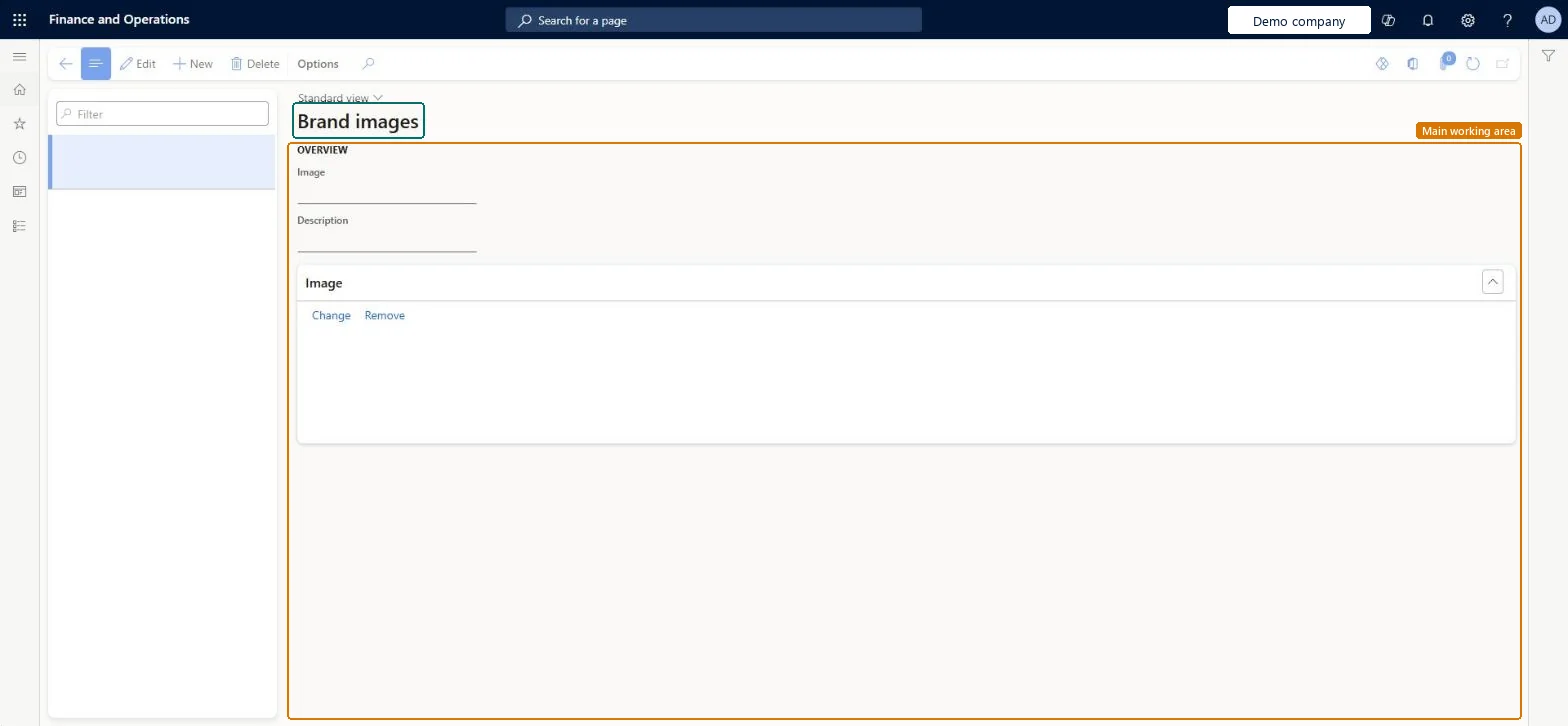
Use this page to maintain brand images. For the selected image you set the Image and Description, and you can use Change and Remove to replace or clear the picture.
The page in Dynamics 365. page title tab to open what to set or check
About the examples: Examples and screenshots in this guide use BEAT, a demo company in a Dynamics 365 test environment. Use your own company's codes and values instead of copying them.
Setup steps on this page
Set up Document images
How to use it
Go to Organization administration > Setup > Document branding > Document images.
Select New to add an image, or select an image in the list and select Edit.
Enter the Image and Description.
Under Image, select Change to pick a picture, or Remove to clear it.
SysDocuBrandImagesShown as “Images” in Record infoChecked in Dynamics 365
Who can open it
PrivilegesSysDocuBrandMaintainDutiesSysDocuBrandMaintain1 security roleSystem document branding administrator SysDocuBrandAdminChecked in Dynamics 365
Roles to set it up and use it
To set it up or change itSystem document branding administrator SysDocuBrandAdminGive people one of these roles. On this system, 1 role can open this page.Checked in Dynamics 365
Actions on the page
Options: Personalize, Page options, ShareChecked in Dynamics 365