Business Performance Planning app role, Data management administrator, Data management migration user and 3 more roles
Business process
Administer system features
Menu item
CategoryForm
Main table
CategoryTable
Data entity
CategoryEntity
Setup steps
1 on this page
Show what matters for
PAGE GUIDEWhat the page does and how to use it8 sections. Choose a role to highlight what matters to you.
Everyone
1What it is and why
What it is
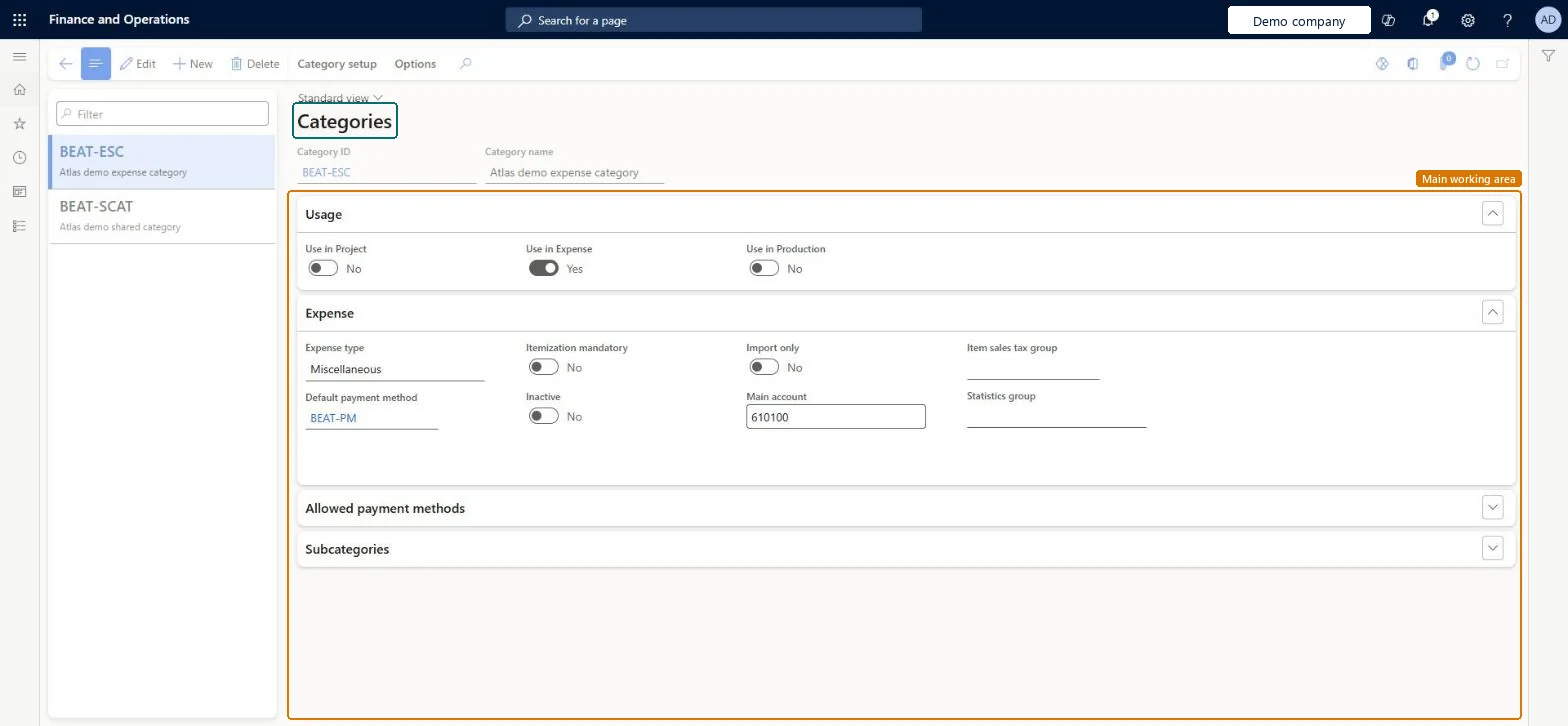
A setup page where you define categories and set where each category can be used: in projects, in expenses or in production.
What you do here
Use this page to maintain categories by Category ID and Category name. Each category has sections for Usage, Project, Cost accounts, Revenue accounts, Expense, Allowed payment methods, Subcategories, Production and Ledger postings, and a Category setup button on the Action Pane.
The page in Dynamics 365. page title tab to open what to set or check
About the examples: Examples and screenshots in this guide use BEAT, a demo company in a Dynamics 365 test environment. Use your own company's codes and values instead of copying them.
Step by step, with screenshots
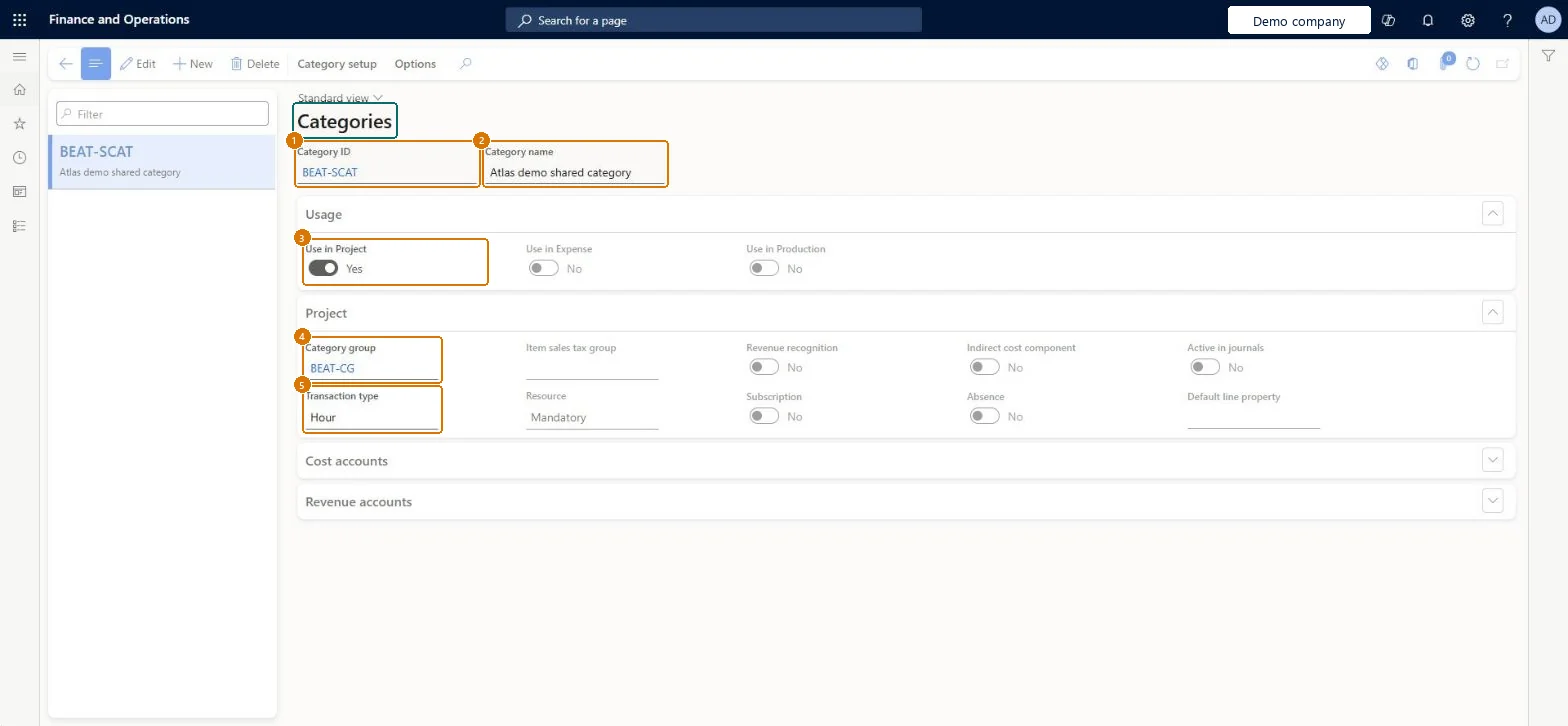
Set up Categories1 screen
Screen 1
Add a shared category to this company
Go to Organization administration > Setup > Categories > Categories
Select New
Select the shared category in Category ID; its name and usage are copied
On the Project section, select the category group
Select Save
1Category ID
BEAT-SCAT
3Use in Project
Yes
4Category group
BEAT-CG
5Transaction type
Hour
Show the full screen page title tab to open what to set or check
How to use it
Go to Organization administration > Setup > Categories > Categories.
Select New to add a category.
Enter the Category ID and the Category name.
In the Usage section, set Use in Project, Use in Expense and Use in Production.
Open the other sections, such as Project, Cost accounts, Revenue accounts, Expense, Allowed payment methods, Subcategories, Production and Ledger postings, to complete the setup.
Select Category setup on the Action Pane to open the category setup.
Source: Checked in Dynamics 365
Fields on the page
Field
What it means
Example
Table column
Category ID
The unique ID of the category.Checked in Dynamics 365
CONSULTING
CategoryId
Use in Project
Yes
UseInProject
Category group
LABOR
Transaction type
Hour
Test checklist
Create a shared category and mark Use in Project.
Create a category group with transaction type Expense.
Create a project category from the shared category and assign the group.
Enter a project expense journal line and check only expense categories are offered and the new category posts to the group's accounts.
Create the shared category first, then at least one category group per transaction type, and assign each project category to a groupA shared category must exist before a project category can be created in any legal entity, and category groups carry the shared properties, mainly posting profiles.
Creating project categories without a category group per transaction type, so related categories can't share posting setup.
Hard to reverse: Categories and their groups can be edited, but transactions already posted with a category keep their ledger postings; only new transactions use the changed setup. Microsoft Learn
Technical architect
6Technical
Menu item
CategoryFormChecked in Dynamics 365
Form
ProjCategoryChecked in Dynamics 365
Table
CategoryTableShown as “Category table” in Record infoKey field: CategoryIdChecked in Dynamics 365
PrivilegesMaintain expense categories CategoryFormMaintainView expense categories CategoryFormViewDutiesMaintain Master entity data for data management DataManagementApplicationMasterEntitiesMaintainView Master entity data for data management DataManagementApplicationMasterEntitiesViewEnable expense management process TrvTravelAndExpenseProcessEnableInquire into expense management reference data TrvTravelAndExpenseReferenceDataInquire6 security rolesBusiness Performance Planning app role BPPBudgetPlanningAppRoleData management administrator DataManagementAdministratorData management migration user DataManagementMigrationUserExpense administrator ExpenseAdministratorDemand planning app role ScpDemandPlanningAppRoleInformation technology manager SysServerITManagerChecked in Dynamics 365
Roles to set it up and use it
To set it up or change itInformation technology manager SysServerITManagerBusiness Performance Planning app role BPPBudgetPlanningAppRoleData management migration user DataManagementMigrationUserDemand planning app role ScpDemandPlanningAppRoleData management administrator DataManagementAdministratorGive people one of these roles. On this system, 6 roles can open this page.Checked in Dynamics 365
CategoryEntity (Category table): loaded for each company, in Microsoft's default template 410 - Production control.Load order: Microsoft's default template 410 - Production control loads Category table at execution unit 1, level 30, sequence 10. Lower levels load first, and entities at the same level load in sequence order.Load first: Shared category, the default templates at lower levels (System setup to General ledger)Microsoft Learn
Checked in a working Dynamics 365 system, version 10.0.49: the menu item, form, table and security, the page, the demo records and the values in the screenshots.