About the examples: Examples and screenshots in this guide use BEAT, a demo company in a Dynamics 365 test environment. Use your own company's codes and values instead of copying them.
Step by step, with screenshots
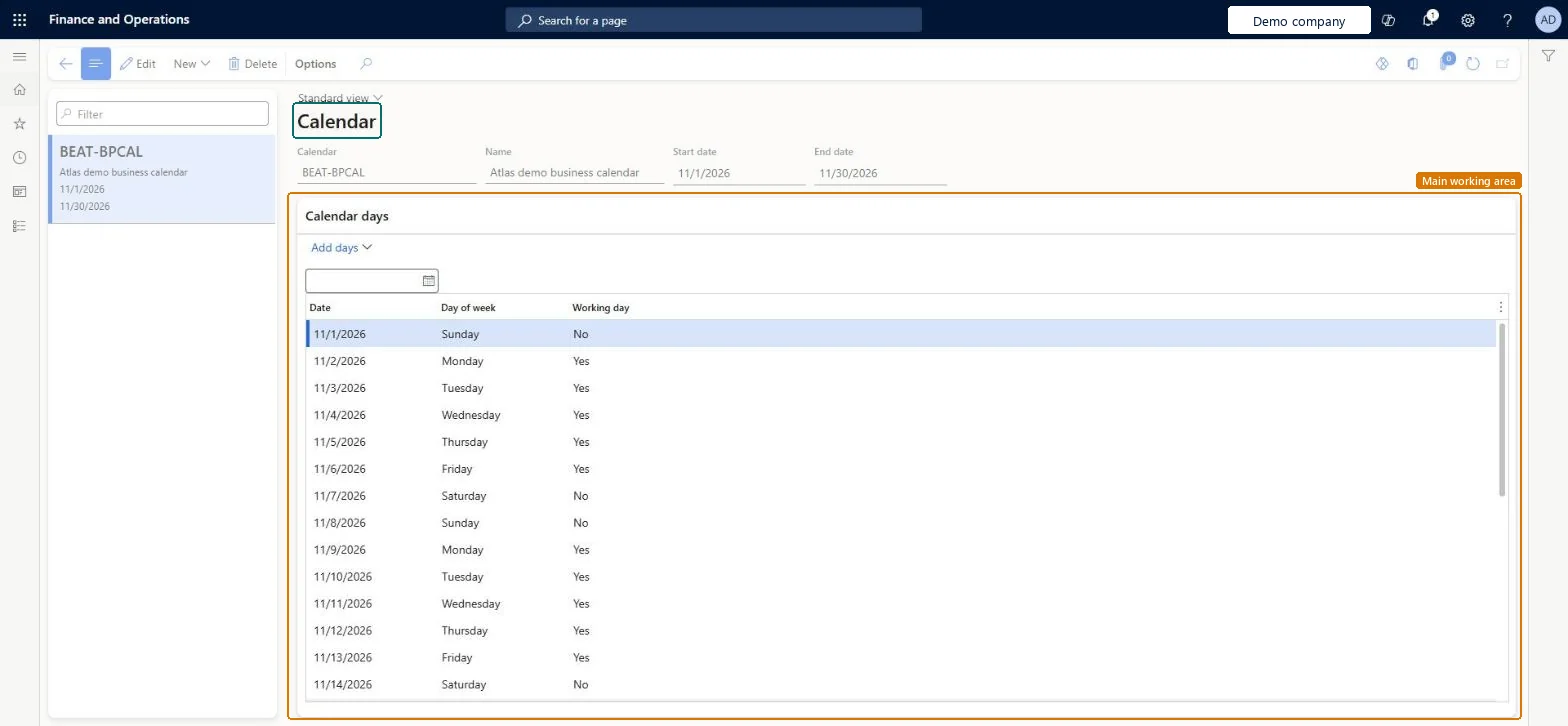
Set up Calendar1 screen
Use this page to define working days, weekends and holidays so that task due dates skip nonworking days.
Screen 1
Create a business process calendar
Go to Organization administration > Setup > Business process > Calendar
Select New
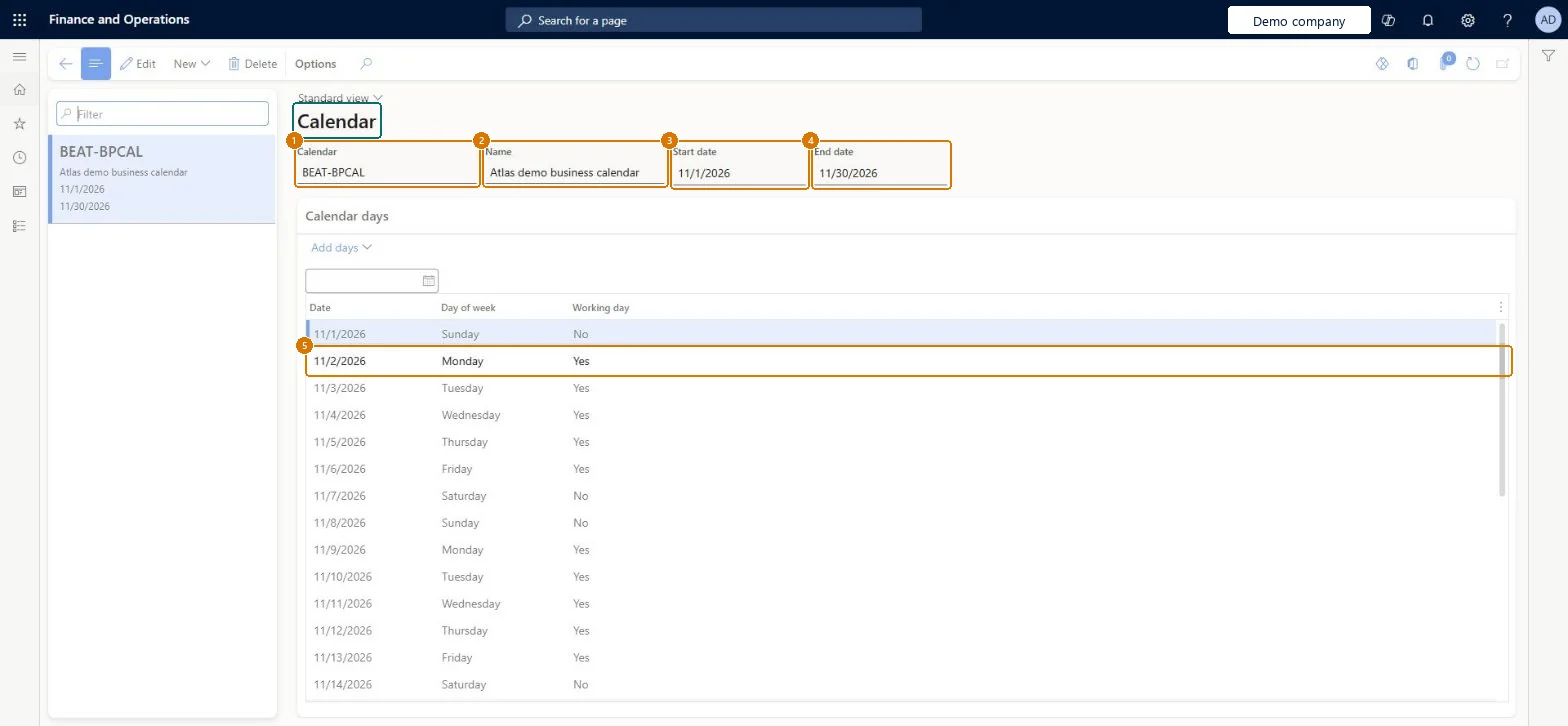
Enter the calendar ID, name, start date and end date
Leave the working weekdays selected
Select Create; the days are added with their working day flag
1Calendar
BEAT-BPCAL
2Name
Business calendar
3Start date
11/1/2026
4End date
11/30/2026
Working days
Monday to Friday
Show the full screen page title tab to open what to set or check
How to use it
Go to Organization administration > Setup > Business process > Calendar.
Select New to create a calendar.
Enter the Calendar, Name, Start date and End date.
Under Calendar days, select Add days to add dates.
In the Calendar days list, set the Working day value for each date.
Source: Checked in Dynamics 365
Fields on the page
Field
What it means
Example
Table column
Calendar
MONTHEND
CalendarId
Name
The name of the calendar.Checked in Dynamics 365
Business calendar
Name
Start date
11/1/2026
StartDate
End date
11/30/2026
EndDate
Working days
Monday to Friday
Test checklist
Create a calendar with Saturday and Sunday as nonworking days and a public holiday.
Assign it to an onboarding checklist with a task whose Due date offset is -2.
Apply the checklist with a Target date on a Monday.
Check the task due date skips the weekend and lands on the previous Thursday.
A calendar with working days, weekends and holidays for each set of checklists that share the same working patternTask due dates on a checklist are calculated from its calendar: working days count and nonworking days, including weekends and holidays, are skipped. Each checklist uses one calendar.
Missing holidays or an End date that has passed, so due date offsets land on nonworking days.
Solution architect
5Design impact
Can it be undone
Reversible: Changes apply when due dates are next calculated for a checklist. Due dates on existing tasks can be updated in the Task management workspace. Microsoft Learn
Technical architect
6Technical
Menu item
BusinessProcessCalendarListChecked in Dynamics 365
Form
BusinessProcessCalendarChecked in Dynamics 365
Table
BusinessProcessCalendarShown as “Business calendar” in Record infoChecked in Dynamics 365
Data entities
BusinessProcessCalendarEntityBusiness calendar Checked in Dynamics 365
To set it up or change itHuman resource manager HcmHumanResourceManagerHuman resource assistant HcmHumanResourceAssistantPayroll administrator HcmPayrollAdministratorPayroll manager HcmPayrollManagerRetail task manager RetailTaskManagerTo use itCompensation and benefits manager HcmCompensationAndBenefitsManagerTraining manager HcmTrainingManagerGive people one of these roles. On this system, 7 roles can open this page.Checked in Dynamics 365
Actions on the page
Options: Personalize, Page options, ShareChecked in Dynamics 365
Checked in a working Dynamics 365 system, version 10.0.49: the menu item, form, table and security, the page, the demo records and the values in the screenshots.