| What it is | A setup page that lists process templates, each with a name, description, type and an Active setting. |
|---|---|
| What you do here | Use this page to maintain process templates. The Process menu on the Action Pane offers View and Inquiry. |
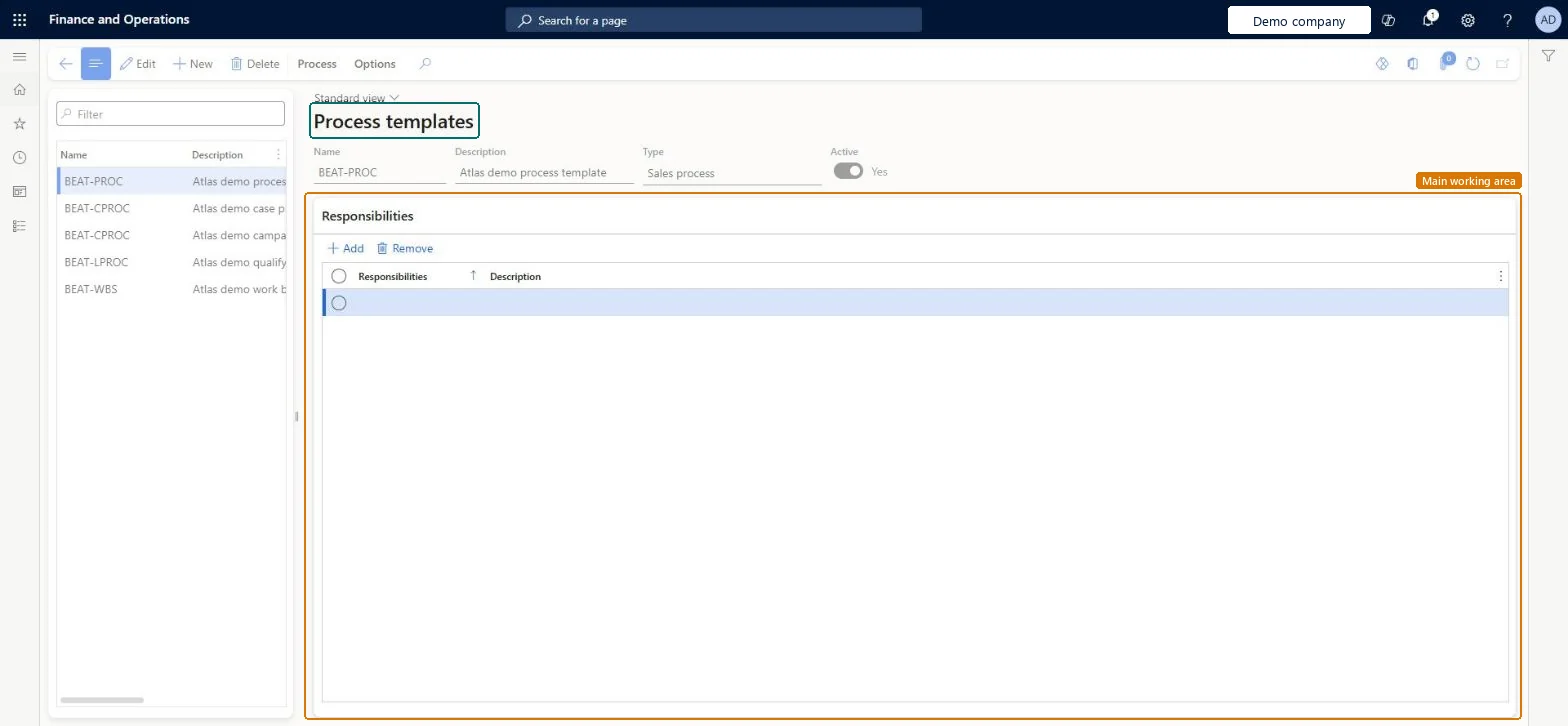
Setup page · Organization administration
A setup page that lists process templates, each with a name, description, type and an Active setting.
HierarchyTemplateHierarchy| What it is | A setup page that lists process templates, each with a name, description, type and an Active setting. |
|---|---|
| What you do here | Use this page to maintain process templates. The Process menu on the Action Pane offers View and Inquiry. |
| Business process | Administer system features |
|---|---|
| Menu path | Organization administration › Setup › Activities › Process templates |
About the examples: Examples and screenshots in this guide use BEAT, a demo company in a Dynamics 365 test environment. Use your own company's codes and values instead of copying them.
Screen 1
Go to Organization administration > Setup > Processes > Process templates
| 1Name | BEAT-PROC |
|---|---|
| 2Description | Process template |
| 3Type | Sales process |
| 4Active | Yes |
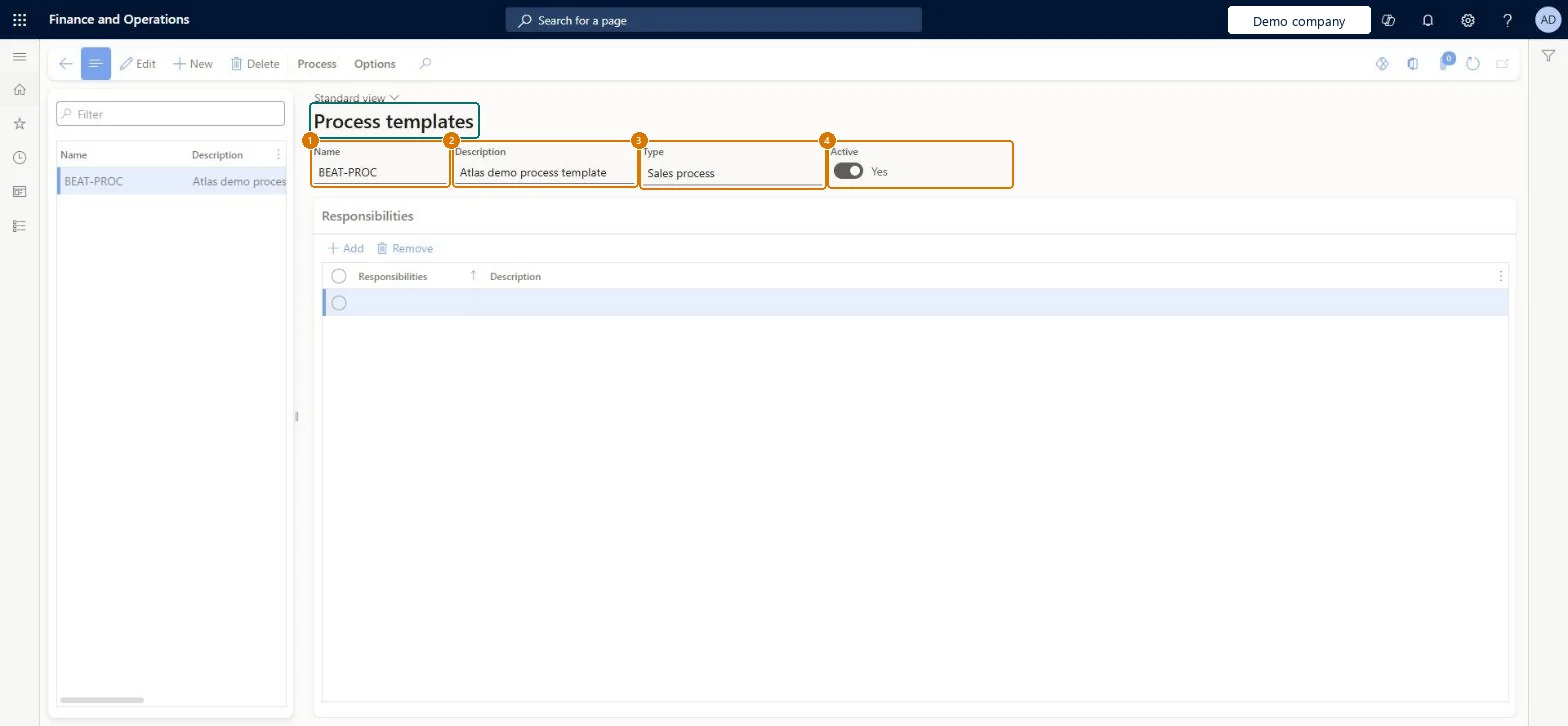
Source: Checked in Dynamics 365
| Menu item | HierarchyTemplate Checked in Dynamics 365 |
|---|---|
| Form | Hierarchy Checked in Dynamics 365 |
| Table | HierarchyShown as “Hierarchies” in Record infoKey field: HierarchyId, NameChecked in Dynamics 365 |
| Roles to set it up and use it | To set it up or change itProject manager ProjProjectManagerSales manager TradeSalesManagerField Service Integration User FieldServiceIntegrationUserProject accountant ProjProjectAccountantTo use itAccounting manager LedgerAccountingManagerFinancial controller LedgerFinancialControllerAccounting supervisor LedgerAccountingSupervisorAccountant LedgerAccountantService delivery manager SMAServiceDeliveryManagerGive people one of these roles. On this system, 11 roles can open this page.Checked in Dynamics 365 |
| Actions on the page | Process: View, InquiryOptions: Personalize, Page options, ShareChecked in Dynamics 365 |
| Open it by URL | https://<your-environment>/?mi=HierarchyTemplate |
|---|