Organization administrationInquiries and reportsResources
WrkCtrCapResGraph
Used by
Production manager, Production supervisor, Project manager and 1 more role
Business process
Review bottlenecks and add capacity in Dynamics 365 Supply Chain Management
Menu item
WrkCtrCapResGraph
Main table
GraphicsTmpData
Show what matters for
PAGE GUIDEWhat the page does and how to use it6 sections. Choose a role to highlight what matters to you.
Everyone
1What it is and why
What it is
An inquiry page that shows capacity load as a chart, which you set up with the Configure chart content pane.
What you do here
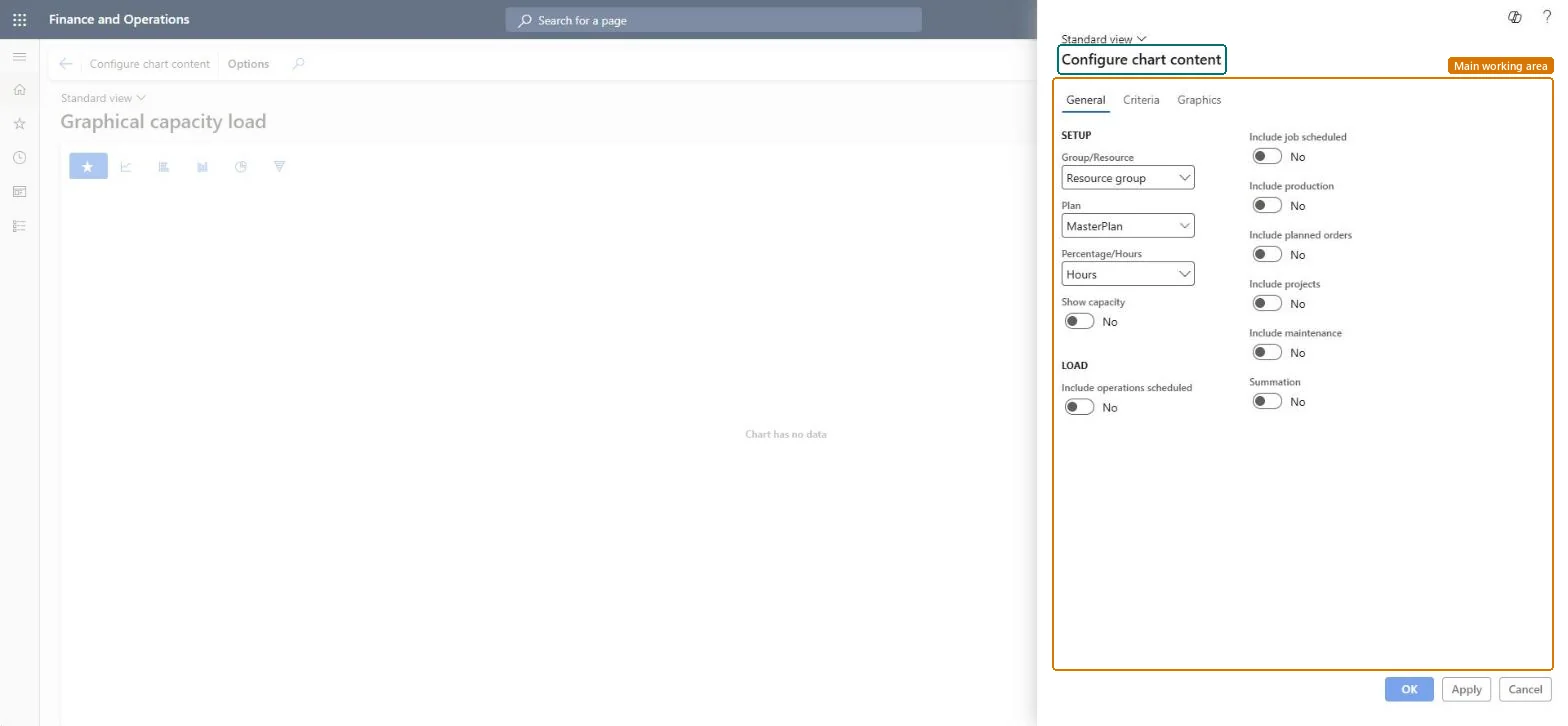
Use this page to view the load on resource groups or resources as a chart. In the Configure chart content pane you choose Group/Resource, Plan, Percentage or Hours, whether to show capacity, and which sources of load to include, such as operations scheduled, job scheduled, production, planned orders, projects and maintenance.
The page in Dynamics 365. page title tab to open what to set or check
About the examples: Examples and screenshots in this guide use BEAT, a demo company in a Dynamics 365 test environment. Use your own company's codes and values instead of copying them.
How to use it
Go to Organization administration > Inquiries and reports > Resources > Graphical capacity load.
In the Configure chart content pane, choose Group/Resource, Plan and Percentage/Hours on the General tab.
Set Show capacity and the Include options you want, such as Include operations scheduled, Include production, Include planned orders, Include projects and Include maintenance.
Open the Criteria and Graphics tabs to set more options.
Select OK to close the pane, or Apply to apply the changes and keep it open.
Source: Checked in Dynamics 365
Technical architect
4Technical
Menu item
WrkCtrCapResGraphChecked in Dynamics 365
Form
WrkCtrCapResGraphChecked in Dynamics 365
Table
GraphicsTmpDataShown as “Graphics” in Record infoChecked in Dynamics 365
Who can open it
PrivilegesView graphical display of capacity load WrkCtrCapResGraphViewDutiesInquire into resource capacity WrkCtrResourceCapacityStatusInquire4 security rolesProduction manager ProdProductionManagerProduction supervisor ProdProductionSupervisorProject manager ProjProjectManagerProduction planner ReqProductionPlannerChecked in Dynamics 365
Roles to set it up and use it
To use itProduction manager ProdProductionManagerProject manager ProjProjectManagerProduction supervisor ProdProductionSupervisorProduction planner ReqProductionPlannerGive people one of these roles. On this system, 4 roles can open this page.Checked in Dynamics 365
Actions on the page
Options: Personalize, Page options, ShareChecked in Dynamics 365
Developer
5Developer
Open it by URL
https://<your-environment>/?mi=WrkCtrCapResGraph
Everyone
6Sources
Checked in a working Dynamics 365 system, version 10.0.49: the menu item, form, table and security, the page.