About the examples: Examples and screenshots in this guide use BEAT, a demo company in a Dynamics 365 test environment. Use your own company's codes and values instead of copying them.
Step by step, with screenshots
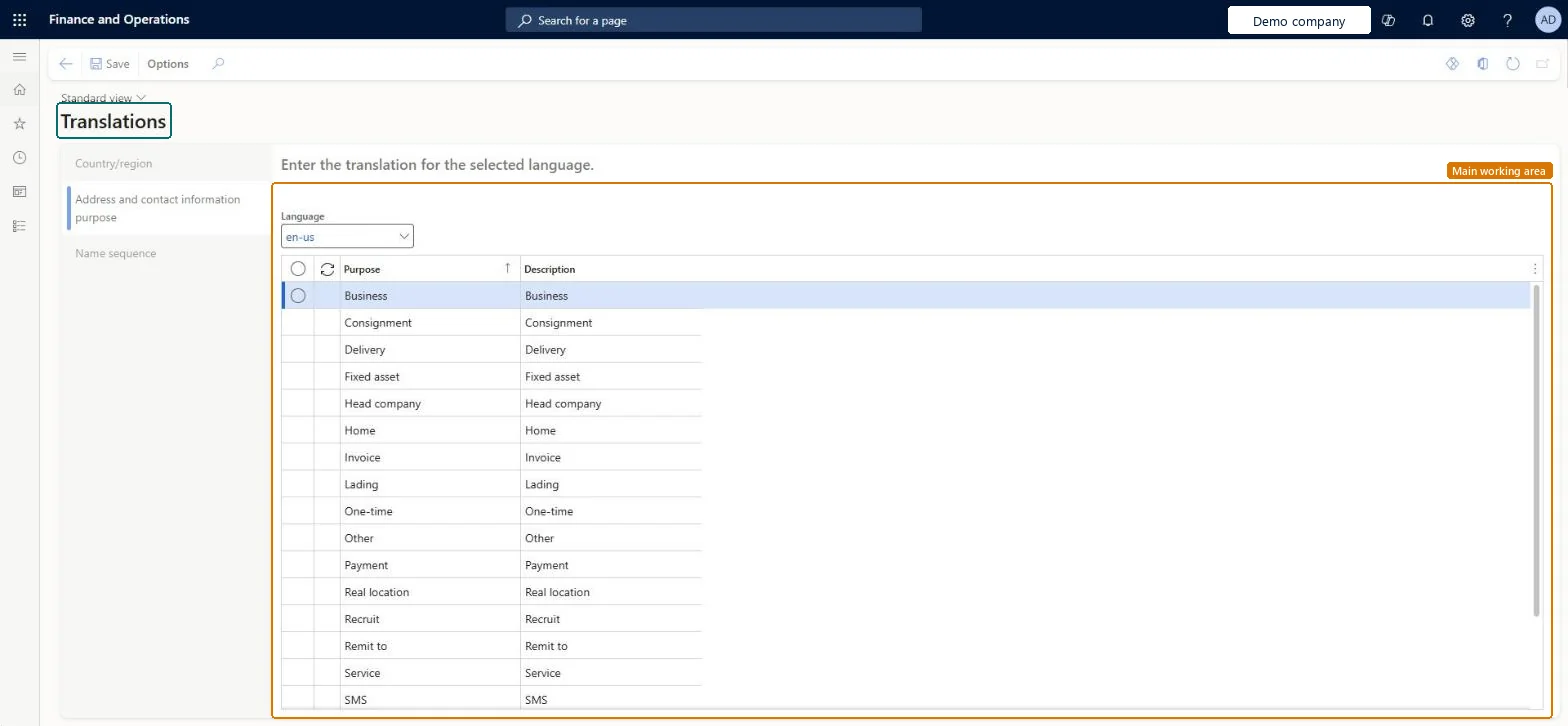
Set up Translations1 screen
It is used so that address information shows in your own language in the system but in the customer's language on documents such as sales orders.
Screen 1
Check a purpose translation
Go to Organization administration > Global address book > Translations
Open the Address and contact information purpose tab
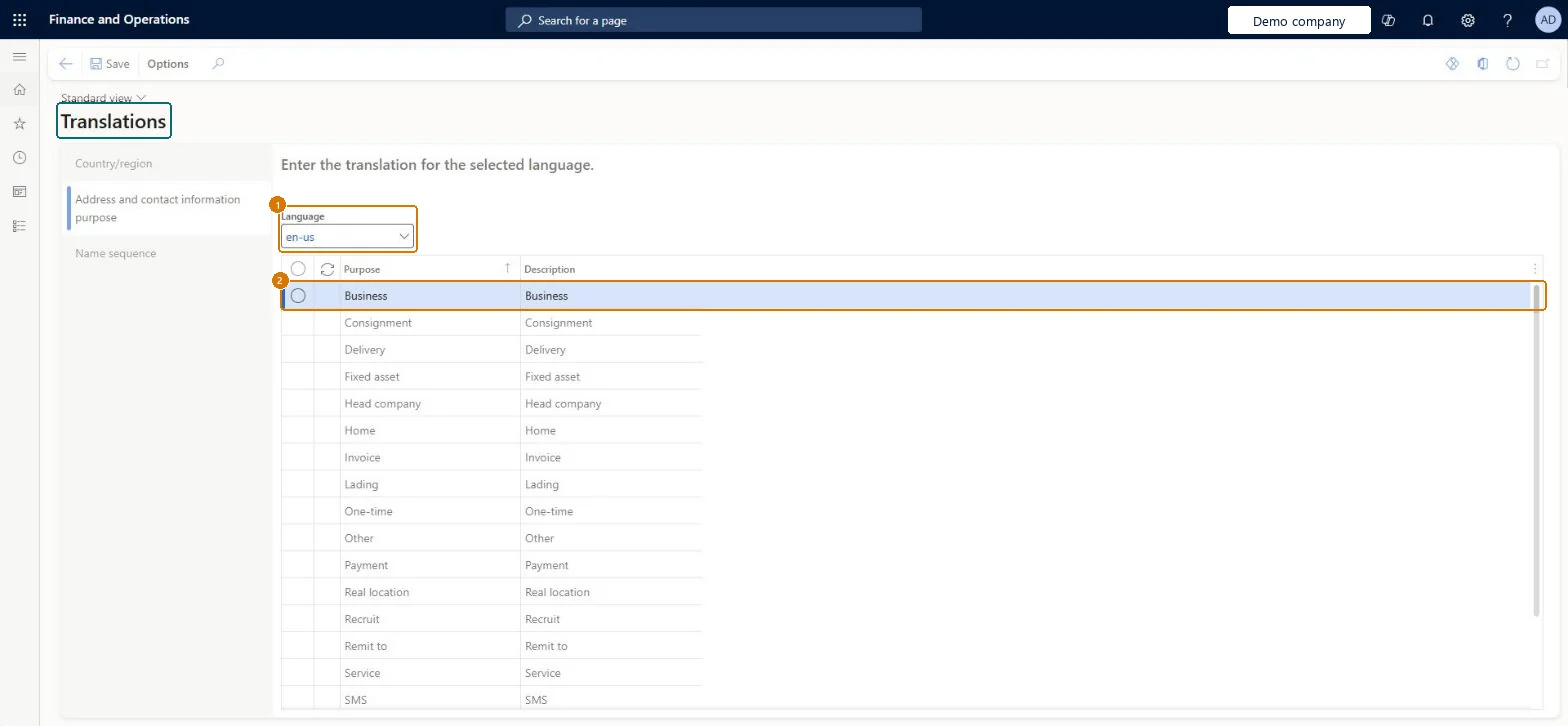
Select the language
Enter or check the translated description for each purpose
Select Save after a change
1Language
en-us
2Purpose
Business
2Description
Business
Show the full screen page title tab to open what to set or check
How to use it
Go to Organization administration > Global address book > Translations.
Choose Country/region, Address and contact information purpose or Name sequence on the left.
Choose the Language.
Enter the translation for each line, such as the Description for a Purpose.
Enter a translation for every address purpose in each language your customers or vendors receive documents in.Translations let users see address information in the system language while documents such as sales orders show it in the customer's language.
Translating only some items: anything not translated appears in the system language, both on screen and on the printed document.
Reversible: Translations only control the language of address purpose text, for example on a printed sales order; correct them at any time. Microsoft Learn
If you change it later
Enter a translation for every item: anything you don't translate appears in the system language, both in the system and on documents. Microsoft Learn
Technical architect
6Technical
Menu item
DirTranslation_LogisticsLocationRoleChecked in Dynamics 365
Form
DirTranslationChecked in Dynamics 365
Table
LogisticsLocationRoleShown as “Roles” in Record infoChecked in Dynamics 365
Data entities
LogisticsLocationRoleEntityAddress and contact information purpose Microsoft data model
Who can open it
PrivilegesMaintain location roles LogisticsLocationRoleMaintainDutiesEnable the global address book process DirAddressBookProcessEnable3 security rolesHuman resource manager HcmHumanResourceManagerAccounting manager LedgerAccountingManagerInformation technology manager SysServerITManagerChecked in Dynamics 365
Roles to set it up and use it
To set it up or change itInformation technology manager SysServerITManagerAccounting manager LedgerAccountingManagerHuman resource manager HcmHumanResourceManagerGive people one of these roles. On this system, 3 roles can open this page.Checked in Dynamics 365
LogisticsLocationRoleEntity (Address and contact information purpose): shared by all companies, in Microsoft's default template 010 - System Setup.Load order: Microsoft's default template 010 - System Setup loads Address and contact information purpose at execution unit 1, level 10, sequence 10. Lower levels load first, and entities at the same level load in sequence order.Microsoft Learn
Checked in a working Dynamics 365 system, version 10.0.49: the menu item, form, table and security, the page, the demo records and the values in the screenshots.