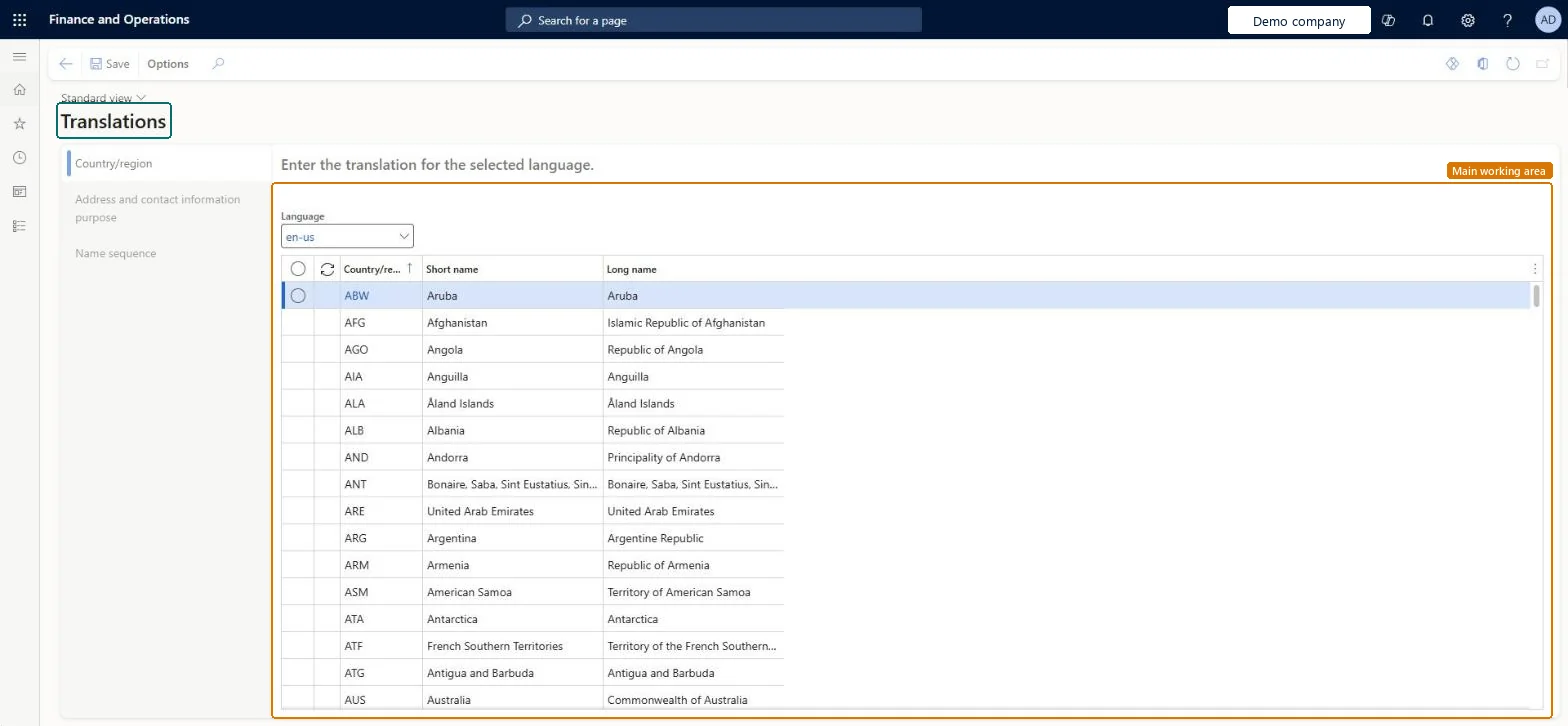
A setup page where you enter translations of address information, such as country/region names, so that addresses appear in another language on documents.
Human resource manager, Accounting manager, Information technology manager
Business process
Administer system features
Menu item
DirTranslation
Main table
LogisticsAddressCountryRegion
Data entity
LogisticsAddressCountryRegionEntity
Setup steps
1 on this page
Show what matters for
PAGE GUIDEWhat the page does and how to use it8 sections. Choose a role to highlight what matters to you.
Everyone
1What it is and why
What it is
A setup page where you enter translations of address information, such as country/region names, so that addresses appear in another language on documents.
What you do here
It is used so that address information shows in your own language in the system but in the customer's language on printed documents.
Example
For example, if your system language is Danish and you sell to a customer in France, the address information can print in French on the sales order.
The page in Dynamics 365. page title tab to open what to set or check
Organization administration › Global address book › Addresses › Translations
End user · Functional consultant
3How to do it
About the examples: Examples and screenshots in this guide use BEAT, a demo company in a Dynamics 365 test environment. Use your own company's codes and values instead of copying them.
Step by step, with screenshots
Set up Translations1 screen
It is used so that address information shows in your own language in the system but in the customer's language on printed documents.
Screen 1
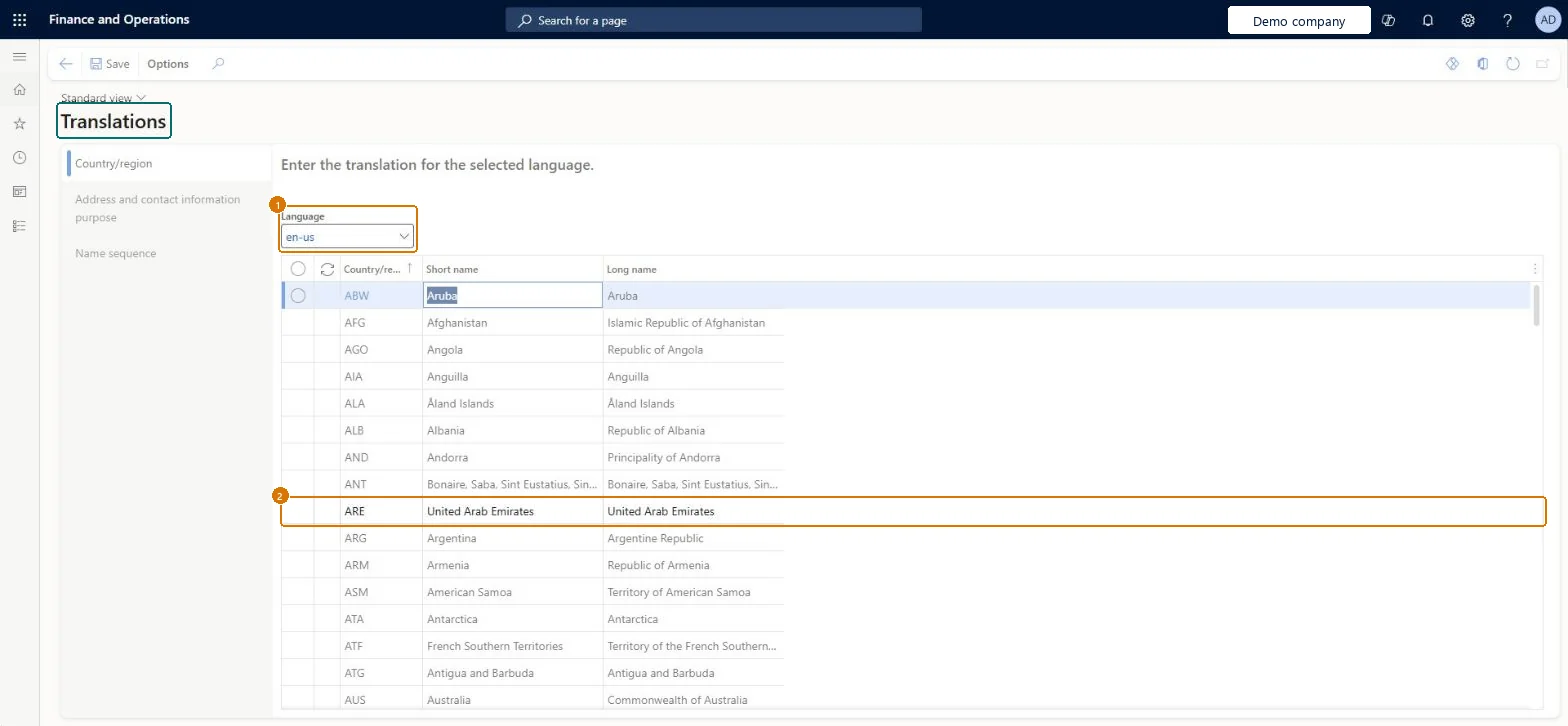
Check a country/region translation
Go to Organization administration > Global address book > Addresses > Translations
Open the Country/region tab
Select the language
Enter or check the short and long name for each country/region
Select Save after a change
1Language
en-us
2Country/region
ARE
Short name
United Arab Emirates
Long name
United Arab Emirates
Show the full screen page title tab to open what to set or check
How to use it
Go to Organization administration > Global address book > Addresses > Translations.
Choose Country/region, Address and contact information purpose or Name sequence on the left.
Choose the Language.
Enter the translation for each line, such as the Short name and Long name of a country or region.
Enter Short name and Long name translations for every country/region in each language you send documents in.Country/region names then appear in the customer's language on printed documents while users keep the system language on screen.
Leaving countries/regions untranslated: they appear in the system language both on screen and on documents.
PrivilegesMaintain translations DirTranslationMaintainView global address book translations DirTranslationViewDutiesEnable the global address book process DirAddressBookProcessEnableInquire into address policies LogisticsAddressPolicyInquireEnable address process LogisticsAddressProcessEnable3 security rolesHuman resource manager HcmHumanResourceManagerAccounting manager LedgerAccountingManagerInformation technology manager SysServerITManagerChecked in Dynamics 365
Roles to set it up and use it
To set it up or change itInformation technology manager SysServerITManagerAccounting manager LedgerAccountingManagerHuman resource manager HcmHumanResourceManagerGive people one of these roles. On this system, 3 roles can open this page.Checked in Dynamics 365
Actions on the page
Options: Personalize, Page options, Edit, ShareChecked in Dynamics 365
LogisticsAddressCountryRegionEntity (Country/regions): shared by all companies, in Microsoft's default template 010 - System Setup.Load order: Microsoft's default template 010 - System Setup loads Country/regions at execution unit 1, level 10, sequence 30. Lower levels load first, and entities at the same level load in sequence order.Microsoft Learn
Checked in a working Dynamics 365 system, version 10.0.49: the menu item, form, table and security, the page, the demo records and the values in the screenshots.