PAGE GUIDEWhat the page does and how to use it7 sections. Choose a role to highlight what matters to you.
Everyone
1What it is and why
What it is
A periodic job that restores Electronic reporting templates from the backup copy in the database to the primary storage location.
What you do here
Use this periodic task to fix formats whose templates are missing from storage, either right away or as a batch job.
Example
For example, after a production instance is moved to a new sandbox, templates kept in Blob storage can't be reached, so you restore them from the backup copy.
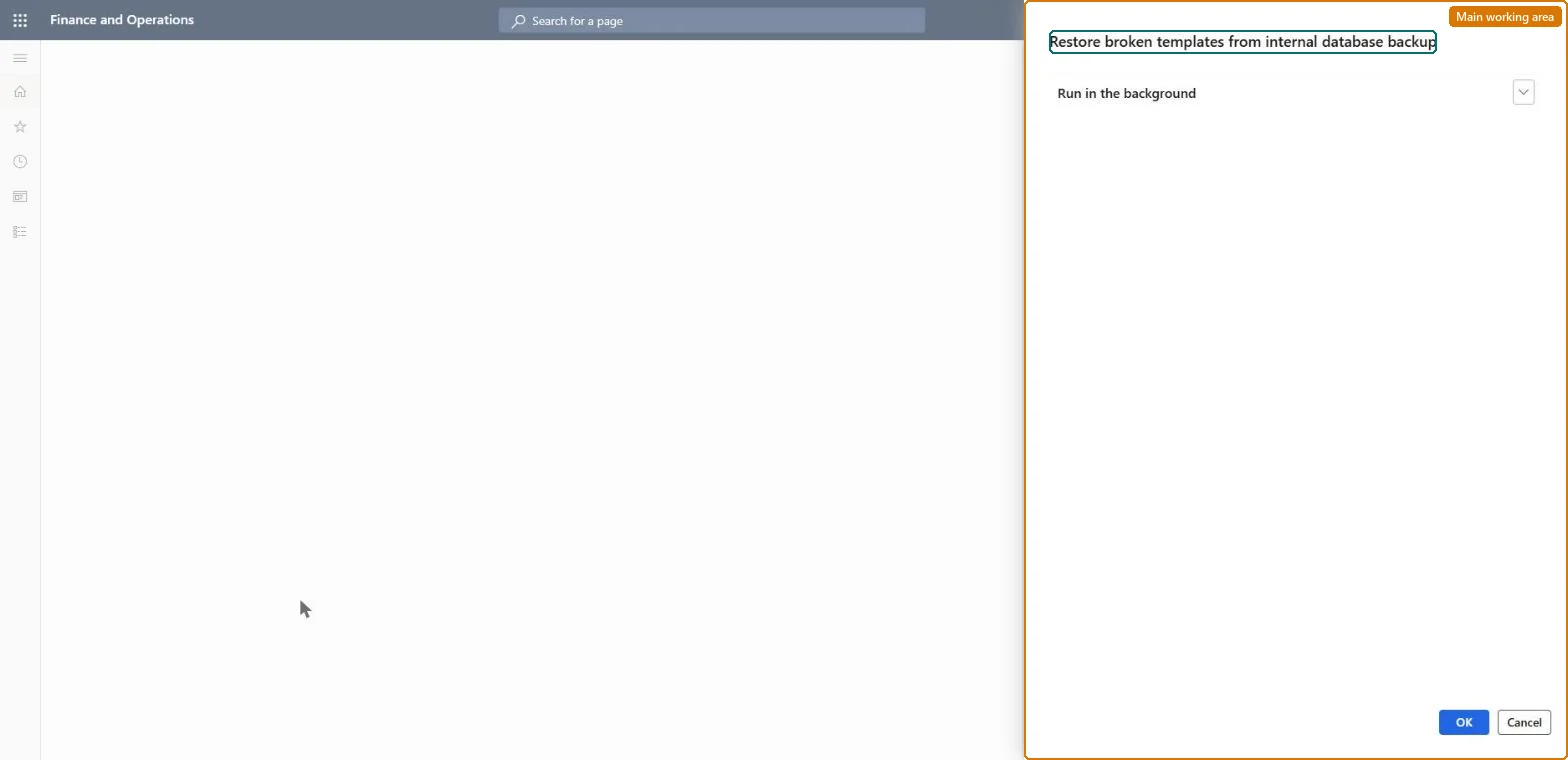
The page in Dynamics 365. page title tab to open what to set or check
About the examples: Examples and screenshots in this guide use BEAT, a demo company in a Dynamics 365 test environment. Use your own company's codes and values instead of copying them.
When to run it
When to run it
After a database is moved to another environment, or when users get an Action center message about a missing ER template.
How often
On demand, when templates are missing. Set Automatically run the procedure of restoring the broken templates in batch to On in the ER User parameters to have the job scheduled automatically.
Batch settings
Run it as a batch job when many ER formats are affected; it appears as Restore broken templates from internal database backup on the Batch job page.
What the output shows
Templates copied from the database backup storage back to the primary storage location, listed in the job's execution log. A template that isn't restored usually had no backup copy, for example because Stop making backup copies of templates was set to Yes.
Go to Organization administration > Electronic reporting > Restore broken templates.
Use it when an ER format fails because its template is missing from the primary storage location, for example after a database was copied to a sandbox. It works only when Azure Blob storage is the storage location for ER templates.
Choose whether to restore the templates right away or schedule the restore as a batch job.
Start the restore, then open the execution log of the job, which lists the templates restored from backup storage to primary storage.
Not needed: The job only puts missing template files back from the backup copy; it doesn't change the ER configurations. Microsoft Learn
If you change it later
Writes missing ER template files back to the primary storage location from the backup copies in the application database. Microsoft Learn
Technical architect
5Technical
Menu item
action:ERSolutionRestoreBrokenAttachments
Roles to set it up and use it
To use itElectronic reporting functional consultant ERFunctionalConsultantElectronic reporting developer ERDeveloperGive people one of these roles. On this system, 2 roles can run this page.Checked in Dynamics 365