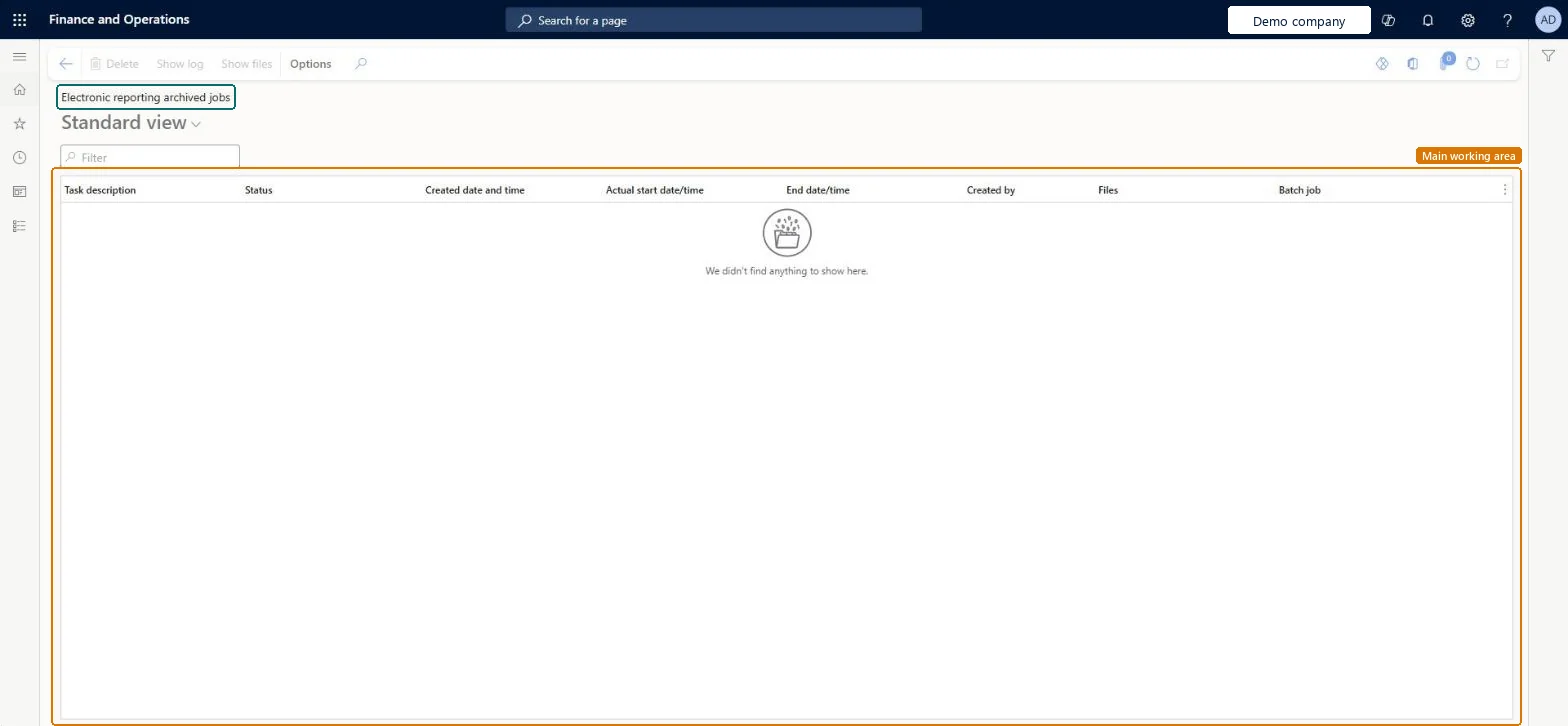
About the examples: Examples and screenshots in this guide use BEAT, a demo company in a Dynamics 365 test environment. Use your own company's codes and values instead of copying them.
How to use it
Go to Organization administration > Electronic reporting > Electronic reporting archived jobs.
Use the Filter box to find a job.
Review the Task description, Status, Created date and time, Actual start date/time, End date/time, Created by, Files and Batch job columns.
Select a job, then select Show log or Show files.
Select Delete to remove a selected job.
Source: Checked in Dynamics 365
Test checklist
Select a Job archive document type in Electronic reporting parameters.
Enable an Archive destination for a format and run it.
Open Electronic reporting archived jobs and check the generated document is listed and opens.
Reversible: Inquiry page. Files saved through an Archive destination are kept in storage as attachments for as long as the record they're attached to exists. Microsoft Learn
Technical architect
5Technical
Menu item
ERArchivedJobsChecked in Dynamics 365
Form
ERFormatMappingRunJobTableChecked in Dynamics 365
Table
ERFormatMappingRunJobTableShown as “Electronic reporting jobs” in Record infoChecked in Dynamics 365
Roles to set it up and use it
To set it up or change itHuman resource manager HcmHumanResourceManagerElectronic reporting functional consultant ERFunctionalConsultantElectronic reporting developer ERDeveloperSystem user SystemUserTestEssentialsRole To use itAccounting manager LedgerAccountingManagerCollections manager CollectionLetterCollectionsManagerAccounts payable manager VendInvoiceAccountsPayableManagerAccounts receivable manager CustInvoiceAccountsReceivableManagerFinancial controller LedgerFinancialControllerGive people one of these roles. On this system, 22 roles can open this page.Checked in Dynamics 365
Actions on the page
Options: Personalize, Page options, ShareChecked in Dynamics 365