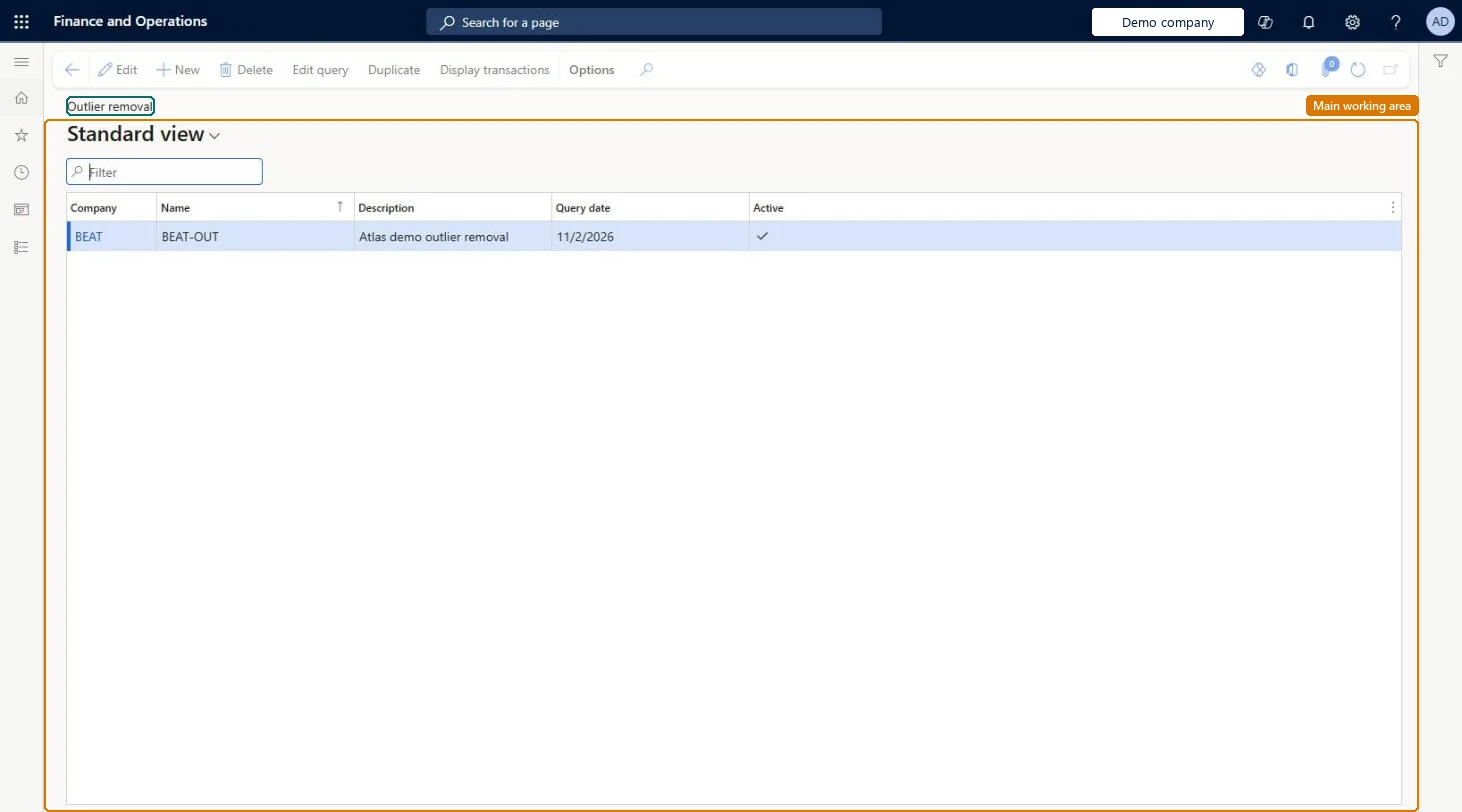
About the examples: Examples and screenshots in this guide use BEAT, a demo company in a Dynamics 365 test environment. Use your own company's codes and values instead of copying them.
Setup steps on this page
Set up Outlier removal
Use this page to exclude unusual transactions from forecast history so that the forecast is more accurate.
Steps from Microsoft
Go to Master planning > Setup > Demand forecasting > Outlier removal.
Select the company that the query applies to, and enter a name and description.
Select the Active check box.
On the Outlier removal query page, add or change the criteria for the transactions to exclude.
Select Display transactions to check which transactions are excluded.
One query per unusual event (for example a one-off bulk order), checked with Display transactions before you select Active.Display transactions lists exactly the transactions the query will exclude from history, so you can confirm the scope before the next baseline forecast uses it.
Building the query but leaving Active cleared. The transactions are excluded only for active queries, and only when a baseline forecast is created.
Solution architect
5Design impact
Can it be undone
Reversible: Clear Active or change the query criteria. The next baseline forecast uses the updated selection. Microsoft Learn
If you change it later
An active query takes effect the next time a baseline forecast is created. Microsoft Learn
Technical architect
6Technical
Menu item
ReqDemPlanOutlierQuerySetupChecked in Dynamics 365
Form
ReqDemPlanOutlierQuerySetupChecked in Dynamics 365
Roles to set it up and use it
To set it up or change itProduction planner ReqProductionPlannerProduction manager ProdProductionManagerGive people one of these roles. On this system, 2 roles can open this page.Checked in Dynamics 365
Actions on the page
(Action Pane without tabs): Edit query, Duplicate, Display transactionsChecked in Dynamics 365