PAGE GUIDEWhat the page does and how to use it8 sections. Choose a role to highlight what matters to you.
Everyone
1What it is and why
What it is
A setup page where you define keys that multiply an item's minimum or maximum inventory level by a factor for each period, to follow seasonal demand.
What you do here
Use this page to create minimum and maximum keys, and then assign them to items on the Item coverage page so that safety stock and maximum levels change by season.
Example
For example, a key with a factor of 2 for April and May and 2.5 for June to August raises the minimum inventory during spring and summer.
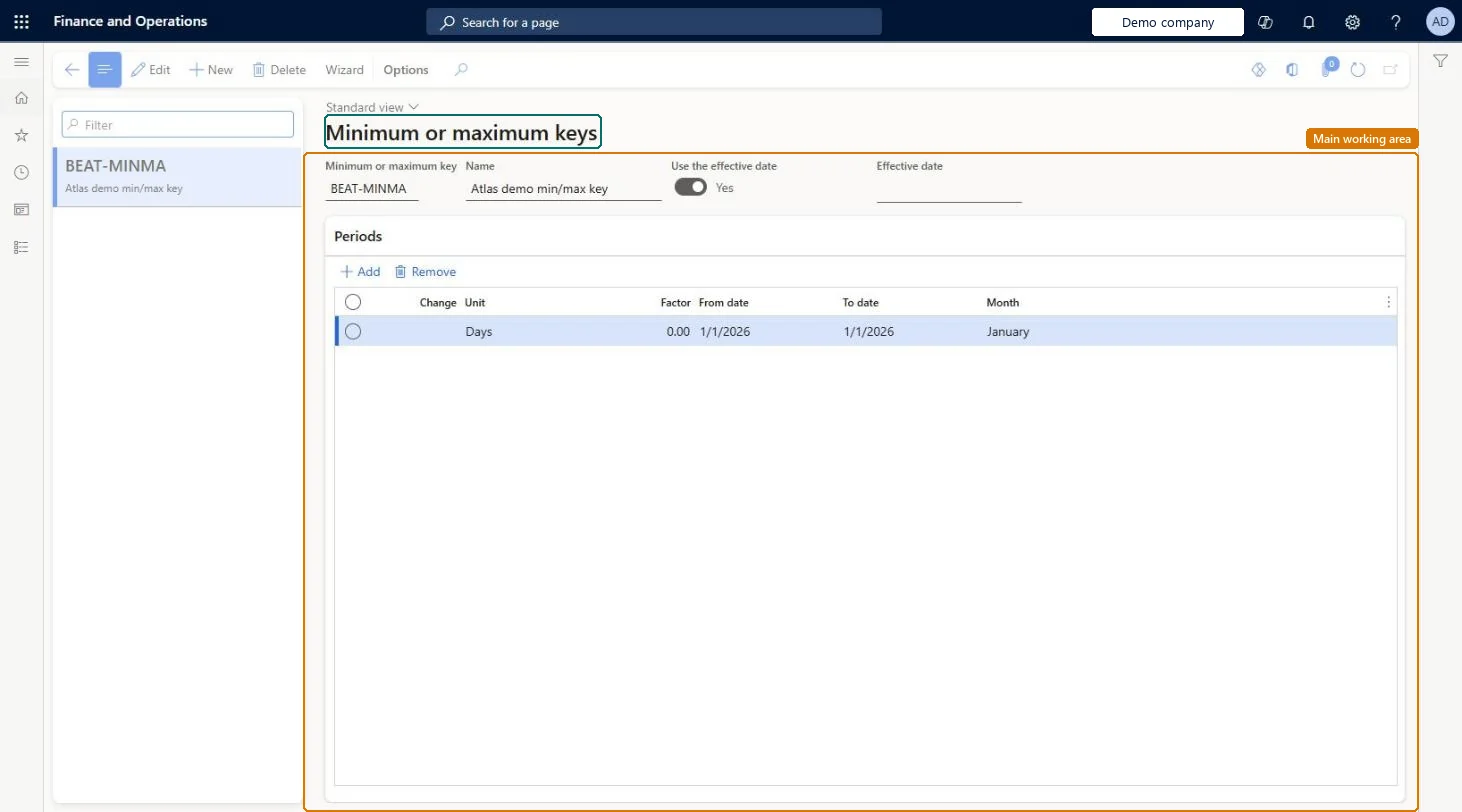
The page in Dynamics 365. page title tab to open what to set or check
About the examples: Examples and screenshots in this guide use BEAT, a demo company in a Dynamics 365 test environment. Use your own company's codes and values instead of copying them.
Setup steps on this page
Set up Minimum/maximum keys
Use this page to create minimum and maximum keys, and then assign them to items on the Item coverage page so that safety stock and maximum levels change by season.
Steps from Microsoft
Go to Master planning > Setup > Coverage > Minimum/maximum keys.
Select New.
In the Minimum or maximum key field, enter an identifier, and in the Name field, enter a name.
Set the Use the effective date option and the Effective date field to set the date the key is valid from.
In the Periods section, add a line for each period and set the Change, Unit, and Factor fields.
Save the key, and then select it in the Minimum key or Maximum key field on the Item coverage page.
Set Use the effective date to Yes, leave Effective date blank, and create one line per month (Change 1 to 12, Unit Months) with a Factor for each month.With this setup the monthly periods start on the first day of the current year, so each factor lines up with a calendar month and multiplies the item's minimum or maximum for that season.
Using a minimum key and a maximum key on the same item without keeping them in step, so that in some period the minimum rises above the maximum. Learn tells you to keep the minimum and maximum values in sync for each period.
Solution architect
5Design impact
Can it be undone
Reversible: Edit the factors or remove the key from the Minimum key or Maximum key field on Item coverage. The change applies from the next master planning run. Microsoft Learn
If you change it later
If an item uses both a minimum key and a maximum key, keep the two in step for each period so that the minimum never rises above the maximum. Microsoft Learn
Technical architect
6Technical
Menu item
ReqSafetyKeyChecked in Dynamics 365
Form
ReqSafetyKeyChecked in Dynamics 365
Roles to set it up and use it
To set it up or change itProduction manager ProdProductionManagerMaterials manager InventMaterialsManagerGive people one of these roles. On this system, 2 roles can open this page.Checked in Dynamics 365
Actions on the page
(Action Pane without tabs): WizardChecked in Dynamics 365