About the examples: Examples and screenshots in this guide use BEAT, a demo company in a Dynamics 365 test environment. Use your own company's codes and values instead of copying them.
Step by step, with screenshots
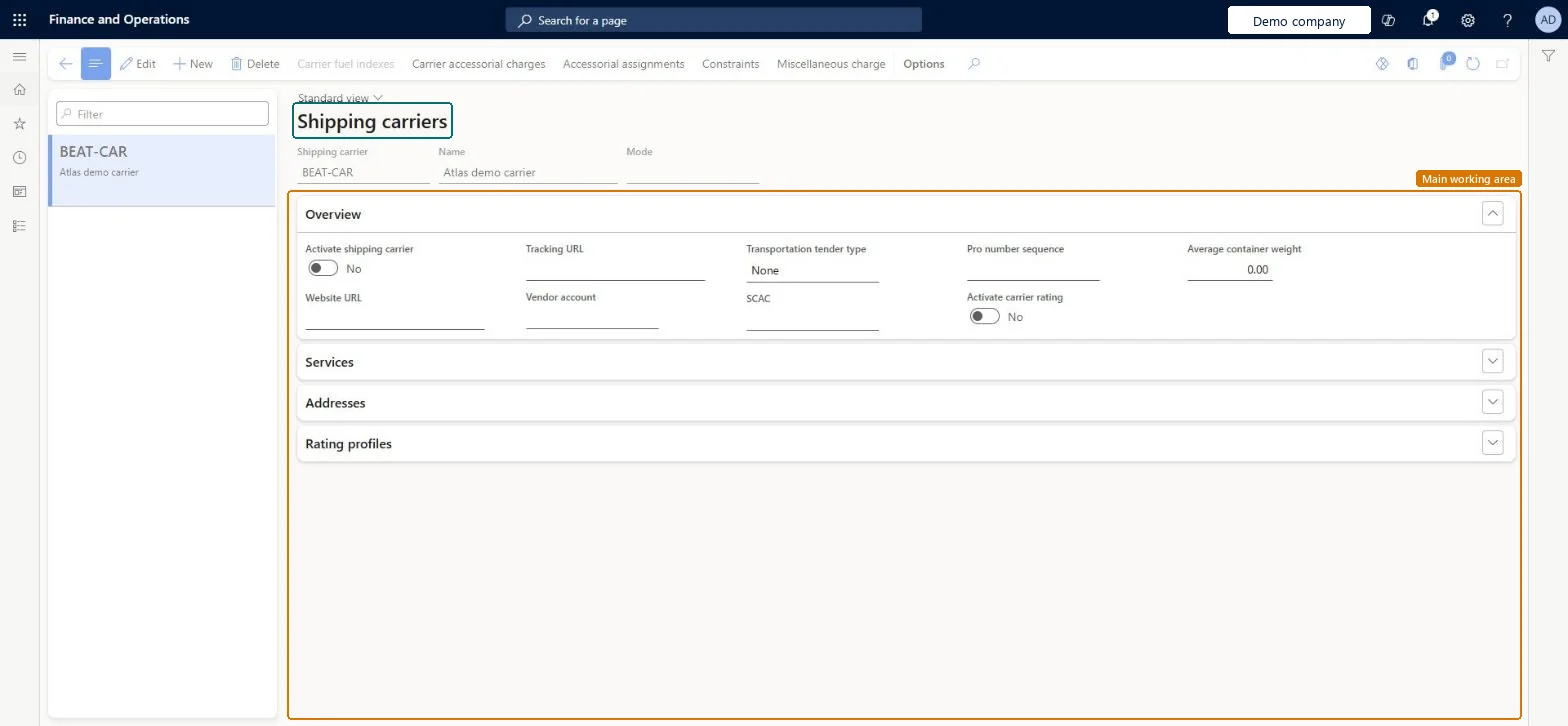
Set up Shipping carriers1 screen
Use this page to prepare carriers that a transportation coordinator can then assign to inbound or outbound loads.
Screen 1
Create a shipping carrier
Go to Inventory management > Setup > Shipping carrier > Shipping carriers
Select New
Enter the shipping carrier code and name
Optionally select the mode (the transportation method) and the vendor account
Select Save
Under Services, add the carrier services, and under Addresses, add the carrier address
Turn on Activate shipping carrier when the carrier is ready to be assigned to loads
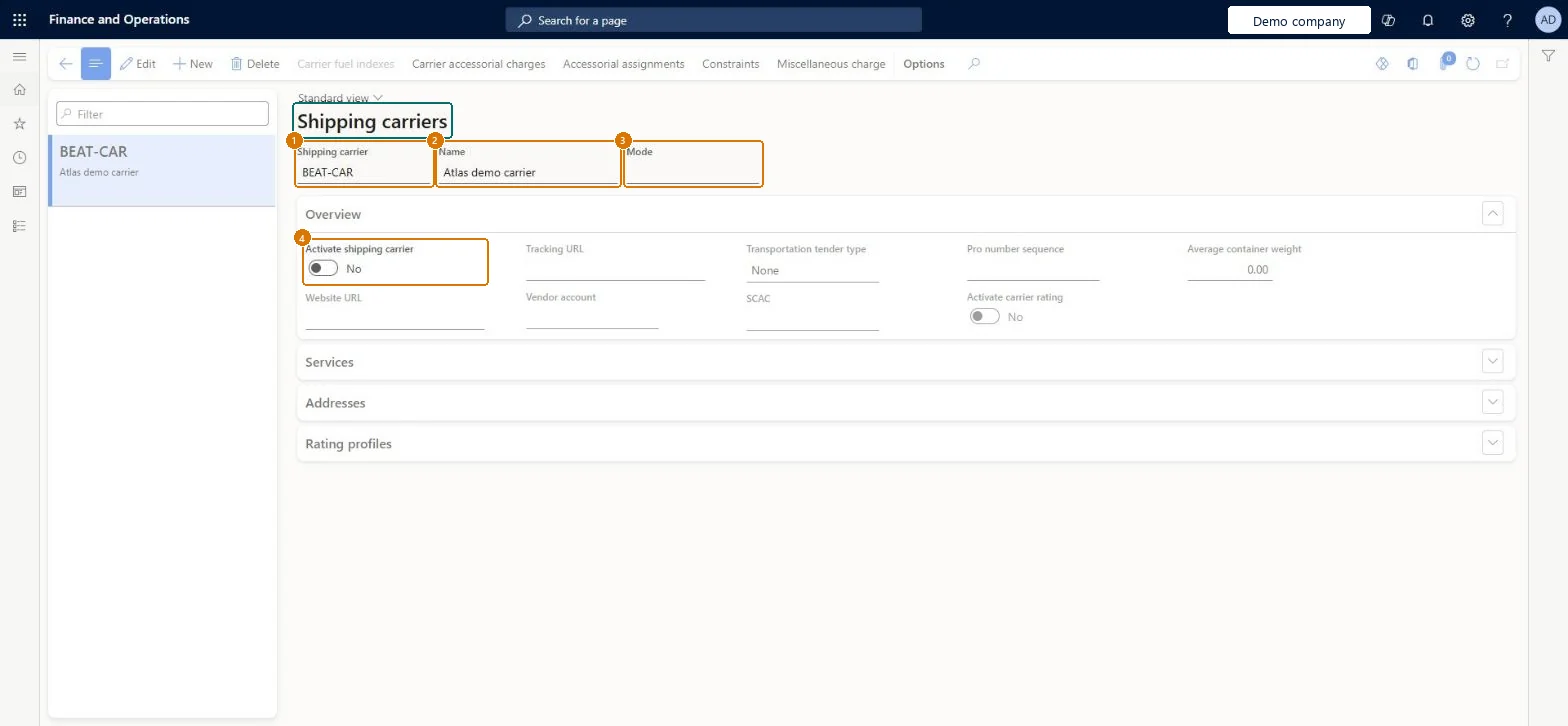
1Shipping carrier
BEAT-CAR
2Name
Carrier
3Mode
(blank)
4Activate shipping carrier
No
Show the full screen page title tab to open what to set or check
Steps from Microsoft
Go to Inventory management > Setup > Shipping carrier > Shipping carriers.
Select New.
Enter the Shipping carrier, Name and Mode.
On the Overview FastTab, select Activate shipping carrier, the Vendor account and the Transportation tender type.
On the Services FastTab, add each Carrier service with its Load template ID and Transportation method.
Optionally, add the carrier's address.
On the Rating profiles FastTab, add a rating profile with its rate engine, and then select Save.
Link each carrier to its Vendor account, set the Rate engine on each rating profile to match the carrier contract, and give each service the Load template ID of the container or truck it usesLearn says to pick the rate engine that matches your contract with the carrier, and the load template ID on the service is how load building matches each new load to a suitable carrier service.
Reversible: You can deactivate a carrier with Activate shipping carrier or change its services and rating profiles; loads already rated keep their rates. Microsoft Learn
Technical architect
6Technical
Menu item
TMSCarrierChecked in Dynamics 365
Form
TMSCarrierChecked in Dynamics 365
Table
TMSCarrierShown as “Carrier” in Record infoChecked in Dynamics 365
PrivilegesMaintain shipping carrier TMSCarrierMaintainView shipping carrier information TMSCarrierViewDutiesInquire into carrier master and network planning information TMSCarrierMasterInquireMaintain carrier and network planning master TMSCarrierMasterMaintain2 security rolesLogistics manager TMSLogisticsManagerTransportation coordinator TMSTransportationCoordinatorChecked in Dynamics 365
Roles to set it up and use it
To set it up or change itLogistics manager TMSLogisticsManagerTo use itTransportation coordinator TMSTransportationCoordinatorGive people one of these roles. On this system, 2 roles can open this page.Checked in Dynamics 365
Actions on the page
Options: Personalize, Page options, ShareChecked in Dynamics 365
TMSShippingCarrierEntity (Shipping carrier): loaded for each company, in Microsoft's default template 405 - Transportation management.Load order: Microsoft's default template 405 - Transportation management loads Shipping carrier at execution unit 1, level 405, sequence 10. Lower levels load first, and entities at the same level load in sequence order.Load first: the default templates at lower levels (System setup to Warehouse management)Microsoft Learn
Checked in a working Dynamics 365 system, version 10.0.49: the menu item, form, table and security, the page, the demo records and the values in the screenshots.