Inventory management › Setup › Inventory › Buyer groups
End user · Functional consultant
3How to do it
About the examples: Examples and screenshots in this guide use BEAT, a demo company in a Dynamics 365 test environment. Use your own company's codes and values instead of copying them.
Step by step, with screenshots
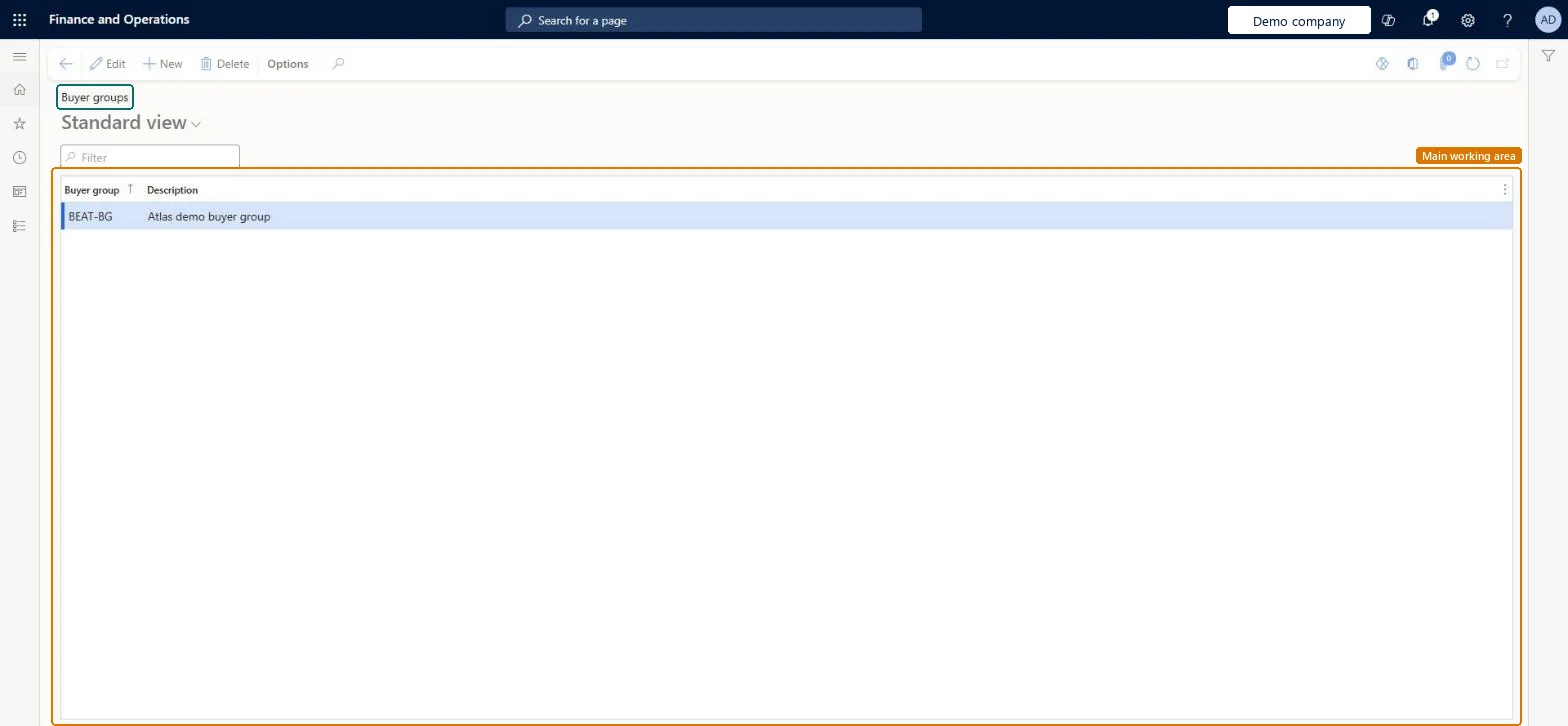
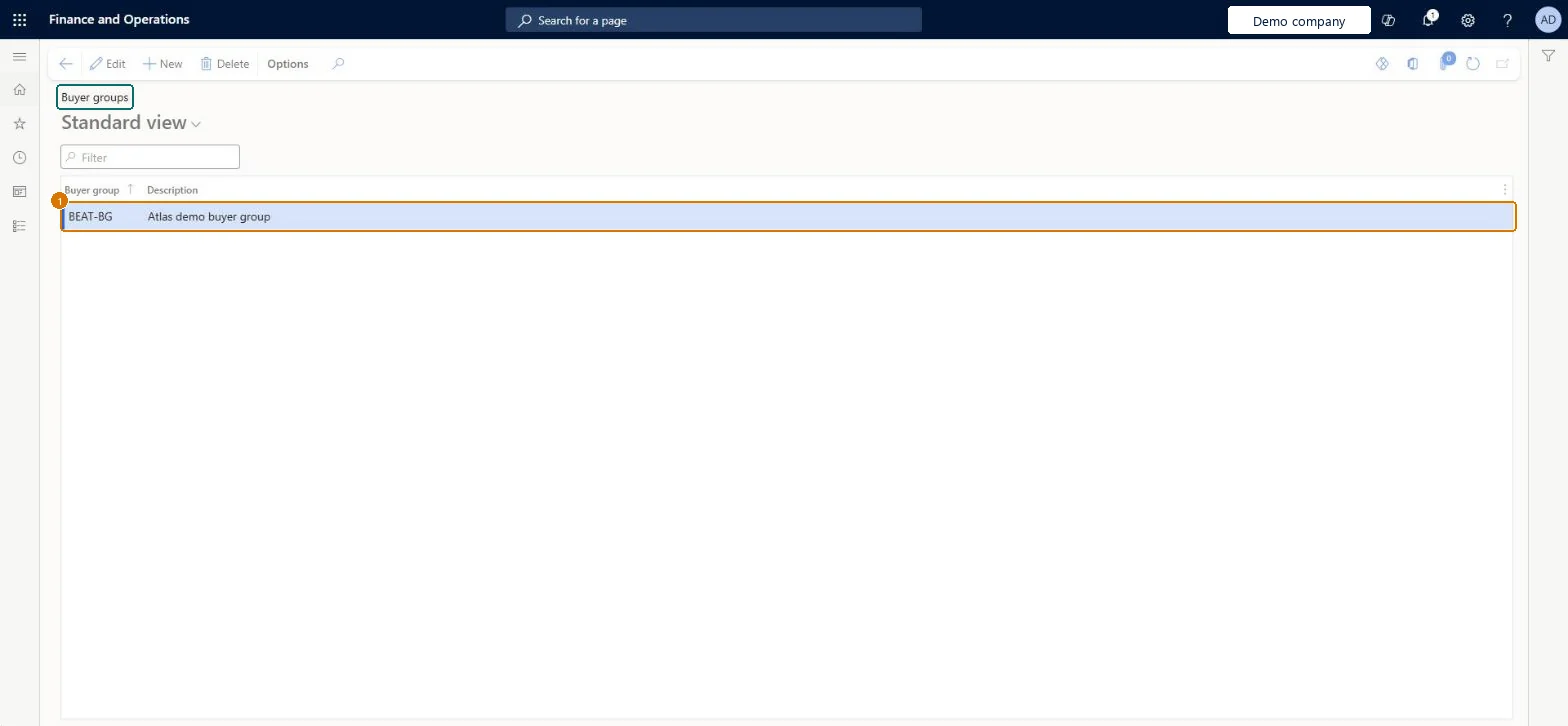
Set up Buyer groups1 screen
Screen 1
Create a buyer group
Go to Inventory management > Setup > Inventory > Buyer groups
Select New
Enter the buyer group code and description
Select Save
Assign the group to items or vendors so purchases can be grouped by buyer
1Buyer group
BEAT-BG
Description
Buyer group
Show the full screen page title tab to open what to set or check
How to use it
Go to Inventory management > Setup > Inventory > Buyer groups.
Select New to add a buyer group.
Enter the Buyer group code and the Description.
Select Save.
Source: Checked in Dynamics 365
Fields on the page
Field
What it means
Example
Table column
Buyer group
PRODUCTION
Group
Description
A description of the buyer group.Checked in Dynamics 365
PrivilegesMaintain buyer groups (inventory) InventBuyerGroupMaintainView buyer groups (inventory) InventBuyerGroupViewDutiesEnable purchase order to invoice process PurchOrderToInvoiceProcessEnableInquire into purchase order to invoice reference data PurchOrderToInvoiceReferenceDataInquire2 security rolesPurchasing manager TradePurchasingManagerAccounts payable manager VendInvoiceAccountsPayableManagerChecked in Dynamics 365
Roles to set it up and use it
To set it up or change itPurchasing manager TradePurchasingManagerAccounts payable manager VendInvoiceAccountsPayableManagerGive people one of these roles. On this system, 2 roles can open this page.Checked in Dynamics 365
Actions on the page
Options: Personalize, Page options, ShareChecked in Dynamics 365
InventBuyerGroupEntity (Buyer groups): loaded for each company, in Microsoft's default template 120 - Accounts payable.Load order: Microsoft's default template 120 - Accounts payable loads Buyer groups at execution unit 1, level 30, sequence 10. Lower levels load first, and entities at the same level load in sequence order.Load first: the default templates at lower levels (System setup to General ledger)Microsoft Learn
Checked in a working Dynamics 365 system, version 10.0.49: the menu item, form, table and security, the page, the demo records and the values in the screenshots.