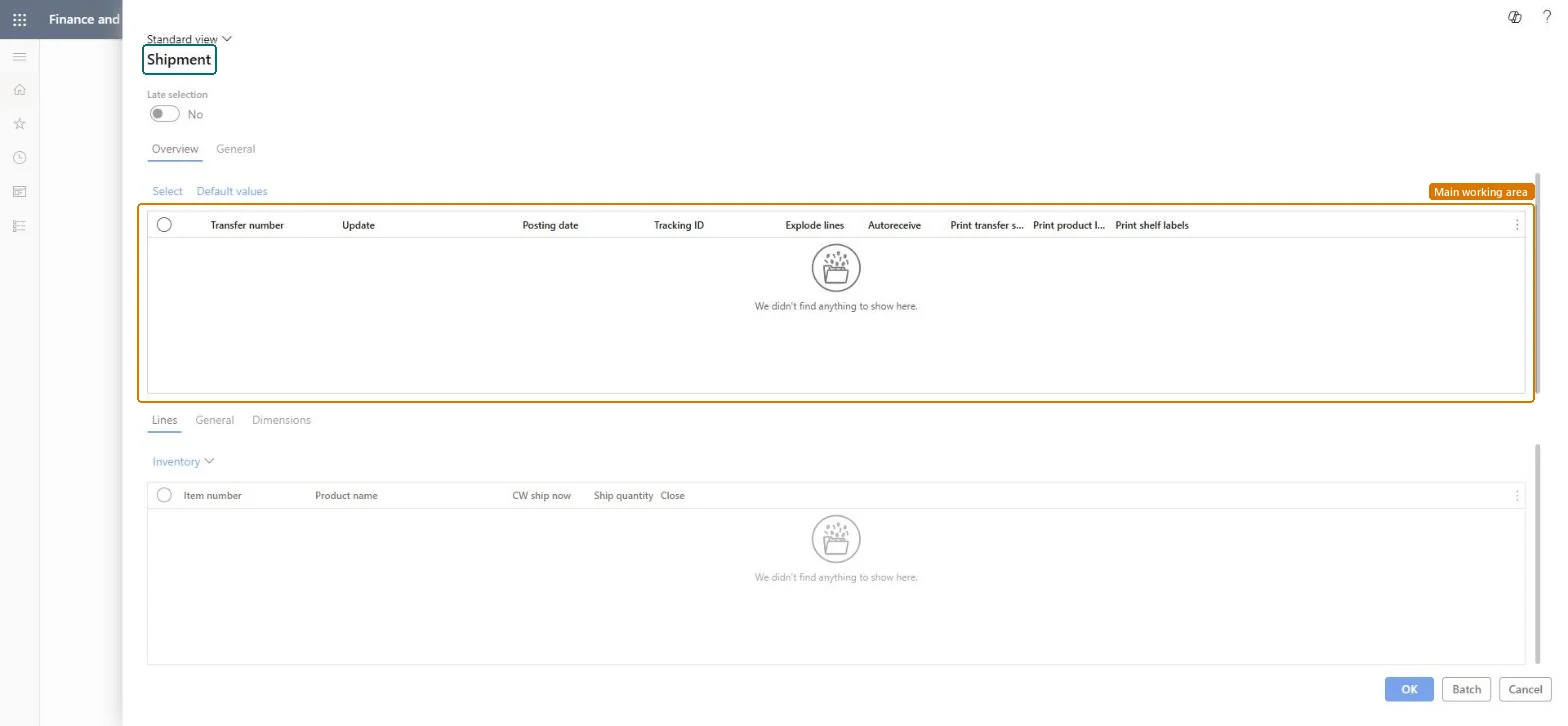
A dialog titled Shipment that lists the transfer orders and their lines to be shipped, with a posting date, tracking ID and print settings for each transfer order.
PAGE GUIDEWhat the page does and how to use it7 sections. Choose a role to highlight what matters to you.
Everyone
1What it is and why
What it is
A dialog titled Shipment that lists the transfer orders and their lines to be shipped, with a posting date, tracking ID and print settings for each transfer order.
What you do here
Use this dialog to choose which transfer orders and quantities to ship, and to set the posting date, tracking ID and options such as Explode lines, Autoreceive and printing, and then run it now or as a batch.
The page in Dynamics 365. page title tab to open what to set or check
Inventory management › Periodic tasks › Transfer update › Ship transfer order
End user · Functional consultant
3How to do it
About the examples: Examples and screenshots in this guide use BEAT, a demo company in a Dynamics 365 test environment. Use your own company's codes and values instead of copying them.
When to run it
When to run it
When goods on transfer orders physically leave the shipping warehouse.
How often
On demand, each time goods are dispatched to another warehouse.
What the output shows
Posted shipments that issue the items from the shipping warehouse into transit, with the Tracking ID and shipment documents. A line still open usually had a Ship quantity lower than ordered.