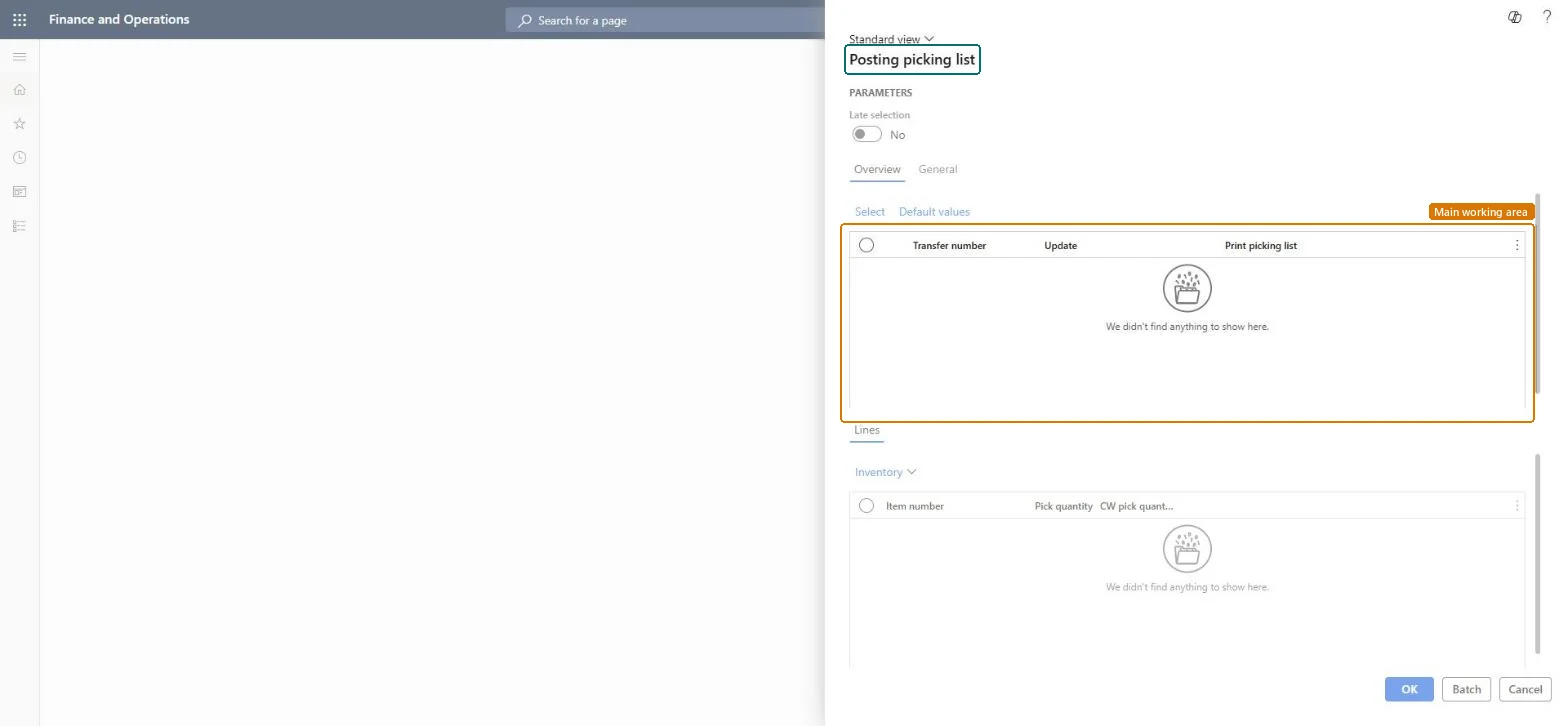
A dialog titled Posting picking list that lists the transfer orders and their lines to be released for picking, with an Update and a Print picking list setting for each transfer order.
PAGE GUIDEWhat the page does and how to use it7 sections. Choose a role to highlight what matters to you.
Everyone
1What it is and why
What it is
A dialog titled Posting picking list that lists the transfer orders and their lines to be released for picking, with an Update and a Print picking list setting for each transfer order.
What you do here
Use this dialog to choose which transfer orders and lines to release for picking and whether to print the picking list, and then run it now or as a batch.
The page in Dynamics 365. page title tab to open what to set or check
Inventory management › Periodic tasks › Transfer update › Release for picking
End user · Functional consultant
3How to do it
About the examples: Examples and screenshots in this guide use BEAT, a demo company in a Dynamics 365 test environment. Use your own company's codes and values instead of copying them.
When to run it
When to run it
When transfer orders are ready to be picked at the shipping warehouse and you want picking lists for several orders at once.
How often
On demand, or as a recurring batch for each picking round.
What the output shows
Picking lists, shipments and output orders for the selected transfer orders, printed when Print picking list is set. A transfer order without a list usually had Update off or nothing to pick.
Go to Inventory management > Periodic tasks > Transfer update > Release for picking.
Set Late selection, and on the Overview tab select Select to choose the transfer orders, or Default values to set defaults for the run.
In the list, check each Transfer number and set Update and Print picking list for it.
In the Lines section, check the Item number, Pick quantity and CW pick quantity of each line.
Run it now, or select Batch to run it in the background, then open the picking lists. With Picking route status Completed, picking is done as part of creating the list.
Partly: Picking list quantities can be reduced afterwards; remaining quantities follow the End output inventory order setting. Microsoft Learn
If you change it later
Creates picking lists and output orders for the selected transfer orders. Microsoft Learn
Technical architect
5Technical
Menu item
action:InventTransferPickChecked in Dynamics 365
Form
InventTransferParmPickChecked in Dynamics 365
Roles to set it up and use it
To use itWarehouse manager WMSWarehouseManagerShipping clerk InventShippingClerkGive people one of these roles. On this system, 2 roles can run this page.Checked in Dynamics 365