About the examples: Examples and screenshots in this guide use BEAT, a demo company in a Dynamics 365 test environment. Use your own company's codes and values instead of copying them.
When to run it
When to run it
When posted inventory journals have piled up and the business has confirmed they're no longer needed.
How often
Periodically, for example after a period or year is closed.
Batch settings
Run it as a batch job outside business hours.
What the output shows
Posted inventory journals of the selected types are deleted, which frees system resources. Unposted journals stay.
Go to Inventory management > Periodic tasks > Clean up > Inventory journals cleanup.
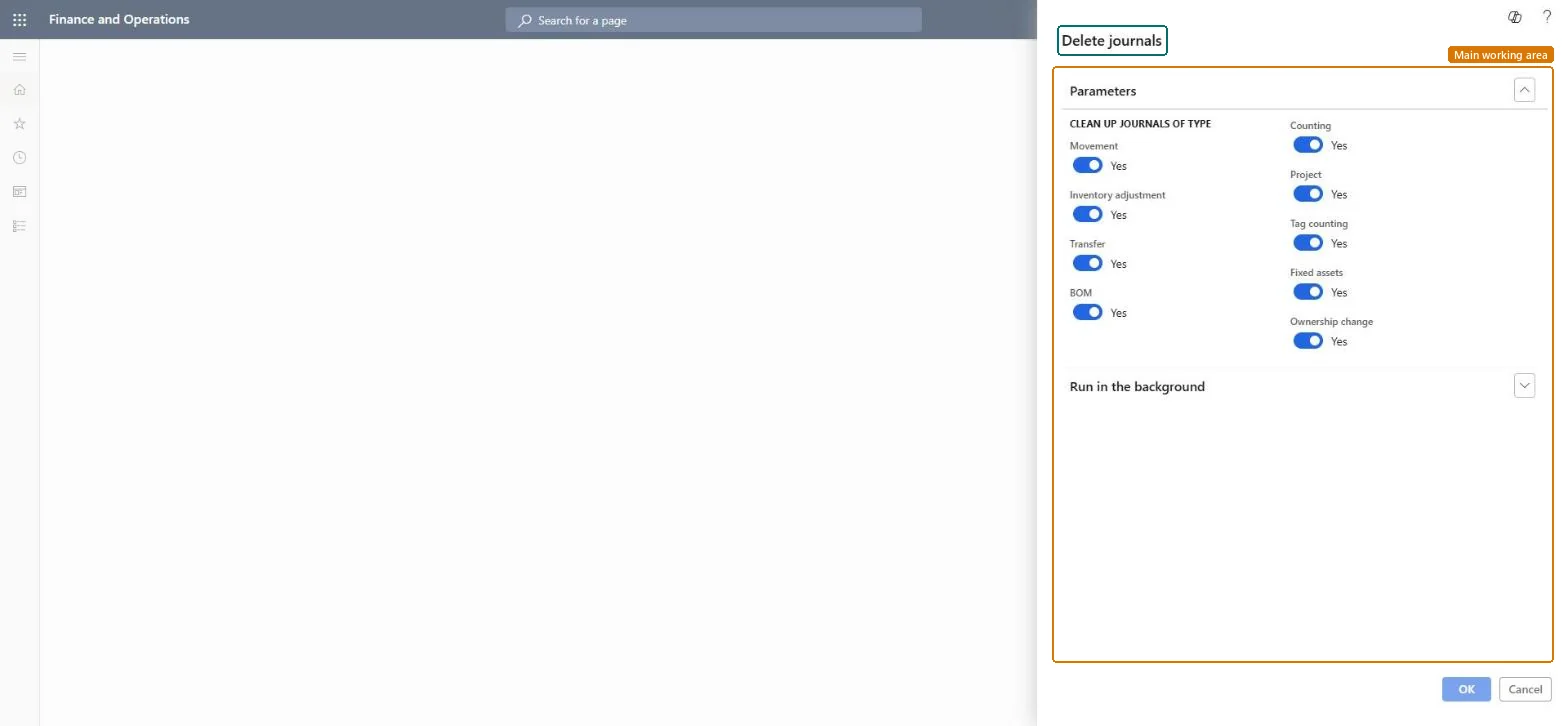
Under Clean up journals of type, set Movement, Inventory adjustment, Transfer, BOM, Counting, Project, Tag counting, Fixed assets and Ownership change to Yes only for the journal types you want to remove.
Test it in a test environment first, and run it only after the business has confirmed the posted journals are no longer needed.
Set it to run in the background outside business hours under Run in the background.
After the run, open the inventory journal list and check that only posted journals of the selected types were removed.
No: Deleted journals can't be restored. Run it only after the business has confirmed the posted journals aren't needed. Microsoft Learn
If you change it later
Deletes posted inventory journals of the selected types. Microsoft Learn
Technical architect
5Technical
Menu item
action:InventJournalCleanUpChecked in Dynamics 365
Form
DialogChecked in Dynamics 365
Roles to set it up and use it
To use itInformation technology manager SysServerITManagerGive people one of these roles. On this system, 1 role can run this page.Checked in Dynamics 365