PAGE GUIDEWhat the page does and how to use it7 sections. Choose a role to highlight what matters to you.
Everyone
1What it is and why
What it is
A periodic job that deletes on-order or ordered inventory transactions that point to posted or missing inventory journals.
What you do here
Use this periodic task to clean up leftover inventory transactions from journals, with the option to also remove unposted transactions that have no journal lines.
The page in Dynamics 365. page title tab to open what to set or check
Inventory management › Periodic tasks › Clean up › Inventory journal data correction
End user · Functional consultant
3How to do it
About the examples: Examples and screenshots in this guide use BEAT, a demo company in a Dynamics 365 test environment. Use your own company's codes and values instead of copying them.
When to run it
When to run it
When on-order or ordered inventory transactions are left behind by inventory journals that are already posted or no longer exist, and only with a good reason.
How often
Rarely, on demand, after testing in a test environment.
What the output shows
No report and no log. On-order and ordered transactions that link to posted or missing journals in the current company are deleted, plus orphan unposted ones if you chose that. Wrong on-order figures that remain usually come from another source.
Go to Inventory management > Periodic tasks > Clean up > Inventory journal data correction.
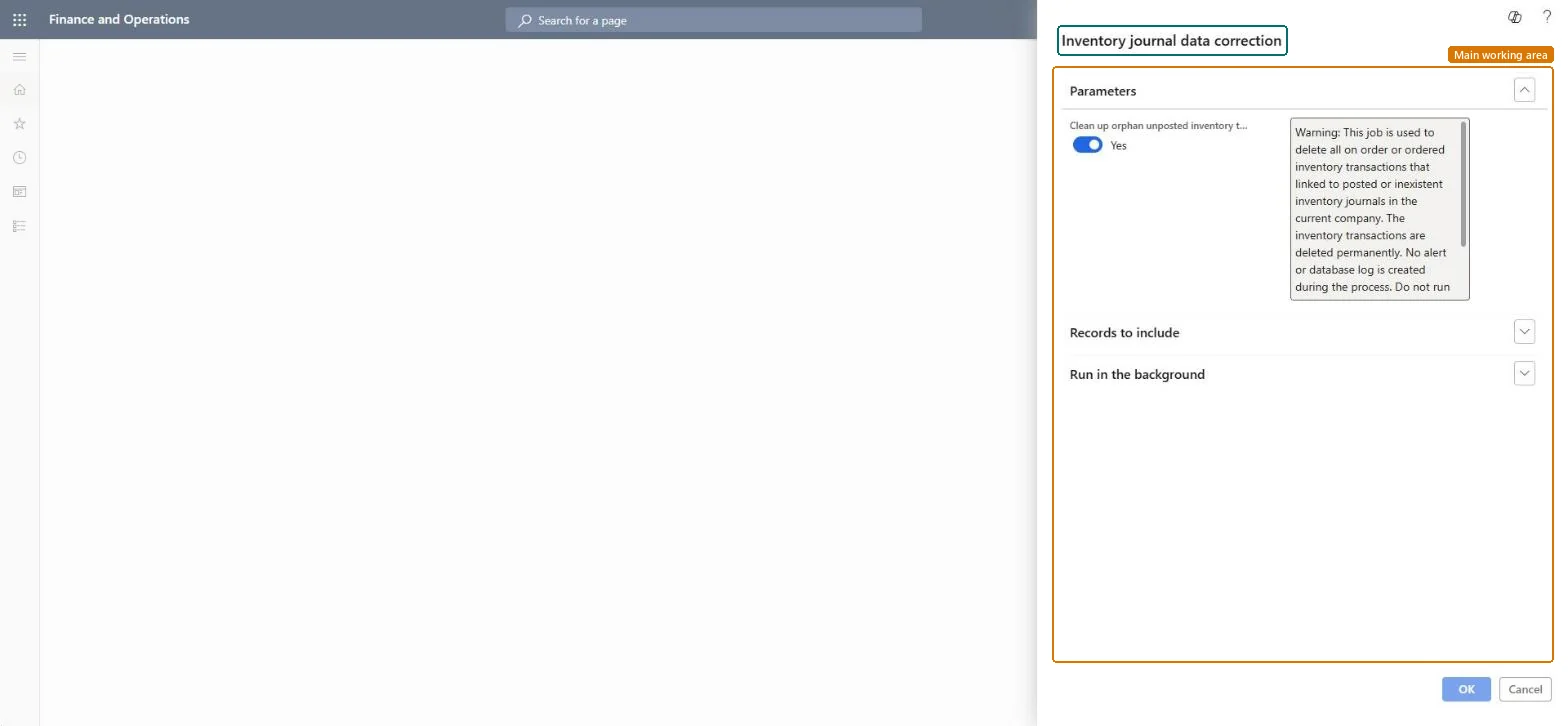
Read the warning under Parameters: the transactions are deleted for good, no alert or database log is created, and Microsoft advises testing carefully before you run it in production.
Set Clean up orphan unposted inventory transactions to Yes to also delete unposted transactions that have no journal lines, or No to delete only on-order and ordered transactions that point to posted or missing journals.
Use Records to include to limit which transactions are included, and set batch options under Run in the background.
Afterwards, open the on-order and ordered quantities of affected items: leftover transactions from posted or deleted journals no longer add to them.