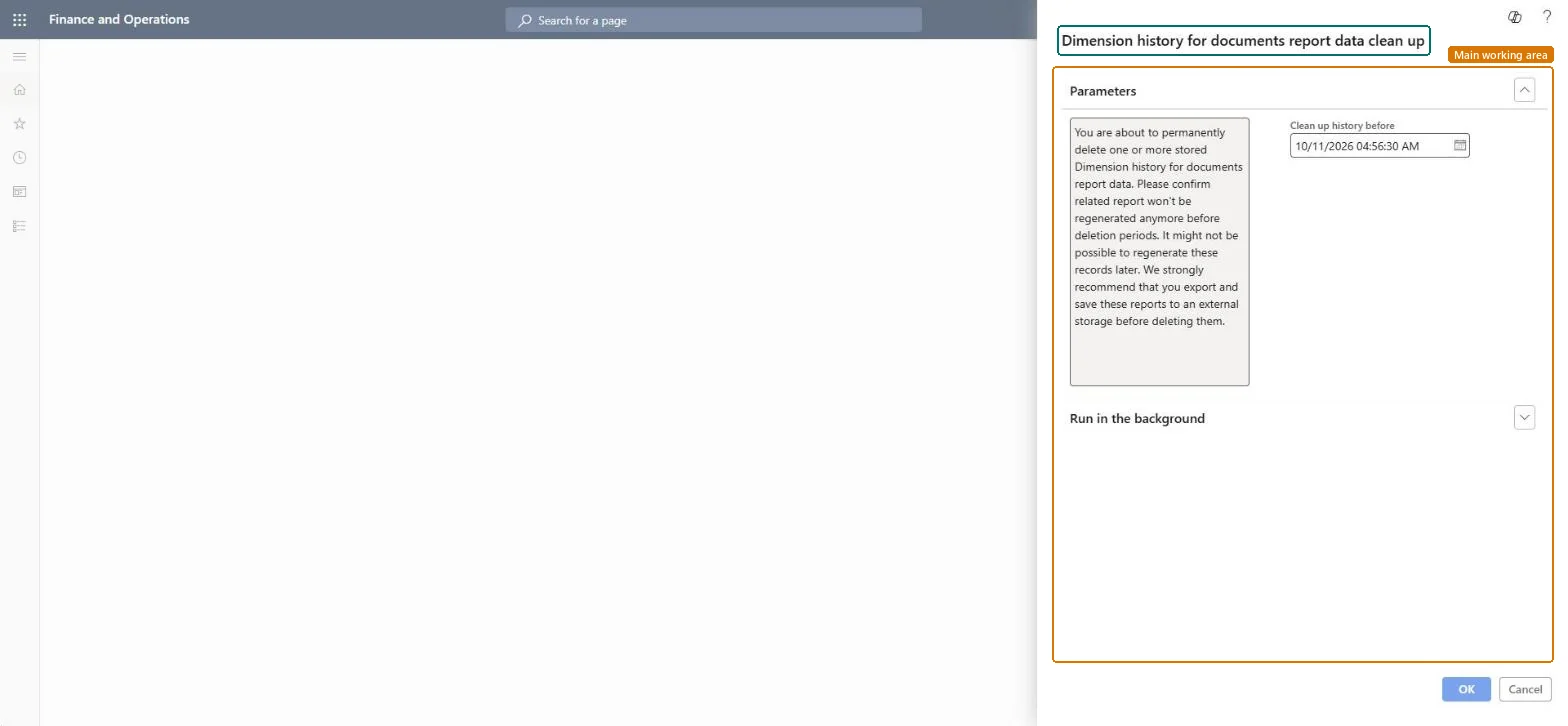
Dimension history for documents report data clean up
Inventory managementPeriodic tasksClean up
action:InventReportDimHistoryCleanUp
Business process
Manage data
Menu item
action:InventReportDimHistoryCleanUp
Show what matters for
PAGE GUIDEWhat the page does and how to use it7 sections. Choose a role to highlight what matters to you.
Everyone
1What it is and why
What it is
A periodic task dialog that permanently deletes stored Dimension history for documents report data older than a date you enter.
What you do here
Use this task to remove old Dimension history for documents report data. The dialog warns that the deleted data might not be possible to regenerate and recommends exporting the reports to external storage first.
The page in Dynamics 365. page title tab to open what to set or check
Inventory management › Periodic tasks › Clean up › Dimension history for documents report data clean up
End user · Functional consultant
3How to do it
About the examples: Examples and screenshots in this guide use BEAT, a demo company in a Dynamics 365 test environment. Use your own company's codes and values instead of copying them.
When to run it
When to run it
When stored Dimension history for documents report data is old and no longer needed, after you have exported the reports you must keep.
How often
On demand, when old report data needs to be removed.
What the output shows
No report. Stored Dimension history for documents report data before the date and time you entered is deleted. Data you didn't export first is lost.
No: Deleted report data can't be restored and might not be possible to regenerate. Export the reports to external storage first. Microsoft Learn
If you change it later
Permanently deletes stored Dimension history for documents report data older than the date you enter. Microsoft Learn
Technical architect
5Technical
Menu item
action:InventReportDimHistoryCleanUpChecked in Dynamics 365
Form
DialogChecked in Dynamics 365
Roles to set it up and use it
To use itInformation technology manager SysServerITManagerGive people one of these roles. On this system, 1 role can run this page.Checked in Dynamics 365