BeyondERP.Newsletter
Menu

Job page · Inventory management

Correct item that is not visible in released products form manually

A periodic job that fixes display problems, such as released products not showing, that can appear after a proactive quality update.

Business process
Manage data
Menu item
action:InventItemLocationRecordCorrection
Show what matters for
PAGE GUIDEWhat the page does and how to use it7 sections. Choose a role to highlight what matters to you.
Everyone

1What it is and why

What it isA periodic job that fixes display problems, such as released products not showing, that can appear after a proactive quality update.
What you do hereUse this periodic task to repair the records that make released products and e-commerce catalogs show correctly.
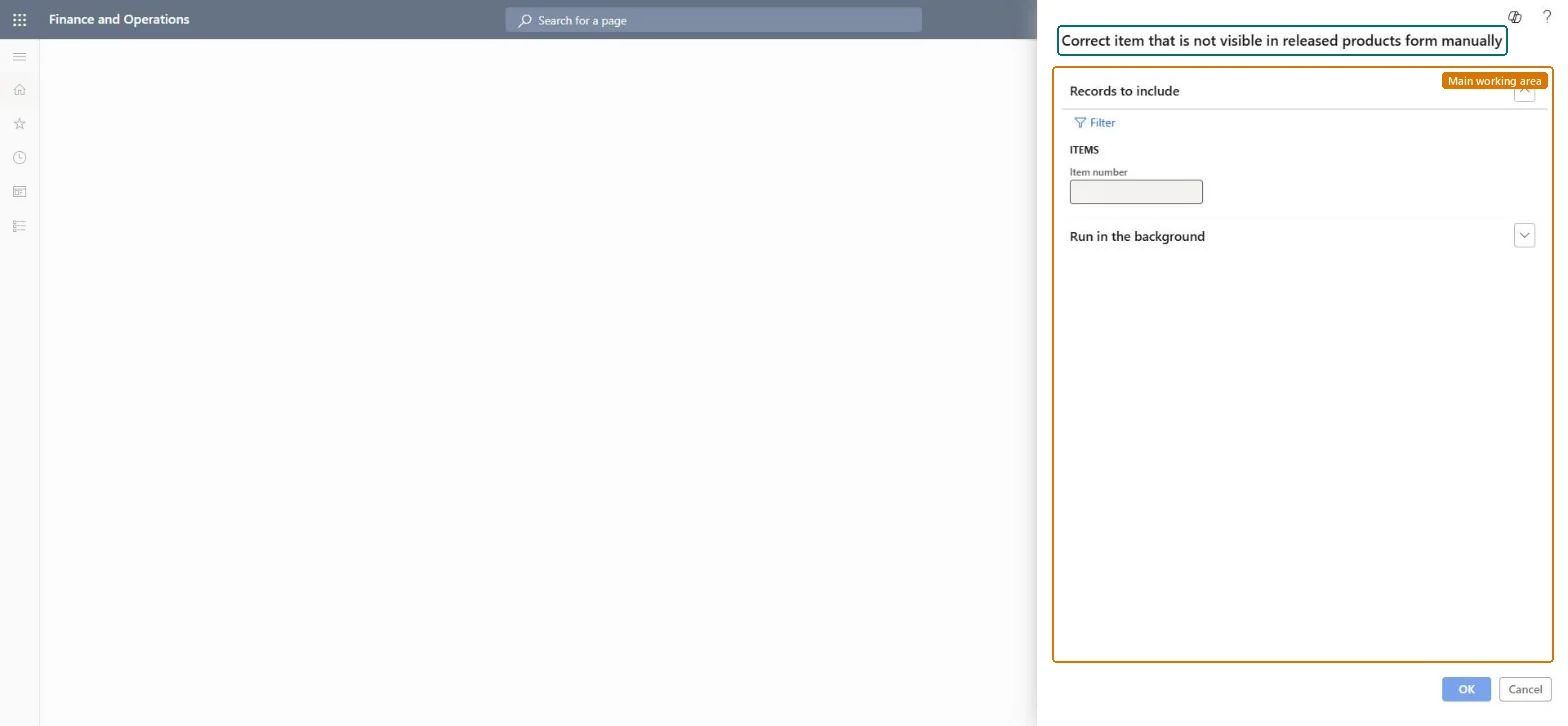
Correct item that is not visible in released products form manually page in Dynamics 365
The page in Dynamics 365. page title tab to open what to set or check
Functional consultant · Solution architect

2Where it fits

Business processManage data
Menu pathInventory management › Periodic tasks › Clean up › Correct item that is not visible in released products form manually
End user · Functional consultant

3How to do it

About the examples: Examples and screenshots in this guide use BEAT, a demo company in a Dynamics 365 test environment. Use your own company's codes and values instead of copying them.

When to run it

When to run itAfter a proactive quality update, when released products no longer display or e-commerce catalogs stop working.
How oftenOn demand, only when the display problem appears.
What the output showsThe job makes sure InventDim has a record with InventDimId AllBlank and that the item's InventItemLocation records point to it. If the item still doesn't show, the problem has another cause.
Source: Microsoft Learn

Steps from Microsoft

  1. Go to Inventory management > Periodic tasks > Clean up > Correct item that is not visible in released products form manually.
  2. Use it when released products don't display or e-commerce catalogs stop working after a proactive quality update.
  3. In Item number, enter the item that doesn't show, or select Filter to pick several items.
  4. Set batch options under Run in the background if many items are affected.
  5. Afterwards, open Released products and search for the item; it should display again, and the catalog that uses it should work.

Source: Microsoft Learn

Test checklist

  1. The item shows on Released products.
  2. The e-commerce catalog that uses the item works.

Source: Microsoft Learn

Solution architect

4Design impact

Can it be undoneNo: The job adds or relinks records; there is no step to reverse it, but it doesn't remove item data. Microsoft Learn
If you change it laterCreates the AllBlank InventDim record if it's missing and relinks InventItemLocation records to it. Microsoft Learn
Technical architect

5Technical

Menu itemaction:InventItemLocationRecordCorrection Checked in Dynamics 365
FormDialog Checked in Dynamics 365
Developer

6Developer

Open it by URLhttps://<your-environment>/?mi=action:InventItemLocationRecordCorrection
Everyone

7Sources