BeyondERP.Newsletter
Menu

Job page · Inventory management

Report as finished

A page where you report several bills of materials (BOMs) as finished in one go, without using production orders.

Business process
Maintain inventory levels
Menu item
action:BOMReportFinished
Show what matters for
PAGE GUIDEWhat the page does and how to use it7 sections. Choose a role to highlight what matters to you.
Everyone

1What it is and why

What it isA page where you report several bills of materials (BOMs) as finished in one go, without using production orders.
What you do hereUse this page to receive finished products into inventory and consume their BOM materials through a BOM journal, either manually or in a batch.
ExampleFor example, it suits simple assembly and kitting processes that don't need the more advanced features of production orders.
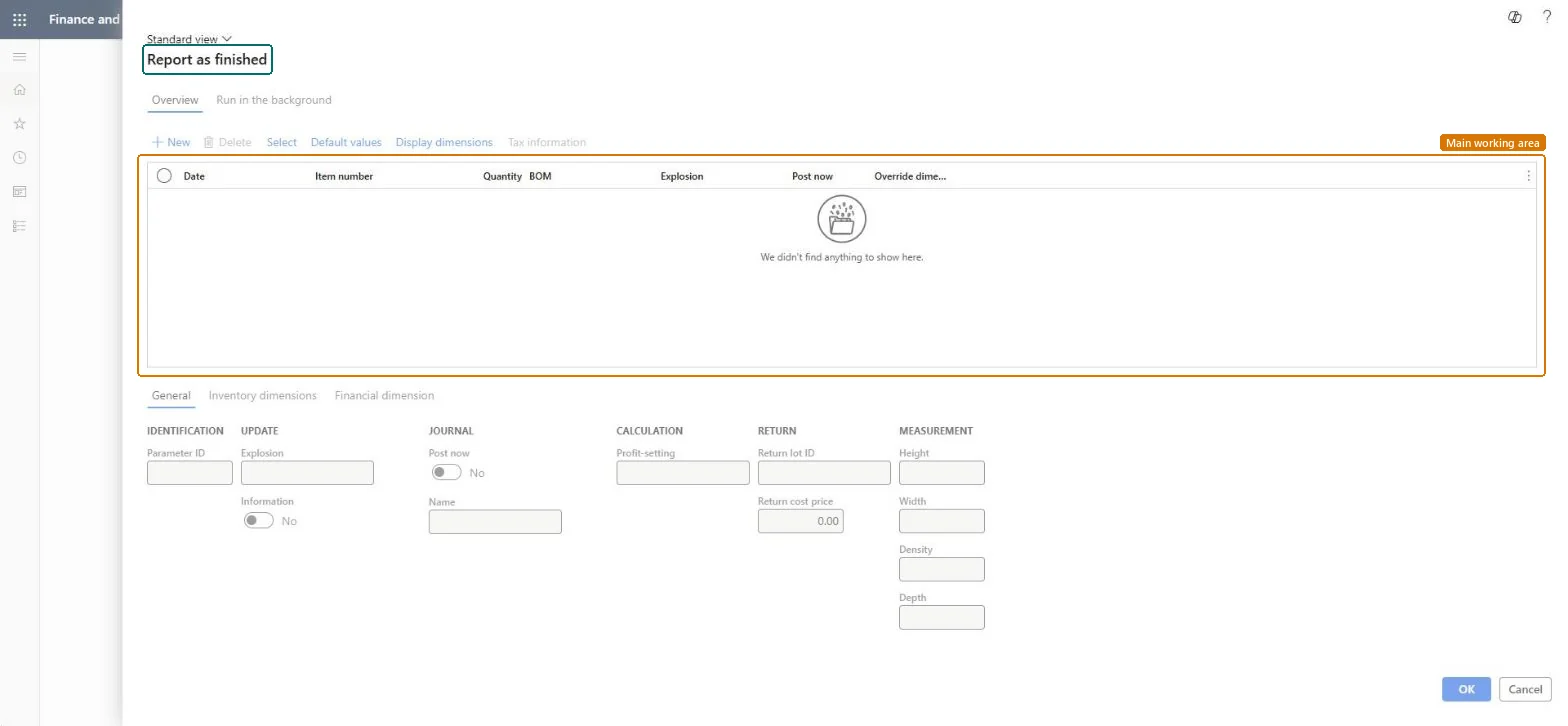
Report as finished page in Dynamics 365
The page in Dynamics 365. page title tab to open what to set or check
Functional consultant · Solution architect

2Where it fits

Business processMaintain inventory levels
Menu pathInventory management › Periodic tasks › Bills of materials › Report as finished
Used next byBills of materials journal Microsoft Learn
End user · Functional consultant

3How to do it

About the examples: Examples and screenshots in this guide use BEAT, a demo company in a Dynamics 365 test environment. Use your own company's codes and values instead of copying them.

When to run it

When to run itWhen finished products made without production orders must be received into inventory and their materials consumed.
How oftenOn demand, or as a batch after each run of assembly work.
Batch settingsSet it up as a batch for many products, and leave the journal unposted if someone must review it first.
What the output showsA BOM journal that receives the finished products and consumes the BOM materials, posted or left open as you chose. Missing component lines usually point to the BOM version selected.

Source: Microsoft Learn

Steps from Microsoft

  1. Go to Inventory management > Periodic tasks > Bills of materials > Report as finished.
  2. List the released products whose BOMs you report as finished from inventory, either one by one or with Select and a query.
  3. Check the quantity and BOM version for each product.
  4. Set Explosion to Never, Always, or only when there is a shortage, to control whether lower-level BOMs are exploded.
  5. Choose whether the BOM journal is posted automatically or left open, then run it or set it up as a batch.
  6. Open the BOM journal and check the finished product receipts and consumed components.

Source: Microsoft Learn

Fields on the page

FieldWhat it means
ExplosionControls whether lower-level BOMs are exploded: Never, Always, or only when there is a shortage.Microsoft Learn

Test checklist

  1. The BOM journal has a receipt line per product.
  2. Component consumption matches the BOM version.
  3. On-hand of the finished products increased after posting.

Source: Microsoft Learn

Solution architect

4Design impact

Can it be undoneYes, before posting: If the BOM journal is left open, you can change or delete its lines. Once posted, the receipt and consumption are in inventory. Microsoft Learn
If you change it laterYou can choose whether the BOM journal is posted automatically or left open for more changes. Microsoft Learn
Technical architect

5Technical

Menu itemaction:BOMReportFinished Checked in Dynamics 365
FormBOMReportFinish Checked in Dynamics 365
Roles to set it up and use itTo use itProduction supervisor ProdProductionSupervisorShop supervisor JmgShopSupervisorGive people one of these roles. On this system, 2 roles can run this page.Checked in Dynamics 365
Developer

6Developer

Open it by URLhttps://<your-environment>/?mi=action:BOMReportFinished
Everyone

7Sources