About the examples: Examples and screenshots in this guide use BEAT, a demo company in a Dynamics 365 test environment. Use your own company's codes and values instead of copying them.
When to run it
When to run it
When the best-before date of batches must be recalculated, for example after the Best before period in days of a product changed, or set to a fixed date.
How often
On demand, when best-before dates need to change.
Batch settings
Use the Batch tab only for large selections of batches.
What the output shows
Updated best-before dates on the selected batches. A batch is still sellable after this date but may have lost some original properties. A date that looks wrong usually means the batch's manufacturing date or the item's period is wrong.
Go to Inventory management > Periodic tasks > Batches > Update best before dates.
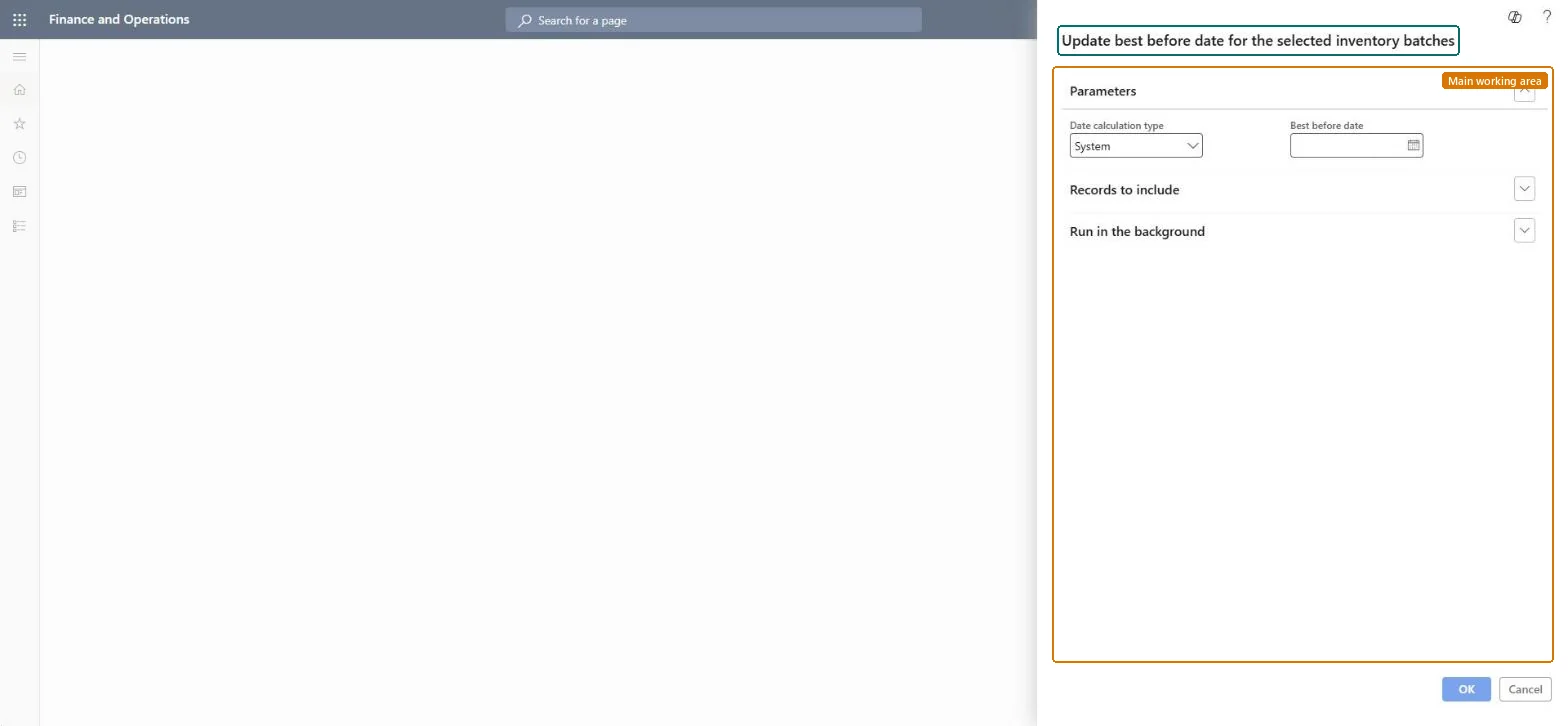
In Data calculation type, select System to calculate the date from the item's Best before period in days, or Fixed to set the same date for every selected batch.
If you selected Fixed, enter the new date in Best before date.
Select Select and filter the inventory batches to update, for example on item number.
Select OK, then open the batches and check the new best-before dates.
Yes, by running it again: Run the job again with the correct date or calculation type to overwrite the dates. Microsoft Learn
If you change it later
Changes the best-before date on the selected batches, which reports use to find inventory past its best-before date. Microsoft Learn
Technical architect
5Technical
Menu item
action:PdsUpdateBestBeforeChecked in Dynamics 365
Form
DialogChecked in Dynamics 365
Roles to set it up and use it
To use itQuality control clerk InventQualityControlClerkShipping clerk InventShippingClerkPurchasing manager TradePurchasingManagerSales manager TradeSalesManagerWarehouse worker WMSWarehouseWorkerGive people one of these roles. On this system, 6 roles can run this page.Checked in Dynamics 365