BeyondERP.Newsletter
Menu

Job page · Inventory management

ABC classification

A periodic job that sorts inventory items into A, B and C categories by value or by how often they move.

Business process
Count inventory
Menu item
action:InventABCUpdate
Show what matters for
PAGE GUIDEWhat the page does and how to use it7 sections. Choose a role to highlight what matters to you.
Everyone

1What it is and why

What it isA periodic job that sorts inventory items into A, B and C categories by value or by how often they move.
What you do hereUse this periodic task to rank items so that you can decide which ones to count more often and plan cycle counting better.
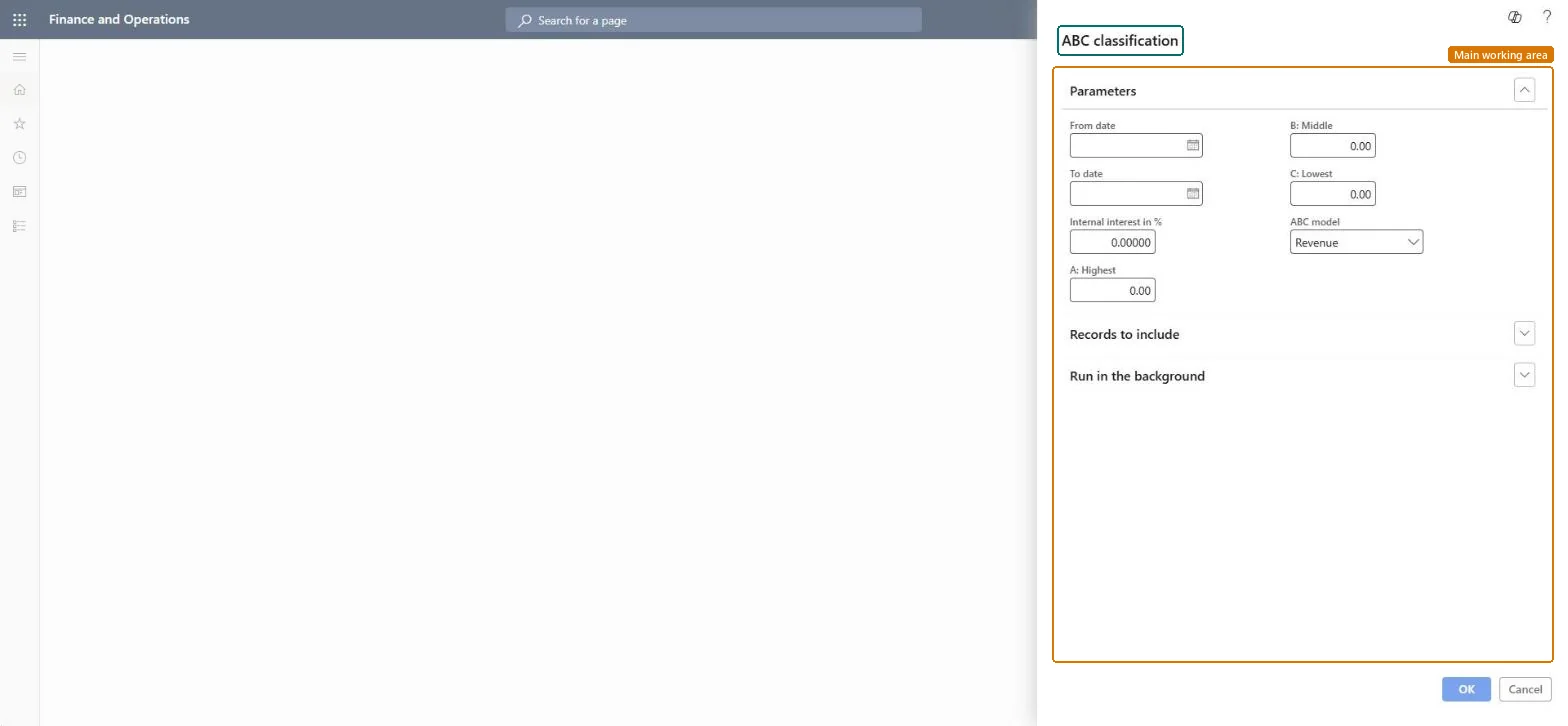
ABC classification page in Dynamics 365
The page in Dynamics 365. page title tab to open what to set or check
Functional consultant · Solution architect

2Where it fits

Business processMaintain inventory levels › Count inventory
Menu pathInventory management › Periodic tasks › ABC classification
End user · Functional consultant

3How to do it

About the examples: Examples and screenshots in this guide use BEAT, a demo company in a Dynamics 365 test environment. Use your own company's codes and values instead of copying them.

When to run it

When to run itBefore you plan cycle counting, or when the period's sales and stock data should drive a new ranking of items.
How oftenOn demand, for example once per year or season when counting plans are reviewed.
Batch settingsRun it in the background when many items are classified, so the update doesn't block your session.
What the output showsItems with an updated A, B or C class for the chosen model, which you can use to count A items more often. Unlike the ABC classification report, this task writes the classes to the items.

Source: Microsoft Learn

Steps from Microsoft

  1. Go to Inventory management > Periodic tasks > ABC classification.
  2. Enter the From date and To date of the period whose transactions the update is based on.
  3. Select the ABC model, for example Revenue, to set what items are ranked by.
  4. Enter the share for each class in A: Highest, B: Middle and C: Lowest, and the Internal interest in % used for the update.
  5. Run it, then open a few released products and check that their ABC codes changed as you expected.

Source: Microsoft Learn

Test checklist

  1. Items in the period have an A, B or C class for the chosen model.
  2. The share of items in each class roughly matches the percentages you entered.

Source: Microsoft Learn

Solution architect

4Design impact

Can it be undoneNo: The previous classes are overwritten. Run the ABC classification report first to preview the result. Microsoft Learn
If you change it laterOverwrites the ABC class on the items in the selection. Microsoft Learn
Technical architect

5Technical

Menu itemaction:InventABCUpdate Checked in Dynamics 365
FormDialog Checked in Dynamics 365
Roles to set it up and use itTo use itInventory accountant clerk InventCostCostClerkInventory accountant InventCostAccountantGive people one of these roles. On this system, 2 roles can run this page.Checked in Dynamics 365
Developer

6Developer

Open it by URLhttps://<your-environment>/?mi=action:InventABCUpdate
Everyone

7Sources