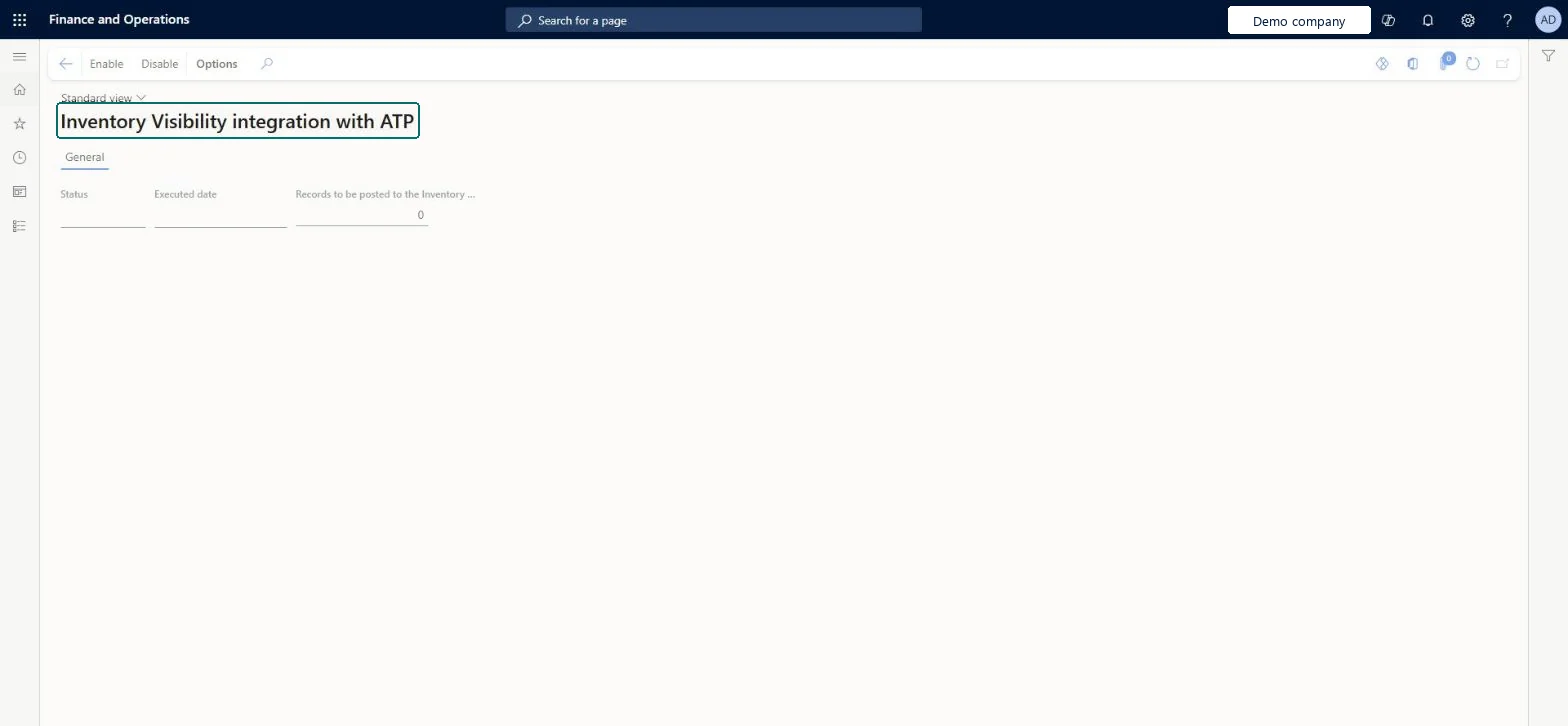
A setup page where you enable the integration that brings expected inventory issues and receipts from Supply Chain Management into Inventory Visibility for available-to-promise (ATP) calculations.
PAGE GUIDEWhat the page does and how to use it8 sections. Choose a role to highlight what matters to you.
Everyone
1What it is and why
What it is
A setup page where you enable the integration that brings expected inventory issues and receipts from Supply Chain Management into Inventory Visibility for available-to-promise (ATP) calculations.
What you do here
Use this page to turn on the exchange of ATP information between Supply Chain Management and Inventory Visibility, including posting updated schedules back.
Example
For example, users who work in an external system can see future inventory availability and make accurate projections about when orders can be delivered.
The page in Dynamics 365. page title tab to open what to set or check
Inventory management › Inventory visibility › Inventory Visibility integration with ATP
End user · Functional consultant
3How to do it
About the examples: Examples and screenshots in this guide use BEAT, a demo company in a Dynamics 365 test environment. Use your own company's codes and values instead of copying them.
Step by step, with screenshots
Set up Inventory Visibility integration with ATP1 screen
Use this page to turn on the exchange of ATP information between Supply Chain Management and Inventory Visibility, including posting updated schedules back.
Screen 1
Turn on the ATP exchange with Inventory Visibility
Go to Inventory management > Inventory visibility > Inventory Visibility integration with ATP
Make sure the Inventory Visibility add-in is installed and its integration is set up
Select Enable to start exchanging on-hand change schedules with Inventory Visibility
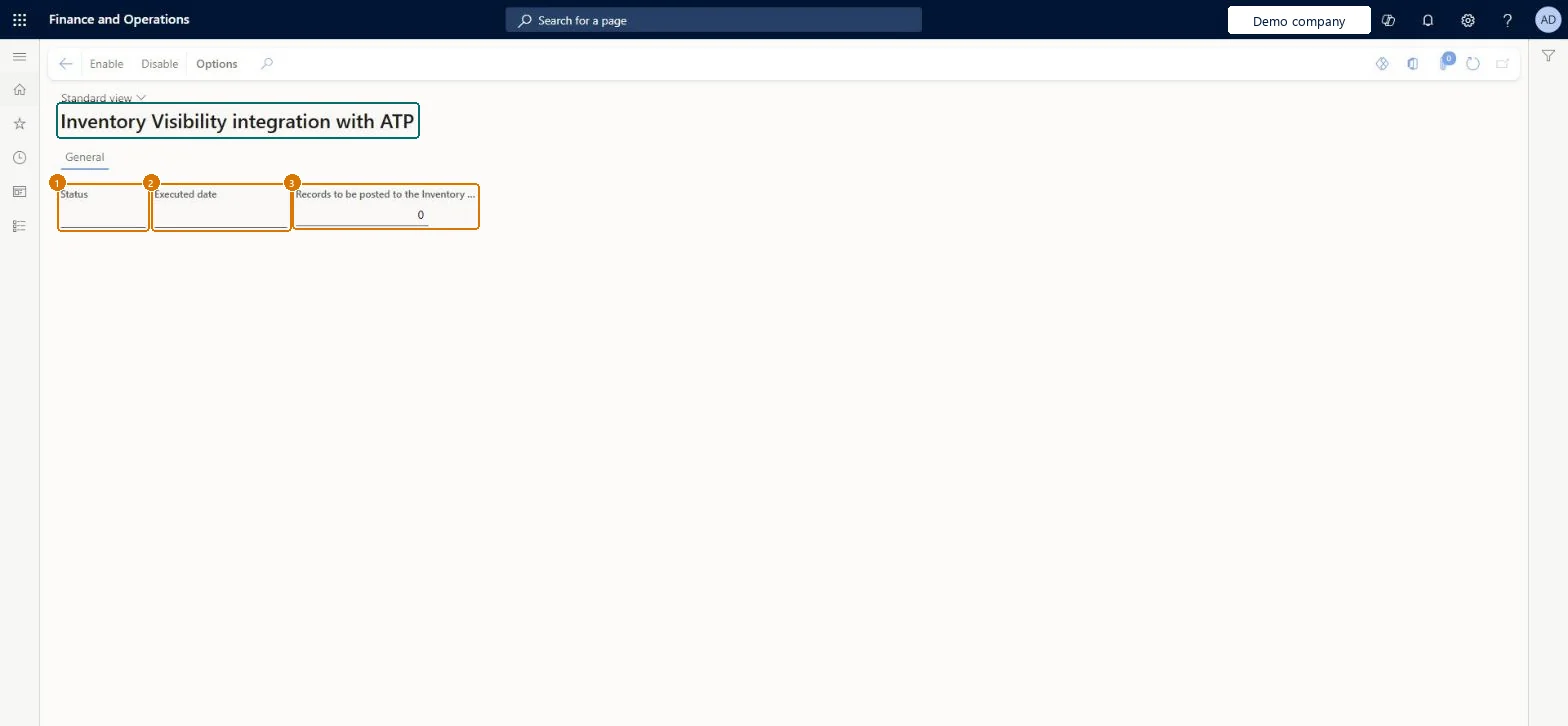
Check Status and Executed date to see when the exchange last ran, and Records to be posted to see how many changes are waiting
Select Disable to stop the exchange
1Status
(blank until enabled)
3Records to be posted to the Inventory Visibility
0
Show the full screen page title tab to open what to set or check
Steps from Microsoft
Sign in to Supply Chain Management.
Go to Inventory management > Inventory visibility > Inventory Visibility integration with ATP.
Enable, after the add-in is installed and the Inventory Visibility integration job is runningEnable brings expected issues and receipts with their dates into Inventory Visibility so its ATP can use them, and lets updated schedules be posted back to Supply Chain Management.
Enabling it on an old add-in version. Learn requires the latest Inventory Visibility version, otherwise ATP data isn't exchanged as described.Test: ATP receipts reach Inventory Visibility
Feature management and licence
Feature to turn on
Inventory Visibility integration with ATP (Mandatory, on by default)
Licence or add-in
Inventory Visibility Add-in (latest version); Supply Chain Management 10.0.41 or later
Reversible: Select Disable on the same page. The underlying feature can't be turned off from version 10.0.49, but the integration itself can. Microsoft Learn
If you change it later
The integration can be turned off again by selecting Disable on the same page. Microsoft Learn
Technical architect
6Technical
Menu item
InventInventoryDataServiceOnhandChangeScheduleChecked in Dynamics 365
Form
InventInventoryDataServiceOnhandChangeScheduleChecked in Dynamics 365
Table
InventInventoryDataServiceParametersChecked in Dynamics 365
Actions on the page
Options: Personalize, Page options, ShareChecked in Dynamics 365
Checked in a working Dynamics 365 system, version 10.0.49: the menu item, form, table and security, the page, the demo records and the values in the screenshots.